 Office Solutions Pro
Copy timeline note text into a Dataverse field with Power Automate
Convert a timeline note’s rich text to plain text and copy it into a field on the related Dataverse record so it can appear in a model-driven app view.
On this page
- Overview
- Before you begin
- 1. Enable Notes on the parent table
- 2. Create the Notes trigger
- 3. Read the note and add a table check
- 4. Convert the note Description to plain text
- 5. Retrieve the related task
- 6. Update Recent Update on that task
- 7. Save, activate and test the completed flow
- Limits and troubleshooting
A task’s timeline keeps its notes together, while a field such as Recent Update makes a note’s text visible in the task list. This tutorial builds an automated cloud flow that reads a note, converts its Description to plain text, finds the related task, and updates that field.
The flow copies the note associated with a processed event. It does not query all notes and select the newest one by date. With Added or Modified, editing an older note can replace Recent Update. Overlapping runs can also finish in a different order. Use this pattern for a convenient update summary, rather than a strict chronological “latest note” requirement.
Before you begin
Have these resources available:
- An existing model-driven app and a Dataverse task table in the same environment as the flow. The example table is Task Tracker, shown as Task Trackers in the flow’s table picker.
- An editable main form with a timeline component, plus a saved task for testing. If the timeline is missing, add the timeline control before continuing. Step 1 enables Notes for it; enabling attachments alone does not place a timeline on a form.
- An existing writable text column named Recent Update, or your equivalent. Use plain text and a maximum length that fits your expected converted notes. If it is missing, create the column first. A multiline text column suits longer updates; conversion can add line breaks, so do not size it solely from the visible note.
- A flow connection identity with Read access to the relevant Notes and task rows and Write access to the destination column and task rows. The maker also needs user-level Create, Read, Write and Delete privileges on Callback Registration, plus Notes Read access appropriate to the trigger scope. App users who add notes need the corresponding Note Create/Append and parent Read/Append To privileges. Dataverse trigger requirements and security roles describe these rights.
Licensing: Microsoft Dataverse is a Premium connector. For a standalone automated premium flow, a common licensing route is Power Automate Premium for the owner, or a Process license assigned to the flow. An eligible flow operating in the context of a Power Apps or Dynamics 365 app can use the applicable app rights; associate the flow with that app and ensure the owner has the required app license. App users still need their own applicable app rights. Microsoft’s licensing FAQ isn’t uniform for Dataverse-triggered flows: one answer lists them under the invoking user’s license, and another says each user who runs a Dataverse “Run as user” flow needs Premium unless the flow has a Process license. This flow leaves the trigger’s Run as option unset, which defaults to the flow owner. If many people will add notes, confirm the licensing with your Power Platform admin. See Power Automate licensing and Power Apps flow licensing.
Connector availability: This procedure uses Content Conversion — Html to text (Preview). Microsoft says new implementations of this connector are unavailable in GCC and GCC High; China Cloud is also excluded for Power Automate. If the action is unavailable in your environment or blocked by your organization’s connector policy, stop before building this version. An approved replacement requires a separate design. Content Conversion availability and limits
Before copying note text into a task field, confirm that the task field’s readers are allowed to see that content. The copy becomes task data and does not inherit an individual note’s separate access settings. Use a test task with non-sensitive text while building the flow.
1. Enable Notes on the parent table
Notes are stored in Dataverse’s Note table, whose logical name is annotation and collection label is Notes. Important columns are:
| Column | Purpose |
|---|---|
| Title | The note subject, not the note body |
| Description | The rich-text note body (notetext) |
| Regarding | The related record; its value is the parent record’s GUID |
| Note | The note’s own GUID, distinct from the parent GUID |
The Note table reference documents these columns.
Enabling Notes cannot subsequently be undone through the table option. Check both the table setting and the form configuration:
- In Power Apps, select the correct environment and open Solutions and your unmanaged solution.
- Open the parent task table and its table properties. The command can appear as Properties or Settings.
- If Enable attachments (including notes and files) is already selected, leave it enabled. Otherwise, select it and Save.
- Open the table’s Forms, edit the main form used by your app, and select its timeline. Under Display options > Record types shown, select Notes if it is not already selected. Save and publish the form changes, then refresh that form in the app. Confirm its timeline offers Note when you select Create a timeline record (+) before moving to the flow. Configure timeline record types
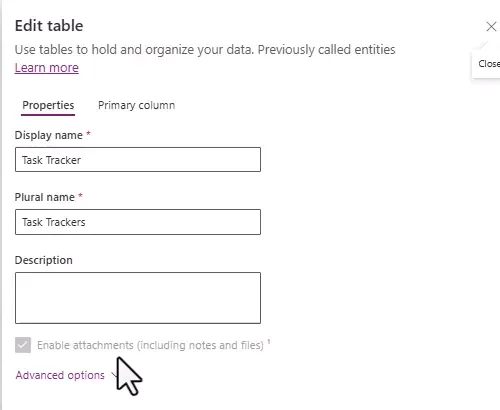
The checked, disabled option indicates that this table already has Notes enabled. Microsoft lists Notes among table options that can only be enabled.
2. Create the Notes trigger
- In Power Automate, select the same environment. Choose Create > Automated cloud flow, or create an automated cloud flow inside your solution.
- Name it Update Recent Updated Field from a Note.
- Select Microsoft Dataverse — When a row is added, modified or deleted and create the flow. Use the current Microsoft Dataverse connector.
- Configure the trigger:
| Setting | Value |
|---|---|
| Change type | Added or Modified |
| Table name | Notes |
| Scope | Organization, only if the intended automation covers notes across the environment and the connection has that access |
| Select columns | Leave blank for this initial configuration |
| Filter rows | Leave blank; the table check below controls which notes proceed |
Use a narrower scope if that matches the required ownership coverage. Scope limits monitored rows; it does not grant access. Choose Added instead if edits must not copy the note again. Neither choice handles deletion or backfills existing notes.
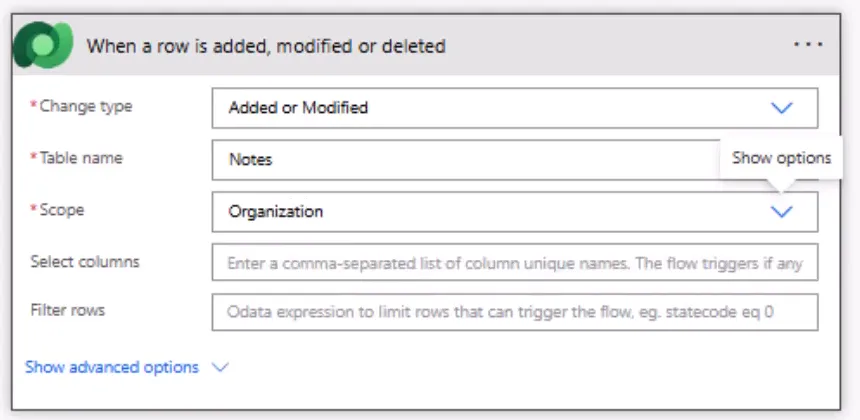
An Organization-scoped Notes trigger can receive events for other tables too. Keep the table check in the next step before any task update. Microsoft’s trigger documentation explains scope and filtering.
The screenshots show the classic designer. In the new designer, select each card and enter its values under Parameters. Use the lightning-bolt control to insert dynamic content; classic cards show Add dynamic content. Use Show all under Advanced parameters when a field is hidden.
3. Read the note and add a table check
First identify the target table using a note attached to your test task. This avoids guessing table identifiers from display names.
- Add Microsoft Dataverse — Get a row by ID directly below the trigger. Rename it Get note details.
- Set Table name to Notes. In Row ID, insert Note from the trigger’s dynamic content. Its description must identify the unique identifier of the note. Do not use Title or Regarding here.
- Save the flow. If the solution-aware designer offers Save draft and Publish, publish this initial read-only version before testing. Confirm the flow is turned on. If relying on in-context app licensing, return to the flow details page before this first test and choose Associated apps and flows > Edit > Add association. Select the app using the same data source and Save, then return to the designer. App association instructions
- Select Test > Manually > Test, then open your saved test task in the app. Create a note with a title and a short, nonempty body, and select Add note and close.
- Open the completed flow run and expand Get note details > Outputs. Record its Object Type value (
objecttypecode) exactly. Confirm that Regarding points to your test task. This is your target table’s identifier for the next comparison. If these values are missing or identify a different record, correct the note’s relationship before continuing. - Return to editing the flow. After Get note details, add Control — Condition. Insert Object Type from Get note details, choose is equal to, and type the exact Object Type value you recorded.
- Leave the False/If no branch empty. Put all remaining processing inside True/If yes.
- Inside that True branch, add another Condition. Insert Description from the Notes trigger, select is not equal to, and enter
nullthrough Expression/fx, then select Add or Update. Do not type the word null as ordinary text. Leave this condition’s False branch empty. Build Steps 4–6 inside its True branch.
Object Type is a string identifying the table associated with a note; it is distinct from the note’s GUID and the parent GUID. Reading the note retrieves this property before comparing it. The second condition prevents a null note body from reaching the converter; use actual body text for the positive test. See Note properties, condition branching, and null checks.
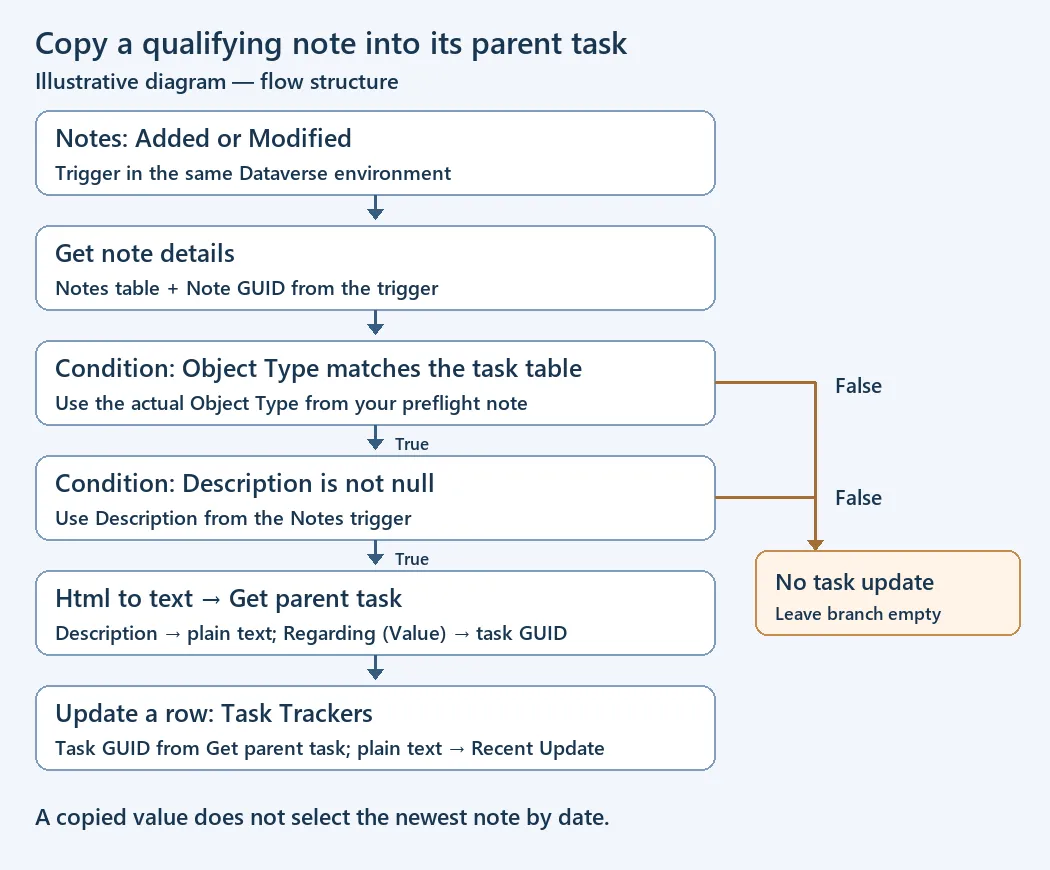
Illustrative diagram: both conditions must be True before the task update can run. An empty False branch performs no task update.
4. Convert the note Description to plain text
- Inside the inner True branch, add Content Conversion — Html to text. Its card may include (Preview).
- Select Content and insert Description from When a row is added, modified or deleted. Choose the token described as the text of the note.
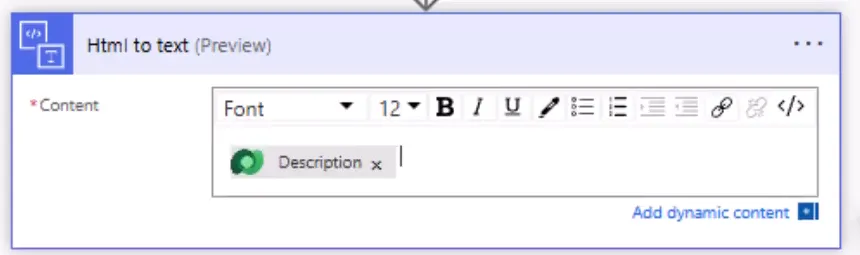
This converts the body, rather than the title. Formatting, inline images and attachment contents are not preserved as a plain-text replica. Conversion can wrap lines at 80 characters and change whitespace. The connector limits input to 5 MB and HTML depth to 70. Content Conversion behavior
Title is the note’s separate subject. This procedure copies Description, so keep its null check and conversion action together.
5. Retrieve the related task
- After Html to text, within the same True branch, add Microsoft Dataverse — Get a row by ID. Rename it Get parent task.
- Select Task Trackers, or your parent table, for Table name.
- For Row ID, insert Regarding (Value) from the Notes trigger. Choose the GUID value, rather than Regarding (Type) or Regarding (Table Name).
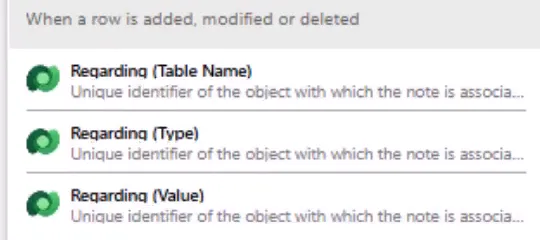
This lookup uses the note’s existing relationship to retrieve a specific parent row. Do not substitute the Note GUID. Get a row by ID requires the identifier of the row in the selected table.
6. Update Recent Update on that task
- After Get parent task, add Microsoft Dataverse — Update a row for Task Trackers. Choose Update a row, rather than Upsert a row.
- In Row ID, insert the parent table’s unique identifier from Get parent task. In this example its dynamic-content label is Task Tracker, with the description Unique identifier for entity instances. Select the identifier for your own table; do not select Task Title.
- Expand the action’s additional fields if necessary. In Recent Update, insert The plain text content output from Html to text.
- Leave other update fields unset. Do not supply explicit nulls for fields you want to keep. Retain the normal success-only dependency between these actions so a failed lookup or conversion cannot continue to the update.
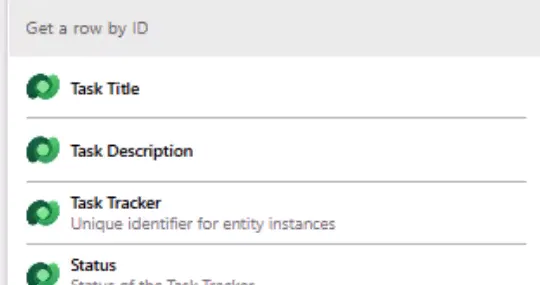
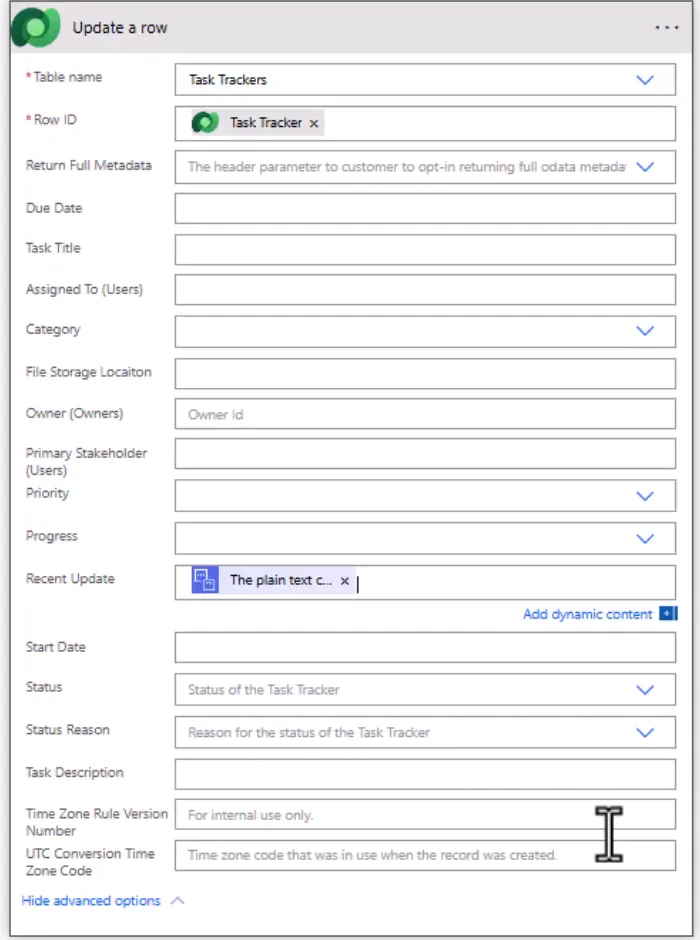
The connector reference distinguishes Update a row from Upsert a row. Microsoft’s row-update guidance explains that unset columns are skipped, while explicit null values clear them. The retained parent lookup also detects a missing or inaccessible parent before writing.
7. Save, activate and test the completed flow
- Run Flow checker and correct its errors. Select Save, or Save draft > Publish in a solution-aware designer. Saving a draft alone does not activate those changes. Return to the flow details page and confirm the flow is On.
- If using in-context app licensing, confirm the app association created before the preflight test still appears on the flow details page. Restore a missing association before running the completed flow.
- Select Test > Manually > Test. In the app, open the same saved task and create a fresh note. For example, use Title Test for Demo and body Testing the update of the recent update field. Select Add note and close.
- Inspect the completed flow run. Confirm both conditions are True, the converter returns the body as plain text, Get parent task retrieves your task, and Update a row succeeds with the expected identifier and destination value.
- Return to the task list and select Refresh after the run completes. Confirm Recent Update contains the new body text. A dashboard grid based on that view must also include the destination column; it does not gain the column merely because the flow updates it.

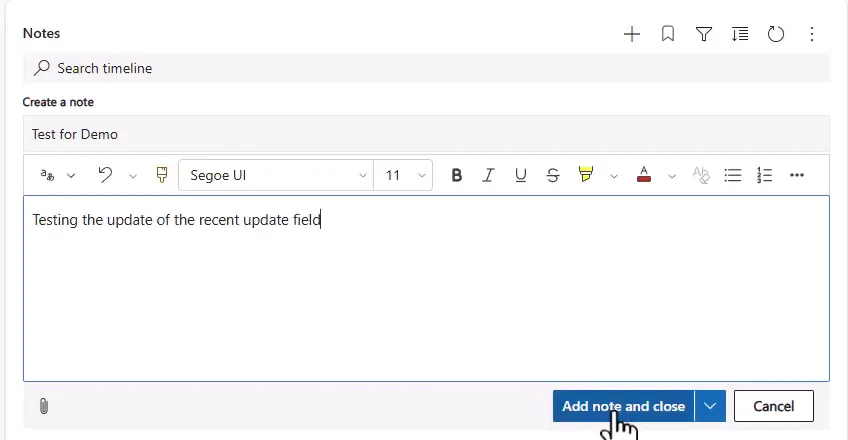
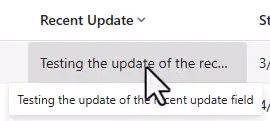
The cloud-flow designer guide covers saving, publishing, dynamic content and testing. If Recent Update is missing from your view, edit that table view to add the column, save and publish the view, then refresh the app. See model-driven app views.
Before enabling wider use, also create a note on another table and confirm the table condition is False and no task update runs. Test a note with no body and inspect the null-condition branch. If your app represents an empty body as HTML rather than null, decide whether copying its converted empty content is acceptable before using this pattern for those notes. With Added or Modified, edit an older test note and observe the overwrite behavior. Turn the flow off if any test updates an unintended row.
Limits and troubleshooting
This flow is an asynchronous copy. It does not backfill existing notes, restore a previous summary when a note is deleted, copy file contents, or enforce chronological selection. Reparenting a note can update its new parent without clearing the old parent’s copied summary. If you need a strict latest-note value, deletion reconciliation or concurrency control, design those requirements separately.
| Symptom | What to inspect and do |
|---|---|
| No flow run appears | Confirm the flow is On, publish pending changes, verify the environment and change type, and check whether the note ownership falls within the trigger scope. Have an administrator correct Callback Registration or Notes Read privileges if registration fails. |
| Task-table condition is False | Inspect Get note details outputs. Compare Object Type with the exact value from the task’s preflight note. Do not compare a display name, entity-set name or guessed publisher prefix. |
| Html to text fails or produces unexpected spacing | Confirm Content uses the Notes trigger Description and that its null check ran first. Check connector availability, policy, HTML depth and input size. Plain-text conversion intentionally changes formatting. |
| Get parent task fails | Inspect Regarding (Value), selected table and connection rights. It must identify an existing, readable row in that table. Correct the relationship or privileges; do not generate a replacement GUID. |
| Update fails with a length error | Inspect the converted output and destination column’s Max Length. Increase capacity within its supported type or use a suitable multiline column; do not silently truncate important text. |
| The run succeeds but the grid looks unchanged | Inspect the update’s actual Row ID and Recent Update input, then refresh the correct task/view. Add the column to that view if absent. An empty input or a title token is not the intended body-text result. |
| An older note replaces the summary | Added or Modified processes edits too. Use Added if edits should be ignored. For strict chronological latest-note selection, use a separate design that compares timestamps and handles concurrent runs. |
Copying to Recent Update is a normal task-row update. Review other flows or plug-ins that react to task updates, along with audit and Modified details, before enabling the automation broadly. The task update does not itself modify the Notes trigger table, but other automations can create a chain back to it.
Companion video
Video: Power Automate: Update a Dataverse Field When a Timeline Note Is Added
If the player is blocked on your network, open the video on YouTube.
Need help applying this to your own setup? Read about consulting.