 Office Solutions Pro
Count rows in Power Automate with SharePoint and Dataverse
Use length() to count the records returned by SharePoint Get items or Dataverse List rows.
On this page
- Overview
- What you’ll build
- Before you begin
- 1. Create the instant flow
- 2. Retrieve the SharePoint items
- 3. Count the SharePoint result with Compose
- 4. Retrieve the Dataverse rows and count them
- 5. Handle the pagination setting before saving
- 6. Save, test, and inspect both outputs
- 7. Make sure you counted the intended records
- Optional: use the count in a Condition
- Troubleshooting
A row count lets a flow act on how many records it found. You can check whether a matching record already exists before adding a duplicate, stop a flow when there’s nothing to do, report a number in a summary email, or confirm that a filter returns what you expect.
The key distinction is returned rows versus total stored rows. length() counts the array the connector actually retrieved. Filters, permissions, retrieval limits, and pagination determine what reaches that array. A successful flow does not prove it fetched every record in the source.
What you’ll build
This example builds Count Rows Demo in the browser, in the new designer, with this sequence:
- Manually trigger a flow
- Get items — SharePoint list
- Compose — SharePoint count
- List rows — Dataverse table
- Compose 1 — Dataverse count
This example uses a SharePoint list called Requested Projects, expected to hold 17 items, and a Dataverse table called Task Trackers, expected to hold 11 rows. The test returns 17 and 11, respectively. Your results depend on your own data and connection access.
You can use either connector independently. They appear in one flow to demonstrate the two expressions; Dataverse does not depend on the SharePoint count. No Apply to each loop is needed to count the returned array.
Before you begin
Have permission to create/edit a cloud flow and working connections that can read your chosen SharePoint list and Dataverse table. For Dataverse, the connection identity needs applicable table/record Read access; a count reflects the records it can retrieve. You do not need to create this example’s custom tables or reproduce their column schema just to count rows. Microsoft: Dataverse privileges and access levels.
Licensing distinction: SharePoint is a Standard connector; Microsoft Dataverse is Premium. A flow that uses only the SharePoint half doesn’t need a Premium license, and a Microsoft 365 license covers it. The Dataverse half needs access to premium connectors, and where that comes from depends on how the flow runs:
- Who the flow runs as. This tutorial builds an instant flow, which runs in the context of the person who starts it. Automated and scheduled flows normally run in the owner’s context instead. The connections inside the flow don’t change either rule.
- Which plan applies. Free and Microsoft 365 plans cover standard connectors only. Microsoft’s licensing FAQ gives one exception: eligible Microsoft 365 subscriptions can use premium connectors in Dataverse for Teams environments. Don’t plan around it. Another Microsoft page lists premium connectors as not included with Microsoft 365, and Microsoft has deprecated these environments, so you can’t create new ones starting November 15, 2026. Microsoft: Compare seeded licenses, Dataverse for Teams deprecation. Power Automate Premium and trial licenses include premium connectors. If an instant flow with a premium connector runs under user licenses, each person who runs it needs a license that includes premium connectors.
- Whether the flow has its own license. A Process license assigned to the flow covers premium connectors no matter who runs it. The flow must be in a solution.
- Whether the flow belongs to an app. Power Apps and Dynamics 365 licenses include premium connectors only in app context, which means the flow uses the same data sources as the licensed app. App context has its own rules, so confirm them before you rely on one of those licenses.
To see your own licenses, select Settings → View My Licenses in Power Automate. If other people will run the flow, or you’re relying on a Process or app license, confirm which case applies with your Power Platform admin. Microsoft: SharePoint connector, Dataverse connector, licensing FAQ, who needs a Premium license, seeded licenses, Process license.
Choose small test sources with known counts for your first run. Filters stay blank here; step 7 explains the limitations of doing that with large sources. Menu placement can vary with designer updates.
1. Create the instant flow
Select Create → Instant cloud flow, choose Manually trigger a flow, and select Create. Name the flow Count Rows Demo. You can also rename it in the designer. No trigger inputs are required.
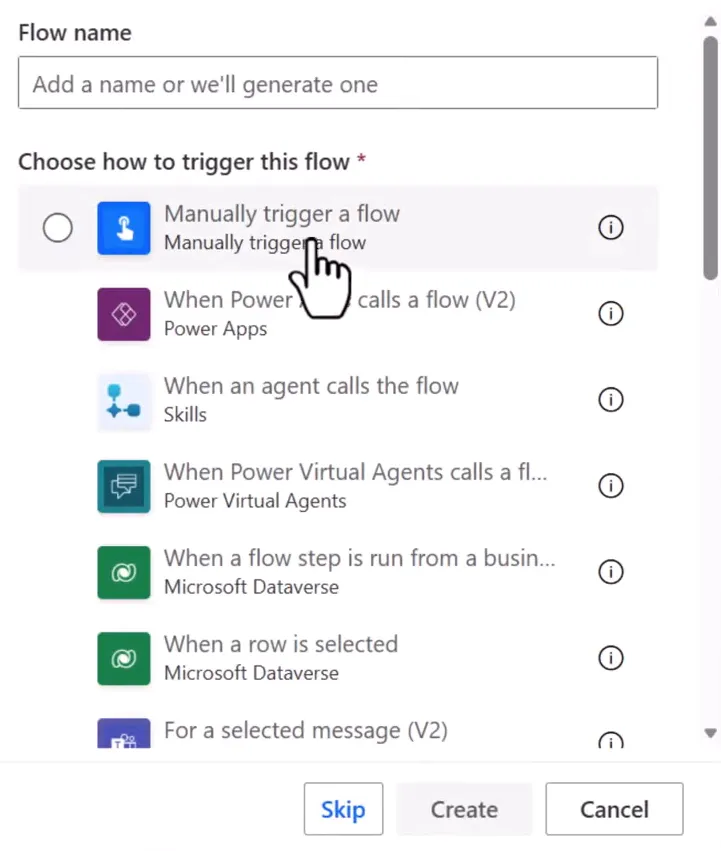
Start with a manual trigger so you can test the counts on demand.
2. Retrieve the SharePoint items
Select the plus below the trigger and add SharePoint → Get items. Choose:
| Field | Value |
|---|---|
| Site Address | The site containing your list |
| List Name | Your list; Requested Projects in this example |
Keep the action name Get items for the expression in the next step. For this small example, leave the optional filters and Top Count unset.
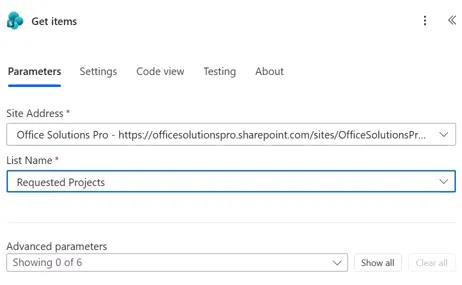
Select your own site and list. The tenant address shown is an example.
Use Get items for a list. Get item, singular, retrieves one item by ID and is a different action. Site Address and List Name are required inputs. Microsoft: SharePoint Get items.
3. Count the SharePoint result with Compose
Below Get items, add Data Operation → Compose. Select Inputs, open the fx expression editor, paste this exact expression, and select Add:
length(outputs('Get_items')?['body/value'])
Count the collection inside the connector’s response, rather than the entire response object.
outputs('Get_items') references that action’s output. The body/value path selects the row array, and length() returns its item count. length() works on arrays and strings, and outputs() works on action outputs. These functions also apply to Power Automate even though the reference is hosted under Azure Logic Apps. Microsoft: length function, outputs function.
Keep the default action name for the first test. If you rename or duplicate actions, check the actual action reference instead of assuming the old Get_items identifier still matches. Spaces in an action name become underscores in the reference, but that alone is not a guarantee for every generated or duplicated name.
4. Retrieve the Dataverse rows and count them
Below the first Compose, add Microsoft Dataverse → List rows. Set Table name to your table; this example selects Task Trackers. Keep the action name List rows and leave the optional fields blank for this small example.
Don’t choose List rows from selected environment. That’s a separate action that also asks for an environment, defaults to 2,000 rows instead of 5,000, and has a name that won’t match the expression below. Microsoft’s steps label the action List rows (Preview) in the new designer, so if your label differs, check the name on the card against the expression. Microsoft: List rows from selected environment, Get a list of rows.
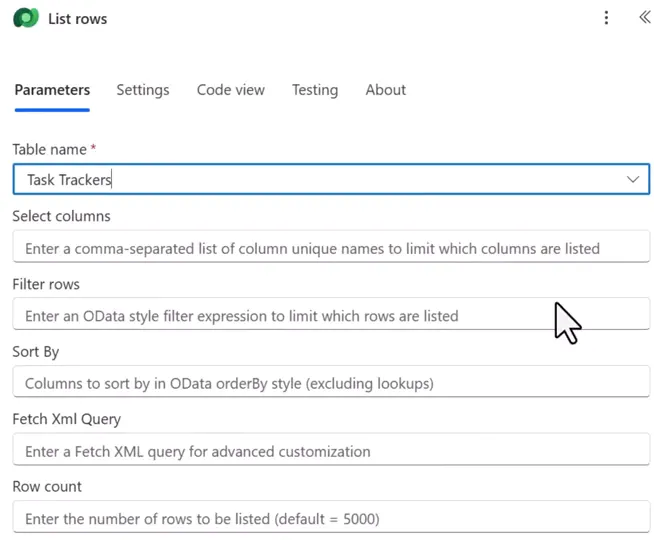
The action is List rows, with Task Trackers selected as its table.
Add another Compose after List rows. The designer names it Compose 1. Open Inputs → fx, enter the second expression, and select Add:
length(outputs('List_rows')?['body/value'])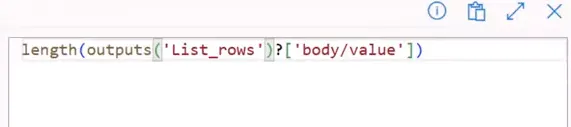
The pattern stays the same; the referenced retrieval action changes.
Do not confuse the two meanings of “row count.” The Row count field on List rows limits how many rows to retrieve; it is not an output that tells you the table total. The Compose expression counts the rows received. Microsoft: Dataverse List rows parameters.
5. Handle the pagination setting before saving
The setting is at List rows → Settings → Networking → Pagination. If you turn it on but leave Threshold blank, the designer shows an error:
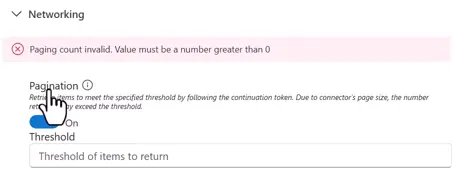
Pagination on with a blank Threshold is an invalid state.
For this small example, leave Pagination Off. Turning it off removes the error:
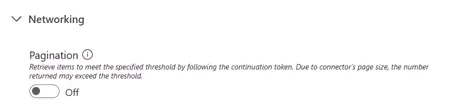
Pagination stays off for this small example.
If your query needs more than 5,000 rows, use the settings in step 7.
6. Save, test, and inspect both outputs
Select Save and inspect Flow checker. If your flow is solution-aware, the toolbar shows Save draft and Publish. A draft can’t be tested, so select Publish before you test, and again after later changes. A flow can be solution-aware without you choosing that, if your environment has the Create in Dataverse solutions setting turned on. Microsoft: Save draft and Publish, Drafts and versioning.
In this example, Flow checker shows Errors (0) and Warnings (2). The warnings recommend limiting the Get items and List rows queries.
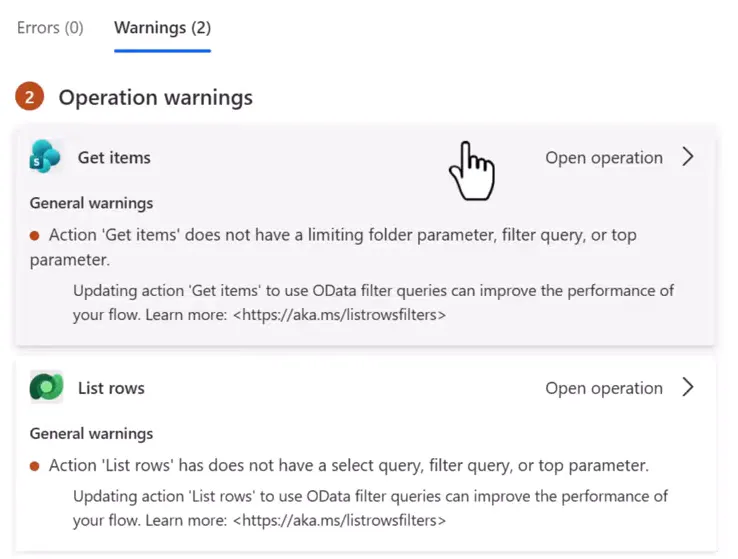
This small example continues with these warnings in place. They are not proof of complete retrieval.
Select Test → Manually → Test. Follow the connection/Continue prompts, select Run flow, and then Done. Once it finishes, open each Compose action’s Run results and inspect Outputs. Microsoft: Test button.
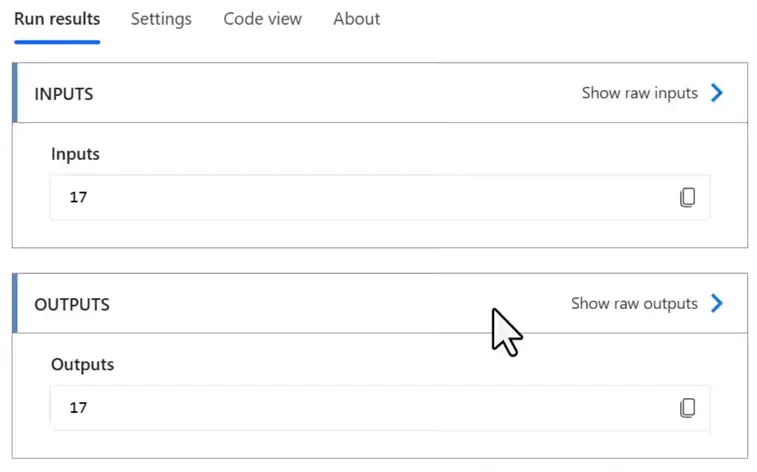
The first Compose returns 17, matching the expected SharePoint count.
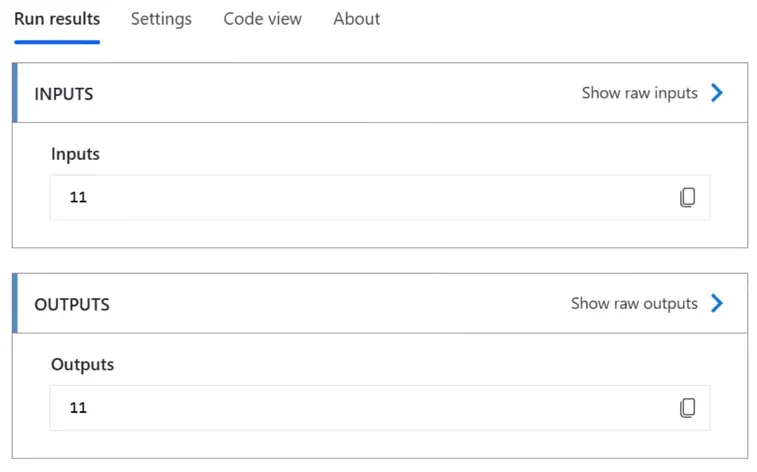
Compose 1 returns 11, matching the expected Dataverse count.
For your own validation, test a known empty result and a known nonempty result, and compare the output against the records your query is intended and authorized to return.
7. Make sure you counted the intended records
SharePoint: 5,000 is not the list’s storage limit
SharePoint’s approximately 5,000-item List View Threshold concerns query processing; it is not a maximum of 5,000 stored list items. A list or library supports up to 30 million items, with indexing and filtering among the ways to work within query thresholds. Microsoft: List View Threshold.
Limits that can shorten the count
The practical issue for this tutorial is retrieval completeness. If your source is larger than a small test list, check these limits.
SharePoint Get items
- Unset Top Count. Microsoft’s pages differ on what this returns. The connector reference says all entries, and the older Get items guidance says 100 items. An unset Top Count might not return your whole list, so compare the count with a list whose size you know. Microsoft: Top Count, Item limits.
- Larger lists. Select Get items, open Settings → Networking, turn on Pagination, and enter a Threshold above the number of items you expect. Use suitable indexed filters too. Microsoft’s pages describe this location differently, so if Pagination isn’t under Networking in your designer, check the other sections of the action’s Settings tab. In the classic designer, open the card’s … menu and select Settings. Microsoft: Exceed the page size limit (Azure Logic Apps).
- Top Count above 5,000. Microsoft’s older guidance says Top Count can go up to 5,000, and that going beyond that makes the flow fail with an error. Use Pagination for more items. Microsoft: Item limits.
- Filtered queries on lists over 5,000 items. A filtered Get items can return no records if no match is in the first 5,000 items, so your count can be 0 even though matches exist. A Condition would then treat that as no records. To fix this, turn on Pagination on Get items. Microsoft: Get items limits and known limitation.
Dataverse List rows
- More than 5,000 rows. Select List rows, open Settings → Networking, turn on Pagination, and enter a positive Threshold. In the classic designer, open the card’s … menu and select Settings. Microsoft gives a maximum configurable threshold of 100,000, and thresholds are rounded to page-size increments; for example, 7,000 rounds to 10,000 when pages contain 5,000 rows.
- Rows above your Threshold. When rows exceed your Threshold, the action gives no next-page link, so set the Threshold above the number of rows you expect. Throughput and message-size limits still apply. Microsoft: Dataverse pagination.
- Fetch Xml Query. This tutorial leaves the field blank. If you use it, Pagination doesn’t apply, so to get more than 5,000 rows you have to manage paging in the FetchXML query. List rows also can’t run FetchXML aggregate queries, so you can’t use one to get a count here. Microsoft: Fetch XML Query, Page results using FetchXML.
Both actions
Power Automate also documents paginated-item limits by performance profile: 5,000 for Low, 100,000 for other profiles. Microsoft’s pages don’t settle which profile an instant flow gets. The limits page lists Microsoft 365 plans under Low and manual flows under Medium, and it says a flow uses its owner’s plan, while the licensing FAQ says an instant flow uses the context of the person who runs it. Check the limits applicable to your flow, rather than treating 100,000 as universal, and test against a source of known size if you rely on more than 5,000. Microsoft: Concurrency, looping, and debatching limits, Performance profiles.
Filters and caps change what the number means
Use Get items → Filter Query or List rows → Filter rows to retrieve the subset you actually want, then count that subset. The flow in this tutorial leaves these fields blank. A Top Count or Row count value also caps what the action retrieves, so a count that equals that value might not be the full number. Microsoft: SharePoint query parameters, Dataverse query parameters.
For example, if your table has 8,000 matching records but the action returns only 5,000, length() returns 5,000. It cannot count rows that are absent from its input. Reaching a known retrieval cap is a reason to investigate, even when every action has a green success indicator.
Check that a count is complete
length() tells you how many records one action returned, not how many match in the source. Before you rely on the number for a large source, check it:
- Get the expected number from outside the flow, such as a list or table view with the same filter. If the two differ, also check what the connection can read.
- Treat a count of 100, 2,000, 5,000, or 100,000 as possibly cut short, even if the number looks reasonable. Do the same for a count that matches a Top Count or Row count you set, or that’s at or just above your Threshold.
- Turn on Pagination, enter a Threshold above the number you expect, and run the flow again. If the count rises, the earlier result was incomplete. If it reaches or passes the Threshold, raise the Threshold and run the flow again. If it stays below the Threshold and doesn’t land on a limit listed above, the Threshold didn’t stop retrieval.
- For Dataverse, turn Pagination off and look for
@odata.nextLinkin the List rows output. If it’s there, more rows exist than that output holds.
Microsoft: Exceed the page size limit (Azure Logic Apps), Dataverse pagination.
For very large Dataverse tables, fetching every row just to count it can be the wrong design. For an unfiltered table total, you can use RetrieveTotalRecordCount, whose data comes from a snapshot within the previous 24 hours. That is a separate API design with a freshness tradeoff, not a drop-in replacement for a current filtered query. Microsoft: Dataverse count guidance.
Optional: use the count in a Condition
The flow in this tutorial ends at Compose 1. You can use a count to decide what to do next.
To act only when the SharePoint query returned records, add Control → Condition after its Compose. Select that Compose’s Outputs as the left value, choose is greater than, and compare with numeric 0. Put the follow-up work in True (If yes in the classic designer); use False (If no) for the no-records path. For Dataverse, use Outputs from Compose 1 instead. Save and test with zero and nonzero results. Microsoft: Add a condition, Use expressions in conditions.
Troubleshooting
| Symptom | Check |
|---|---|
| Invalid action reference | Confirm the expression refers to the actual Get items or List rows action; names can change after renaming/copying, and List rows from selected environment has a different name. |
| Expression is stored as literal text | Enter the formula through fx and select Add. |
| Count is lower than expected | Check filters, connection access, Top Count/Row count, and pagination before changing length(). |
| Count stops at a familiar limit, such as 100, 2,000, 5,000, or your Threshold | Confirm whether retrieval stopped at a page or configured threshold; test completeness against known data. Turn on Pagination on the action and enter a Threshold above the rows you expect, as described in step 7. At 2,000, confirm you added List rows, not List rows from selected environment. |
| Count stops at 5,000 with a higher Threshold | Check the paginated-item limit for your flow’s performance profile, as described in step 7. |
| Count is higher than your Threshold | Retrieval works in whole pages, so the number returned can exceed the Threshold. More rows can still exist, so raise the Threshold and run the flow again. |
| Get items fails after you raise Top Count | Microsoft’s older guidance says Top Count above 5,000 fails with an error. Lower it, and use Pagination for larger lists. |
| Count stops short with Fetch Xml Query, or an aggregate query won’t run | Pagination doesn’t apply to FetchXML, and List rows can’t run FetchXML aggregate queries. Manage paging in the query. Each request returns one page, so length() on one List rows output counts only that page. |
| Count is zero | Confirm the query actually returned an empty array, the expected source was selected, and the connection can read matching records. On a filtered Get items over a list of more than 5,000 items, turn on Pagination, as described in step 7. |
length() receives the wrong type or null | Inspect the retrieval action’s output and make sure you selected the row array. A question mark in the property reference does not convert a missing array into zero. |
| Pagination reports invalid settings | Supply a valid positive Threshold when Pagination is On, or turn it Off for the small test. |
| Save draft and Publish appear, or a test doesn’t include your latest changes | If the flow is solution-aware, select Publish before you test, because a draft can’t be tested. |
The reusable pattern is to retrieve the intended rows, count the returned array, and verify the scope of that retrieval before using the number.
Companion video
Video: How to Count Rows in Power Automate | SharePoint Get Items + Dataverse List Rows. Published June 2, 2026.
If the player is blocked on your network, open the video on YouTube.
Need help applying this to your own setup? Read about consulting.