 Office Solutions Pro
Change a Dataverse record owner to a team automatically
Build a two-step cloud flow that assigns each new record to a Dataverse owner team.
On this page
A new Dataverse record can start with an individual as its owner even when a shared team manages the work. This tutorial uses Power Automate to change the new record’s Owner to Data Owner, an existing team in the example environment.
The flow contains a Dataverse trigger and one Update a row action. You copy the team’s GUID during setup and enter it as a fixed value. The flow does not search for a team at runtime, share records with other teams, or reassign existing records in bulk.
Understand what ownership changes
Team ownership can suit shared intake, processing, and review work, or provide continuity when staff change. Keep these three concepts separate:
| Field or concept | Purpose in this design |
|---|---|
| Created By | Identifies the user who created the row. Updating Owner in this flow does not replace that creation identity. |
| Owner | Identifies the current owning user or team and participates in Dataverse security. This is the field the flow changes. |
| Assigned To | An optional business-responsibility column you could add to this design. You would create and automate it separately; a custom assignment lookup does not itself grant access. |
Created By is the user who created the row, so it need not identify the person currently responsible for the work. Microsoft: system columns.
Creators can lose access after reassignment. Reassignment removes the creator’s ownership. They may retain access through roles, teams, sharing, or hierarchy. If ownership was their only route to the row, for example a role with only Basic (user-level) Read and Write on the table, they can lose access to that row once the flow runs. Microsoft: privilege and access checks.
The environment’s Share reassigned records with original owner setting, under System Settings → General, affects this. When it’s on, the previous owner keeps access through a share. When it’s off, the previous owner may not have access, depending on their privileges. Microsoft: assigning records.
Decide what submitters should still see before the flow runs on real records. This flow has no step that grants submitters access, so give them any access they still need separately. A changed Owner value doesn’t prove whether a submitter can still read or edit the record.
Team members get access to the row through team ownership, but they still need the table privilege for each action. To edit, they need Write from a role on the team or from their own role; membership alone does not establish Write permission. Microsoft: privilege and access checks.
Before you begin
This tutorial uses Power Apps in a browser and the classic-style Power Automate designer. Current tenants may show a different layout. Follow the action and parameter names below; Microsoft’s trigger guidance covers both designers. In the new designer, add an action with the plus (+) icon on the canvas instead of New step, and use Advanced parameters instead of Show advanced options. Microsoft: new and classic designer steps.
Have these items ready:
-
A Dataverse environment with permission to create a flow in a solution and a working Microsoft Dataverse connection.
-
A license that covers the Microsoft Dataverse connector, which is classified Premium in Power Automate. Free and Microsoft 365 plans can access standard connectors only. These factors decide which license counts:
- Flow type. This is an automated flow. When an automated flow uses a premium connector, the flow owner’s license normally counts, whoever adds the row and whichever connections the flow uses. If an instant flow uses a premium connector, each person who runs it needs a license that includes premium connectors.
- Trigger and Run as. One licensing FAQ answer lists Dataverse-triggered flows under the invoking user’s license. Another, about flows that run under a shared service account, says that each user who runs a Dataverse “Run as user” flow needs Premium unless the flow has a Process license. This tutorial leaves the trigger’s Run as option unset, which defaults to the flow owner. If you change that, or if many people will add rows, confirm the licensing with your Power Platform admin. In Microsoft’s multiplexing examples, someone who indirectly triggers a premium flow and gets value from it needs a Premium license too.
- Process license. A Process license assigned to the flow covers premium connectors, whatever license the owner or triggering user has. The flow must be in a solution.
- App context. A flow that supports an app built in Power Apps or a Dynamics 365 app, and uses the same data sources, can rely on that app’s license instead. For an automated flow, associate it with the app, and the owner needs a Power Apps Premium or Dynamics 365 license. A flow that’s unrelated to the app doesn’t qualify.
Microsoft: Dataverse connector, licensing FAQ, Run As, multiplexing, Process license, associate flows with apps.
-
A table with User or team record ownership, plus an app or another way to create a test row. The existing example is Facility Issue Reporting, with a Facility Issue Reports table and a model-driven app. This tutorial doesn’t cover creating them.
-
An existing owner team or Microsoft Entra group team in the same environment. The example is named Data Owner. An access team cannot own records. Microsoft: team types.
-
A security role on that team that grants at least Read on the table, because a new owner needs Read privileges to access the record. Without it, the update can fail. Configure appropriate security roles, granting only what the team needs, rather than giving the team System Administrator simply to make the example work. This tutorial doesn’t cover creating the team, configuring its roles, or adding members. Microsoft: record ownership, a team’s security roles.
-
A flow connection identity with Read, Write, and Assign rights sufficient for the rows being reassigned. If your environment has turned on AssertOwnershipAppendToAccess, the identity also needs AppendTo access on the target team. To create the trigger, you need user-level Create, Read, Write, and Delete permissions on Callback Registration, plus table Read access appropriate to the selected scope. Microsoft: trigger prerequisites, assignment rights, access rights for assigning a record.
1. Check the current owner
In Power Apps, open the existing solution and select its Facility Issue Report table. In columns and data, scroll horizontally to Owner. Before the automation, the two example rows show Travis.

Before the flow: existing rows belong to Travis. The test will add a separate new row.
2. Create the automated flow
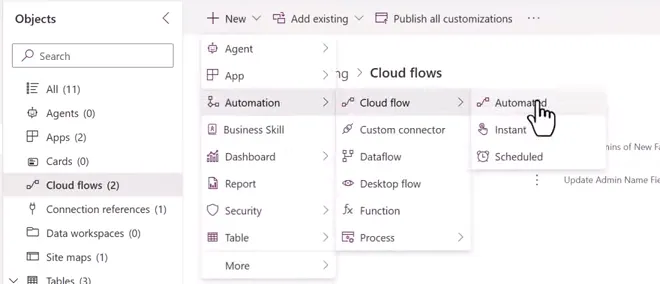
In the solution, select Cloud flows, then New → Automation → Cloud flow → Automated. In the initial Build an automated cloud flow dialog, select Skip and build the flow in the designer. Name the flow Demo Dataverse Ownership Change in the designer.
Choose the Microsoft Dataverse trigger When a row is added, modified or deleted. Configure:
| Parameter | Value |
|---|---|
| Change type | Added |
| Table name | Facility Issue Reports |
| Scope | Organization |
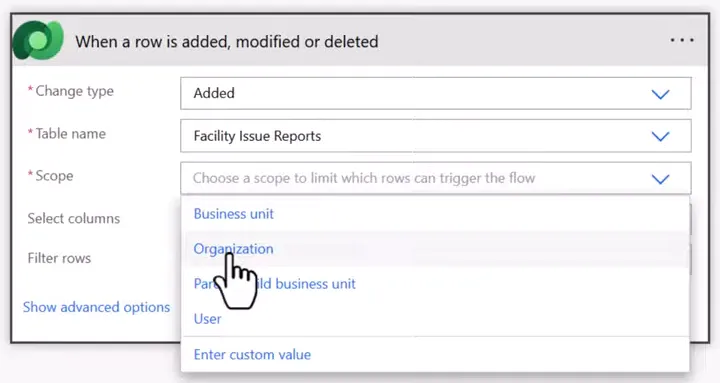
The Scope menu is open, with Organization being selected.
Added targets new rows; this is not a backfill for existing rows. Organization scope monitors the selected table across the environment, subject to the connection’s permissions. Microsoft: trigger parameters and scope.
3. Target the newly created row
Select New step, search the Microsoft Dataverse actions, and add Update a row.
Set Table name to Facility Issue Reports. For Row ID, select the trigger’s Facility Issue Report dynamic-content value, whose description is Unique identifier for entity instances. This is the new report’s GUID, not its Issue Short Name or a status value.
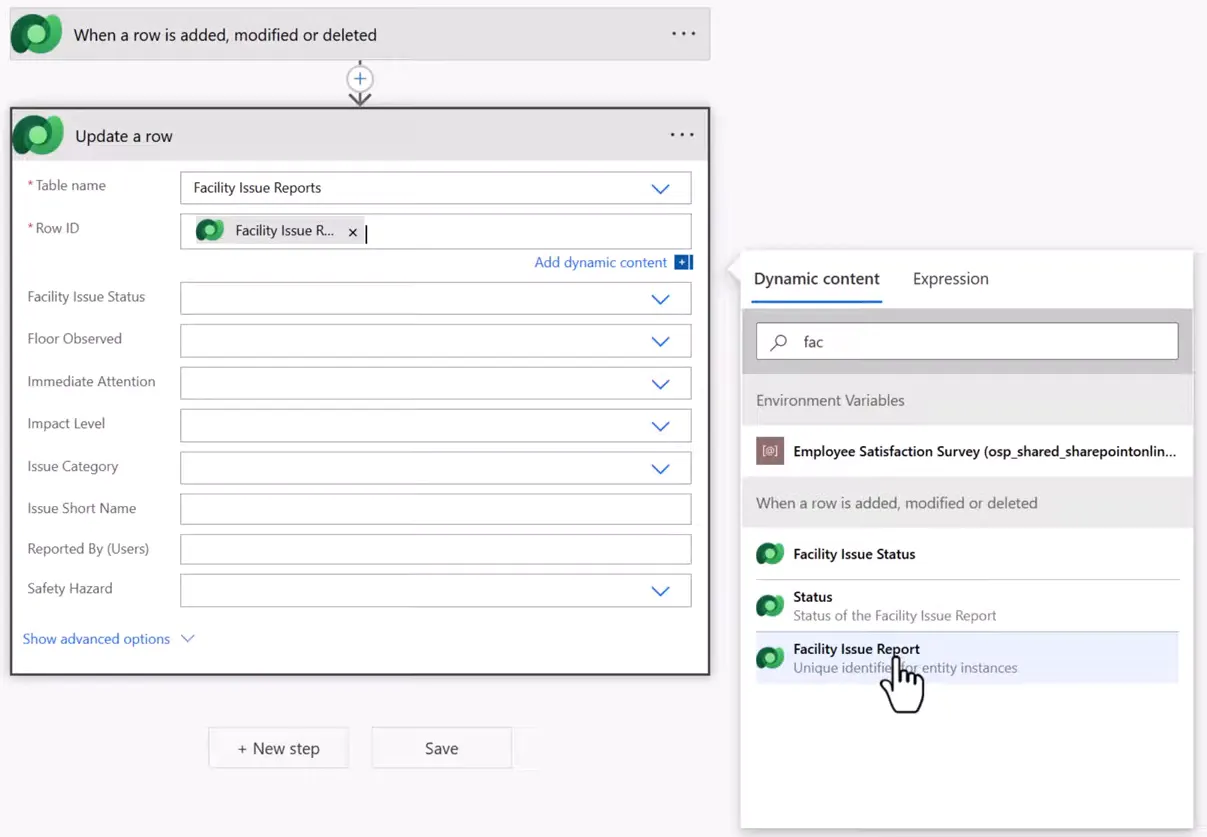
Select Show advanced options and find Owner (Owners). This flow changes this field only. Leave the other optional update inputs unset. The update action skips blank inputs unless an explicit null is supplied. Microsoft: Update a row.
4. Copy the Team entity set name and team GUID
In another Power Apps tab, stay in the same environment and open Tables → Team. If the table is hidden by the default table filter, use All and search for it.
In Table properties, expand Tools and select Copy set name. For Team, the value is teams. Microsoft: lookup fields and Copy set name.
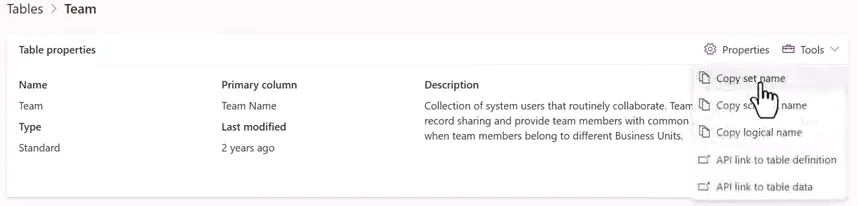
In Team columns and data, find the intended team by Team Name. In the Data Owner row, copy the GUID from the Team column.
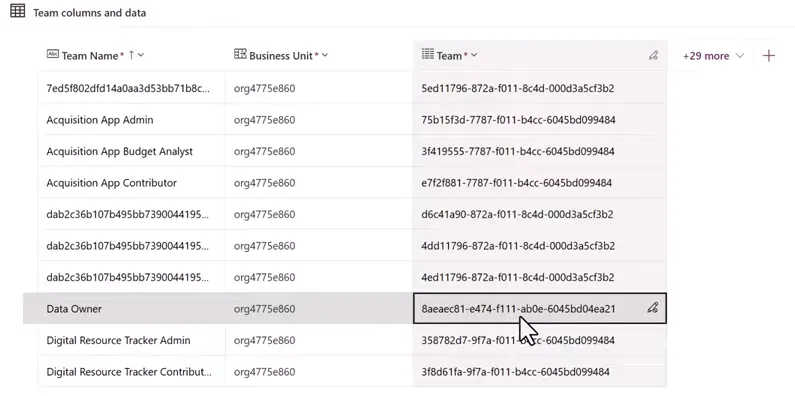
Use the Dataverse team’s primary ID, teamid. The Team entity set is teams, and its primary name is name; a team name or Microsoft Entra group object ID is not a substitute for the team row ID. Microsoft: Team properties.
5. Set Owner and save the flow
Return to Update a row → Owner (Owners). Enter the entity set name followed by the team’s GUID inside parentheses.
The value in this example is:
teams(8aeaec81-e474-f111-ab0e-6045bd04ea21)Replace the GUID with your own team’s ID. The GUID shown here identifies a row in the example environment. A team’s GUID is specific to its environment, so copy it again from each environment that runs this flow. Enter the reference as the field’s text value, without quotation marks; it is not a Power Automate expression.
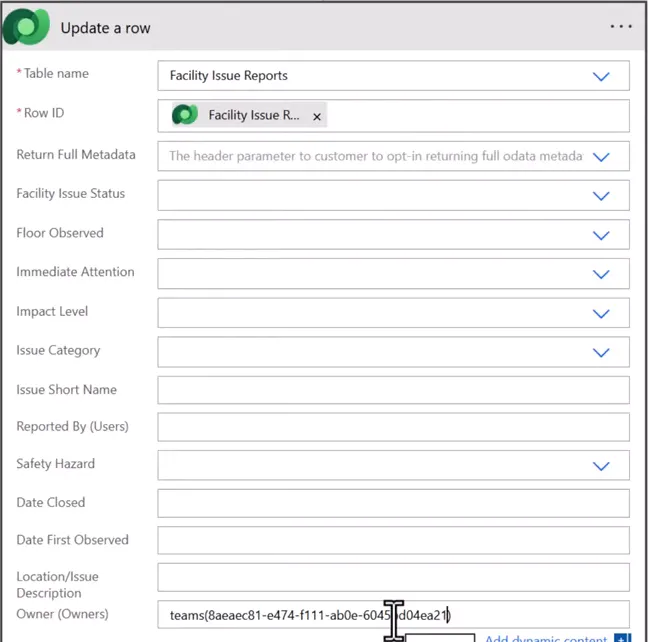
This follows the connector’s documented lookup format: entity set name, opening parenthesis, item ID, closing parenthesis. Microsoft: lookup syntax.
Select Save. Confirm the flow shows Saved before creating the test row. In the new designer, the toolbar for a flow in a solution includes Save draft and Publish. Draft changes don’t take effect at runtime until you select Publish. Microsoft: drafts and versioning.
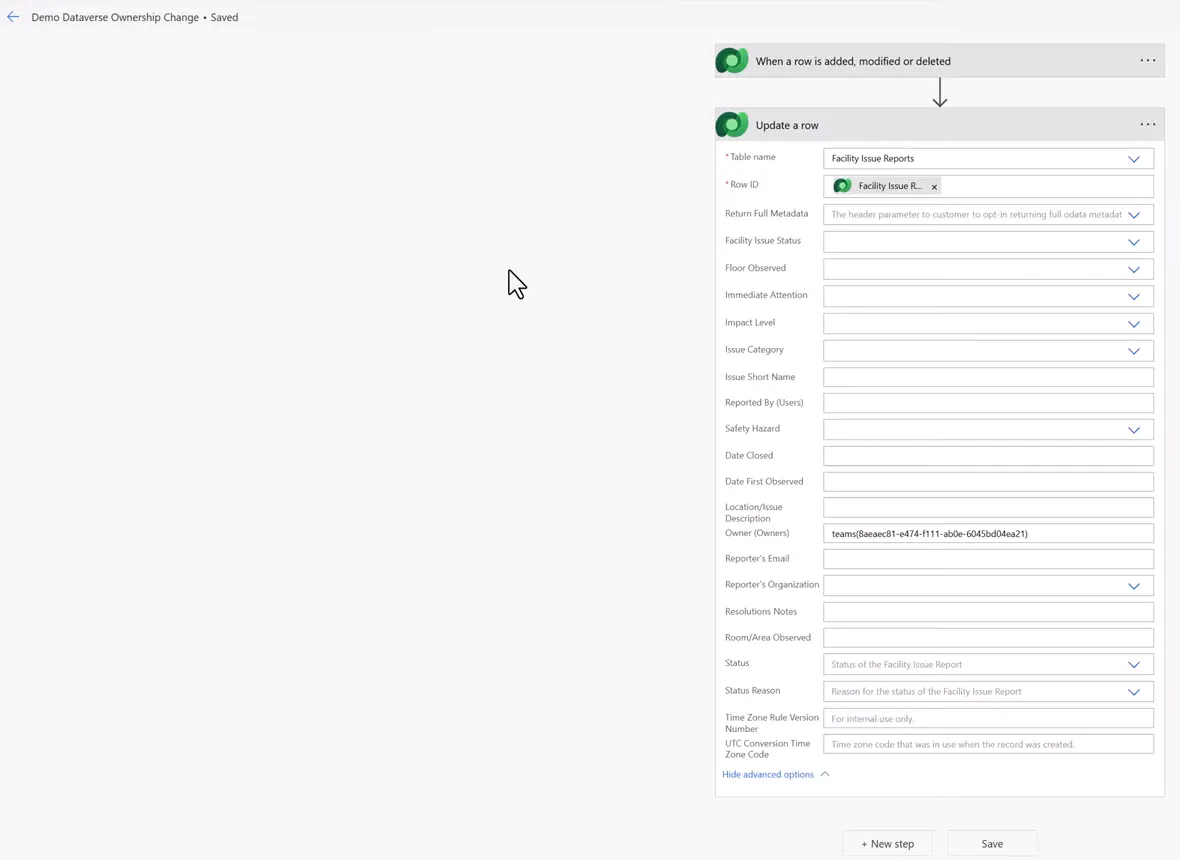
The flow saves the team reference as a fixed value. Recheck that value when deploying to another environment.
6. Create a row and check its owner
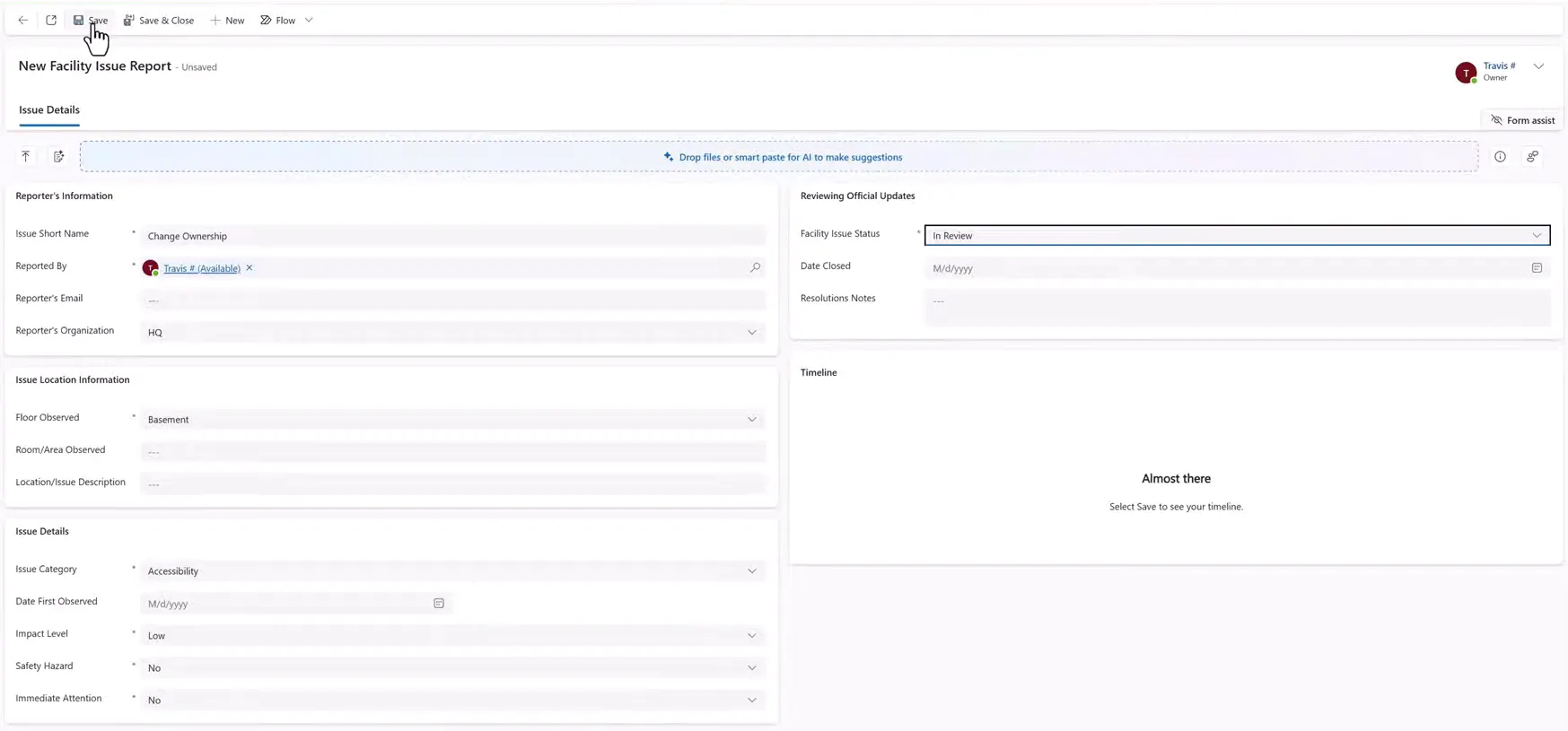
Open the model-driven app and select New to create a Facility Issue Report. Complete your table’s required fields. To match this example, use these sample values:
| Field | Sample value |
|---|---|
| Issue Short Name | Change Ownership |
| Reported By | Travis in this example; select your appropriate user |
| Reporter’s Organization | HQ |
| Floor Observed | Basement |
| Issue Category | Accessibility |
| Impact Level | Low |
| Safety Hazard | No |
| Immediate Attention | No |
| Facility Issue Status | In Review |
These values satisfy the sample app’s form; they are not routing conditions in the flow. Select Save and confirm that the row saves successfully.
Return to the table’s columns and data view. Reload the data if necessary, locate Change Ownership, and scroll right to Owner after the flow has run.


The new row belongs to Data Owner. The two older rows retain their original owner.
If the owner does not change, inspect the flow’s run history for a trigger or update failure. Recheck the table, trigger Row ID, team GUID, lookup format, connection permissions, and the team’s security role. If the error says a team is missing a privilege that begins with prvRead, give the team a role with Read on the table. Microsoft: a similar error in dual-write.
Apply the security design separately
Changing the owner doesn’t by itself decide who can read or edit a row. Test access with the actual user roles intended for your app before relying on the reassignment as a security boundary. The flow acts after the row is saved, so the creator stays the owner until the update succeeds, and a failed update leaves them as the owner.
Two other design details deserve care:
- Whether a user’s records follow them to a new business unit is configuration dependent. The settings involved include Move records to new business unit and, when cross-business-unit ownership is enabled,
AlwaysMoveRecordToOwnerBusinessUnit. Review these for rows that stay user-owned, such as rows created before this flow or rows where the update failed. Microsoft: changing a user’s business unit. - Assignment can cascade to related rows under parental relationships. Check your table’s relationship behavior if related records matter. Microsoft: assignment and cascading behavior.
The finished automation assigns newly added reports to one existing team. An optional Assigned To column, separate record sharing, and bulk reassignment are separate designs that this tutorial doesn’t build. To replace the fixed GUID with a lookup, see Build a reusable child flow to find a Dataverse team.
Companion video
Video: Power Automate Dataverse Tutorial: Change Dataverse Record Owner to a Team. Published July 1, 2026.
If the player is blocked on your network, open the video on YouTube.
Need help applying this to your own setup? Read about consulting.