 Office Solutions Pro
Group Power Automate failure handling into a scope
Move a run-link Compose, an email alert, and a failed Terminate into one Scope, configure its Run after policy, and test it with an intentional error.
On this page
A Scope groups related actions into a section you can name, collapse, expand, and troubleshoot together. This example moves an existing failure-notification sequence into Scope - Failure Processing beneath a Condition. The scope creates a link to the current run, sends an email, and ends the flow with a Failed status.
This example uses the Power Automate new designer. It builds an intentional error and a handler for it, rather than a complete production monitoring system. Scope names such as Try and Catch are conventions; the descriptive name used here works too. Microsoft: organizing related actions.
Before you begin
Use a test flow you can edit and run, plus an Office 365 Outlook connection that can send to your chosen notification recipient. The example is named Flow Failure Admin Email Demo and starts with a manually triggered flow built in Send yourself a failed flow run link in Power Automate.
The Outlook connector is classified Standard. Confirm the applicable Power Automate and mailbox entitlements for your environment. Microsoft: Outlook connector, licensing context.
1. Check the starting flow
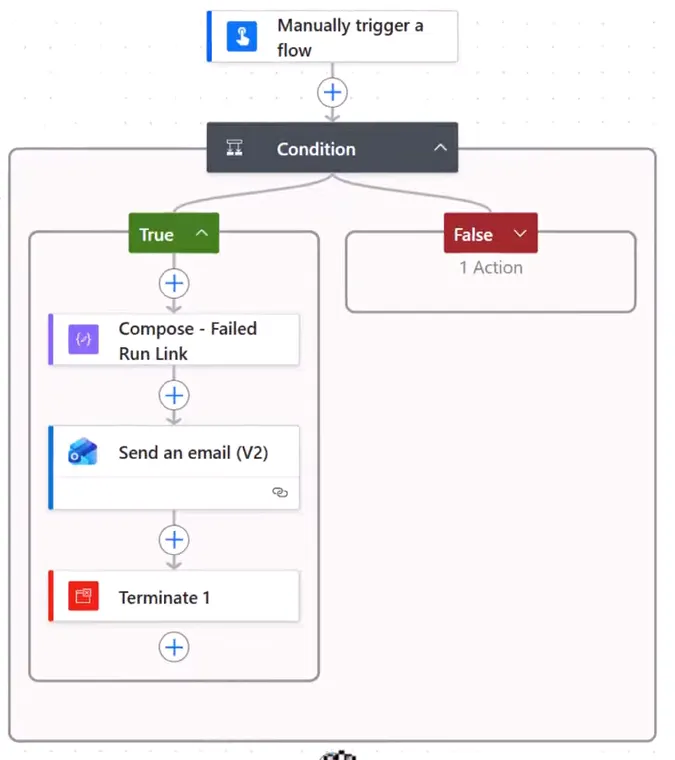
Open Flow Failure Admin Email Demo in Edit. The starting structure is:
| Part | Existing configuration |
|---|---|
| Manually trigger a flow | A Yes/No input |
| Condition | Checks whether that input equals Boolean true |
| True branch | Compose - Failed Run Link, Send an email (V2), then Terminate 1 |
| False branch | Terminate, with Status = Succeeded |
In this example, Yes selects the failure path and No selects the successful exit.
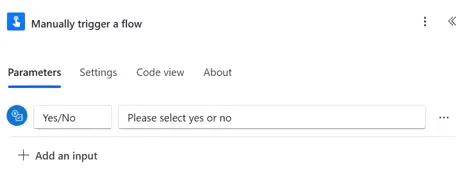
Starting without that flow: Create an Instant cloud flow with Manually trigger a flow. Add a Yes/No input, then a Condition comparing that dynamic input to the Boolean expression true. In its False branch, add Terminate → Status = Succeeded. Leave True empty until step 4, and build the handler directly in the scope in step 3. Microsoft: conditions.
2. Add and name a Scope after the Condition
Use the + below the entire Condition, outside both branches. Select Add an action, search for scope, and choose Scope under Control.
Rename it Scope - Failure Processing. It should be a sibling action after the Condition, rather than an action inside True or False. Microsoft: add a Scope.
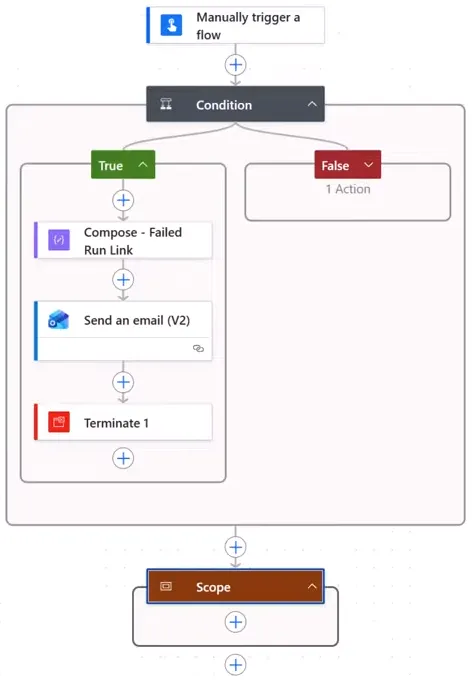
An empty Scope has no business inputs to fill in. Its useful configuration here is its contents and its Run after policy.
Variable limitation: You cannot put Initialize variable inside a Scope. Initialize variables at the flow’s global level, before the grouped work. This is different from using or updating an already initialized variable in later actions. Microsoft: initialize a variable.
3. Put the failure-processing actions inside it
If you have the existing flow, drag these three actions from the True branch into the new scope, keeping their order:
- Compose - Failed Run Link
- Send an email (V2)
- Terminate 1
Use the insertion points inside the scope. Confirm all three cards are inside its boundary and that the Condition’s True branch is now empty. The new designer supports dragging actions into drop zones. Microsoft: designer canvas.
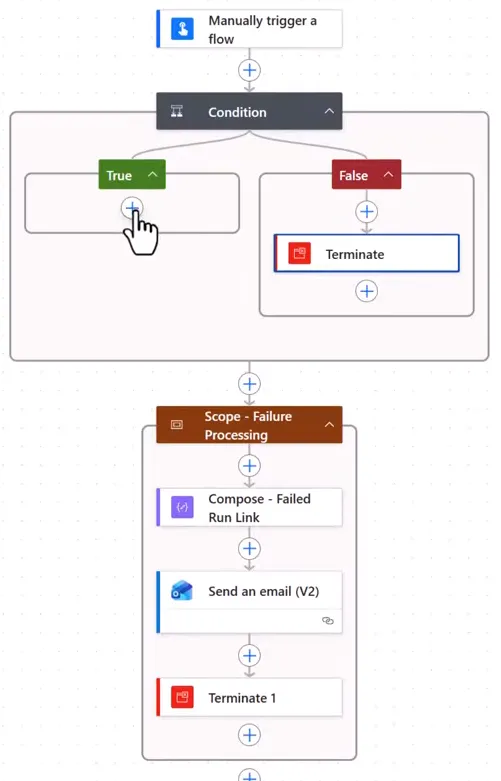
Open Terminate 1 and verify Status = Failed. This is the handler’s final action. When it runs, Terminate ends the whole flow run: it cancels anything still in progress and skips every remaining action, so nothing placed after this scope runs on that path. If you plan to reuse the handler inside an Apply to each or Do until loop, check that first, because Microsoft’s workflow schema reference for Azure Logic Apps says Terminate can’t appear inside Foreach or Until loops. Microsoft: Terminate action.
Keep Terminate → Succeeded in the Condition’s False branch; do not move that successful exit into the handler.
Check the moved actions’ dependencies and references. Compose must precede the email, and the email must use the output of the correct Compose. With the normal sequential dependency, Terminate 1 runs after the email succeeds. If an earlier handler action fails, inspect that failure rather than assuming the rest of the handler executed.
Build an equivalent handler if those actions do not exist
If you’re starting without those actions, the steps below build a minimal equivalent.
Inside Scope - Failure Processing:
- Add Data Operation → Compose, named Compose - Failed Run Link. In its expression editor, enter this commercial-portal run-link expression:
concat('https://make.powerautomate.com/environments/', workflow()['tags']['environmentName'], '/flows/', workflow()['name'], '/runs/', workflow()['run']['name'])- Add Office 365 Outlook → Send an email (V2). Set To to your process-support recipient, Subject to
Flow failure notification, and include an explanatory message plus Outputs from Compose - Failed Run Link in the body. - Add Control → Terminate after the email, name it Terminate 1, and set Status = Failed.
The expression uses Microsoft’s documented workflow properties to combine the environment, flow, and run identifiers. The flow in Send yourself a failed flow run link in Power Automate reads the flow identifier from logicAppName in the workflow tags instead of workflow()['name']. Microsoft documents both properties, so if you built that flow, keep its expression. Microsoft: workflow properties, current flow run metadata.
US government clouds use different portal addresses. Microsoft lists https://make.gov.powerautomate.us (GCC), https://make.high.powerautomate.us (GCC High), and https://make.powerautomate.appsplatform.us (DoD). If you use one of those clouds, put your portal’s address in the expression in place of https://make.powerautomate.com. Microsoft’s list gives the portal addresses only, not the path to a flow run, so confirm that the generated link opens the run. Microsoft: US Government service URLs.
Run data is kept for a limited time, so act on the alert promptly. Microsoft’s limits page lists run retention as 30 days from the run’s start, while its troubleshooting page says run data is stored for 28 days by default and older runs no longer show on the Run history page, so plan on 28 days. The link in an older alert may no longer open the run. Microsoft: Duration limits, Missing runs or triggers history.
The recipient needs run-history access, such as flow ownership or co-ownership; receiving a URL does not grant it. Run-only access does not include run history, and a co-owner can also edit or delete the flow and manage its connections, so add co-owners only where that access is appropriate. Microsoft: owners’ access, co-owner and run-only permissions.
4. Add an intentional error to the True branch
Add Data Operation → Compose inside the Condition’s now-empty True branch. Open Inputs → fx and enter this expression:
int('This is forced failure')Select Add to insert it as an expression. Do not enter it as plain text: plain text would be a successful Compose input and would not perform the conversion.
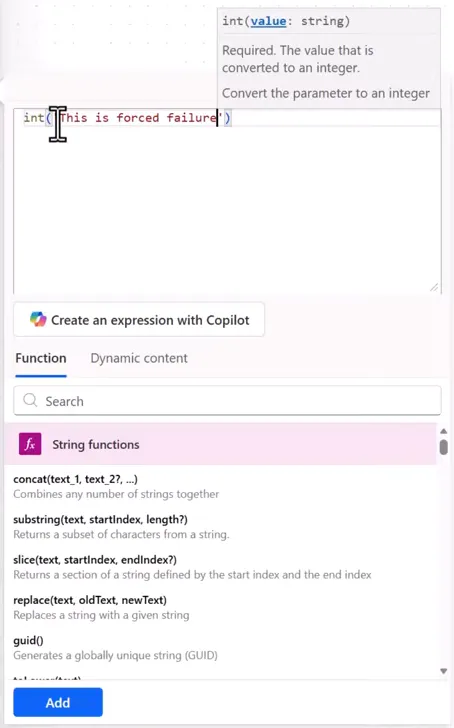
The text is deliberately not a valid integer: Microsoft’s int() function converts an integer string, and ordinary prose is not valid input. The aim is a failure in the True branch that exercises the handler without requiring a real external-service outage. Microsoft: int function.
The False branch still ends the whole flow with Succeeded. That is a controlled exit for this example, not a recommendation to terminate every successful production branch.
Save-time errors and run-time failures
The failure this tutorial needs happens when the flow runs, not when you save it.
| Question | Save-time error | Run-time failure |
|---|---|---|
| When it appears | When you select Save or Save & Test, or Publish in a solution-aware flow | During a run, on the failed action in the run’s results |
| What it means | The designer rejected something in the flow | The flow started, then the action failed |
| Effect on this test | You can’t run your changes, so the handler isn’t tested | The Compose fails, which fails the Condition, and the scope runs because of its Run after setting in step 5. This is the intentional failure |
Microsoft’s error reference says the engine validates constant expressions such as int('abc') when you save, and reports them as InvalidTemplate. So your designer may reject int('This is forced failure') when you save in step 6. If it does, use the alternative below. If it saves, you don’t need the alternative. The code alone doesn’t tell you which kind of error you have, because the example run in step 6 also reports InvalidTemplate on the Compose. Go by when the error appears. Microsoft: InvalidTemplate.
If the designer rejects the expression
If saving reports an error on this Compose, put the value in a variable. The flow reads a variable’s value when it runs, so that value can’t be checked when you save.
- Directly below the trigger and above the Condition, select +, then Add an action. Search for
initialize variableand select Initialize variable. Keep it at this level, because you can’t initialize a variable inside a Condition or a Scope. - Set Name to
input, Type to String, and Value toabc. - Open the True-branch Compose and delete its expression. Open Inputs → fx, enter this expression, and select Add:
int(variables('input'))abc isn’t a valid integer, so the conversion fails when the Compose runs. Microsoft lists int() on a variable holding a non-numeric value as a run-time error, ExpressionEvaluationFailed. Microsoft: ExpressionEvaluationFailed, initialize a variable.
The rest of this tutorial doesn’t change, so continue from where you were. The screenshots use the first expression, so they don’t show this variable, and the error on your Compose can read differently from the one in step 6.
5. Configure the scope’s Run after policy
Select Scope - Failure Processing → Settings → Run after. Under Condition, set:
| Outcome | Selected? |
|---|---|
| Is successful | No |
| Has timed out | Yes |
| Is skipped | No |
| Has failed | Yes |
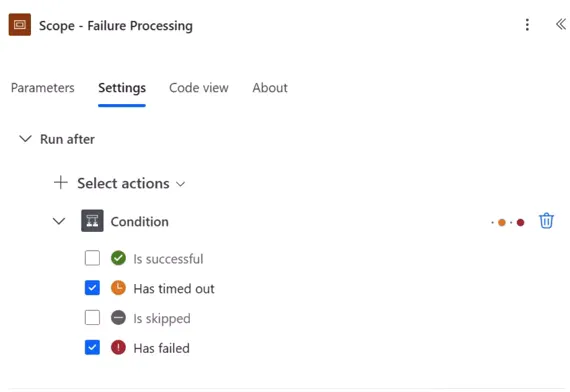
Configure the scope itself to depend on the Condition, not the new Compose inside True. Its actions then execute in their configured sequence when the scope is eligible.
This configuration permits both Failed and TimedOut and excludes success and skipped outcomes.
Choose Run after statuses for the intended situation. A skipped predecessor does not automatically mean a failure; add Is skipped only if that is part of your design. Microsoft: Run after settings.
6. Save and run the failure test
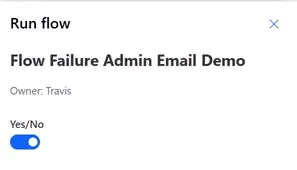
Select Test → Manually → Save & Test. In a solution-aware flow, select Publish first, because drafts can’t be tested. If saving or publishing reports an error on the True-branch Compose, that’s a save-time error. Use the alternative in step 4, then return here and select Test → Manually → Save & Test again. Microsoft: Drafts and versioning. In Run flow, set Yes/No to Yes, then select Run flow. After the run starts, select Done and inspect its results.
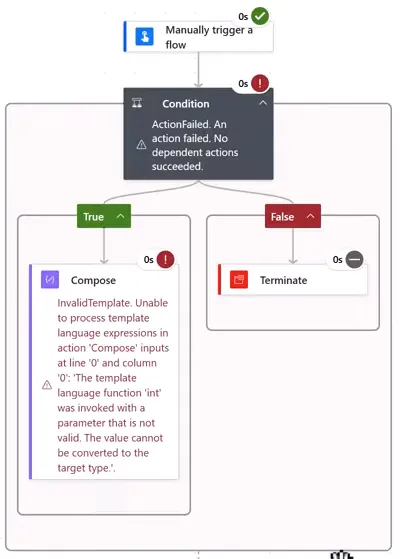
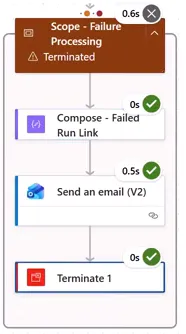
Check these points in your own run. In the example run shown here, the True-branch Compose reports an invalid int parameter. The Condition is marked failed, the False-branch successful Terminate is skipped, and Scope - Failure Processing runs.
Expand the failure scope. In the example run, its run-link Compose, Outlook email action, and Terminate 1 all execute. The scope displays Terminated, and the overall flow run is failed.
Keep each result separate
A run reports several results, and each one answers a different question. A flow that fails to save has none of these, because a save-time error stops the test before a run starts.
| Result | What it tells you | In the example run |
|---|---|---|
| True-branch Compose | Whether the forced error happened during the run | Failed with the int error |
| Condition | How the branch that ran ended | Failed, with ActionFailed, and the False-branch Terminate is skipped |
| Scope - Failure Processing | Whether the handler started. The forced error isn’t inside this scope | Ran because its Run after setting accepts a failed Condition, and displays Terminated because Terminate 1 ended the run |
| Actions inside the scope | Whether each handler step ran | The run-link Compose, Outlook email action, and Terminate 1 all executed |
| Overall flow run | How the whole run ended | Failed, the status Terminate 1 requests |
Read the two Terminate statuses correctly
Select Terminate 1. In the example run, it shows:
- Inputs → Status: Failed — the outcome requested for the overall flow.
- Properties → Status: Succeeded — the Terminate action itself executed successfully.
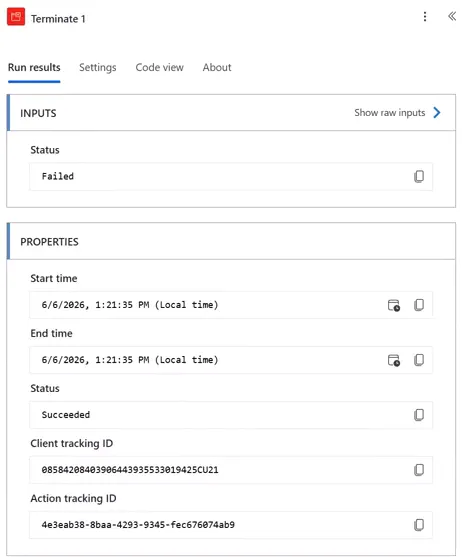
A green Terminate card therefore does not mean the overall run succeeded. Terminate → Failed ends a flow with a failed outcome. Microsoft: terminate after an error.
A green Outlook action doesn’t show that the message arrived or that its link opens the run, so check both in your own test. Also test No to confirm the successful exit.
The forced error is not a timeout, so this test doesn’t show what happens on the Has timed out path. Microsoft says a single action that exceeds its configured timeout is canceled, and that any steps still pending after the 30-day run limit time out. Before you rely on this handler for timeouts, test it with an action that can time out and check whether the scope runs. Microsoft: ActionTimedOut, run duration.
Keep the grouped flow manageable
Collapse the scope to see the flow’s main sections, then expand it to inspect the failed action or handler results. Naming sections for their purpose makes the run easier to navigate; adding a scope name to an alert can help identify the relevant section without embedding every action’s details.
Scope organization is subject to flow-definition limits. Microsoft currently documents 500 actions per workflow and eight levels of action nesting. Nested scopes count toward that depth. Microsoft: flow-definition limits.
For a larger process, group the main work separately and configure a failure-handling scope after that group. Recheck each dependency when moving or nesting actions. A Scope does not automatically catch every error merely because it exists; the Run after configuration connects it to the work it should handle.
Companion video
Video: Power Automate Scope Tutorial: Group Actions and Handle Failures. Published June 15, 2026.
If the player is blocked on your network, open the video on YouTube.
Need help applying this to your own setup? Read about consulting.