 Office Solutions Pro
Build a reusable child flow to find a Dataverse team
Replace a hard-coded Dataverse team GUID with a reusable child flow that finds the team and returns its ID.
On this page
- Overview
- Decide whether to use a child flow
- Before you begin
- 1. Review the parent flow you will improve
- 2. Create the child and initialize its return variable
- 3. Find the Data Owner team
- 4. Add a check for exactly one match
- 5. Retrieve the matching row and set TeamGUID
- 6. Return TeamGUID to the parent
- 7. Call the child and replace the fixed GUID
- 8. Test the ownership change
Hard-coding a team’s GUID into a flow can work in one Dataverse environment and point to the wrong or nonexistent record in another. This tutorial moves the lookup into a child flow. The parent calls it, receives the current environment’s team ID, and uses that value to change a new record’s owner.
The child flow you build here always looks for the team named Data Owner. It has no trigger inputs.
Decide whether to use a child flow
Use this pattern when several parent flows need the same lookup or processing steps. Other examples include notifications and shared data-processing logic. If you only need to organize actions inside one flow, a Scope may be sufficient.
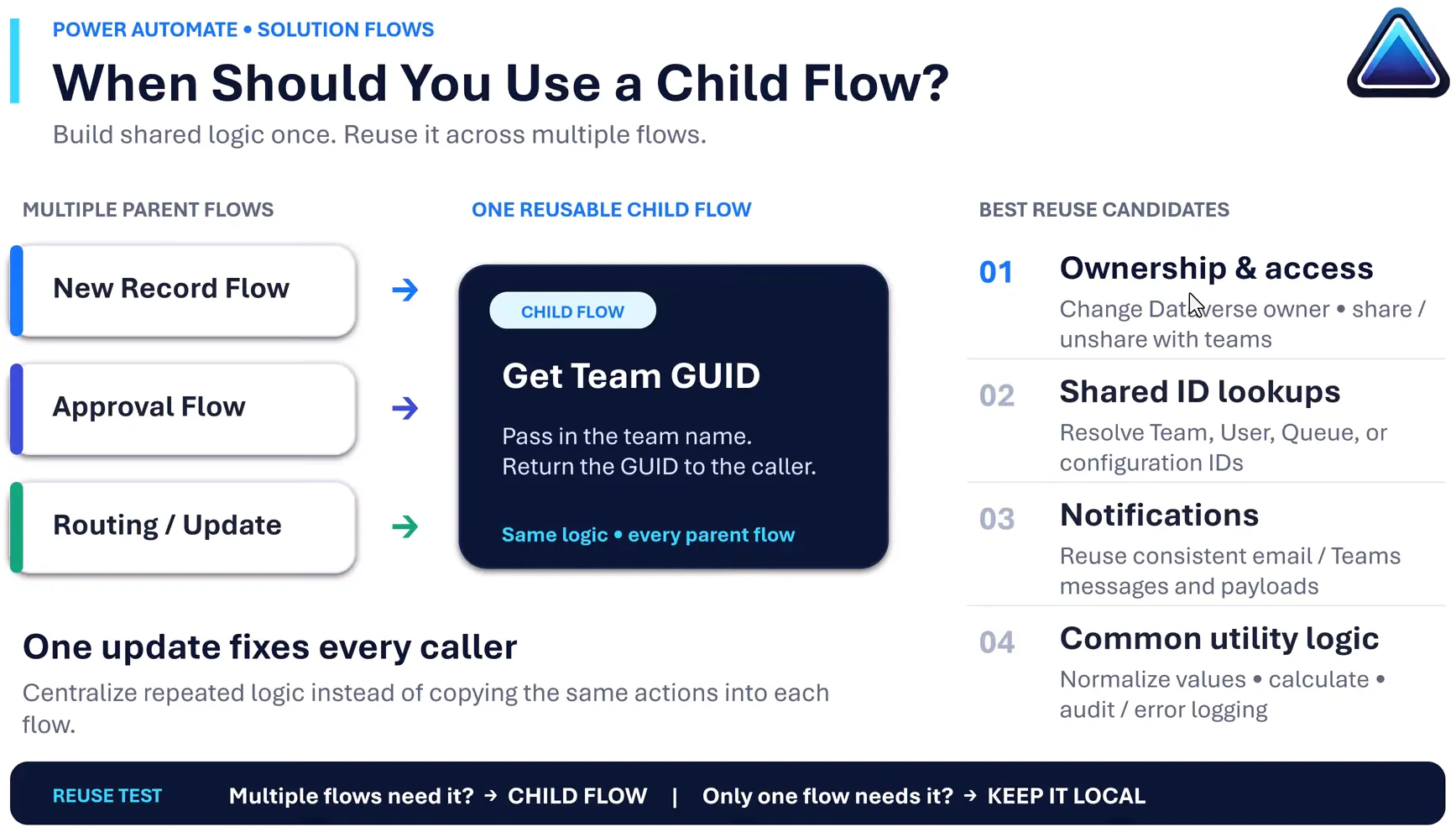
The diagram shows a more general design with a team-name input. The build below uses a fixed name and no inputs.
This example centralizes finding the team ID. The parent still performs the ownership update. Adding this child to other flows does not automatically reassign their records; each caller must use its returned ID in the appropriate update action.
Before you begin
This example starts with the existing Facility Issue Reporting solution, its Facility Issue Reports table, and a parent flow named Demo Dataverse Ownership Change. That flow is built in Change a Dataverse record owner to a team automatically. Neither tutorial covers creating the table or the team.
For this procedure, have:
- A Dataverse environment and a solution containing the parent flow. You create the child in that solution in step 2. Run a Child Flow lists only flows you can access that are in a solution, and a child must use the Manually trigger a flow trigger. Microsoft’s recommended practice is to create both flows directly in the same solution, and it lists as a known issue that importing a flow into a solution might give unexpected results. Its steps also allow bringing an existing parent into the child’s solution, so test a parent you added that way. Microsoft: child-flow reuse, child-flow known issue.
- A table whose records support ownership by a user or team. Use an existing owner team or Microsoft Entra group team named
Data Owner, with the appropriate security roles. Access teams cannot own records. The team must also exist in each target environment; this tutorial does not provision it. Microsoft: Dataverse team types. - A Dataverse connection that can read Teams and update/assign the target records at the required access level. Ownership changes remain subject to Dataverse privileges and record access. After the change, someone who isn’t in the team and relied on owning the record loses that access, unless a security role, sharing, or hierarchy security still grants it. Microsoft: record access checks.
- A license that covers the Microsoft Dataverse connector, which is Premium. A child flow does not remove licensing requirements. When a parent and child both use a user license context, the child uses the parent’s context, so a child called by this automated parent normally uses the parent owner’s license. One FAQ answer also lists Dataverse-triggered flows under the invoking user’s license, so check this parent against the factors in the Before you begin section of Change a Dataverse record owner to a team automatically. Anyone who runs the child manually needs a license that includes premium connectors, because it’s an instant flow, unless the child has a Process license. A child doesn’t inherit a parent’s Process capacity, and the FAQ says a Process license assigned to a parent doesn’t automatically cover its child flows. To give the child that capacity, assign a Process license to it directly or add both flows to the same flow group. The Power Platform Licensing Guide’s Process section says child flows triggered by another flow don’t need to be additionally licensed, so if only the parent has a Process license, confirm the child’s coverage with your Power Platform admin. A Process license on the child alone doesn’t cover this parent, which has its own Dataverse steps. Microsoft: connector classification, licensing FAQ, child flows and flow groups, Power Platform Licensing Guide.
The screenshots use the classic-style flow designer inside Power Apps. The new designer arranges controls differently; the action names and settings are the useful reference.
1. Review the parent flow you will improve
The original flow has two steps:
- When a row is added, modified or deleted, configured with Change type Added, Table name Facility Issue Reports, and Scope Organization.
- Update a row, using the same table and the newly created record’s unique ID from the trigger.
Its Owner (Owners) field contains this environment-specific value:
teams(8aeaec81-e474-f111-ab0e-6045bd04ea21)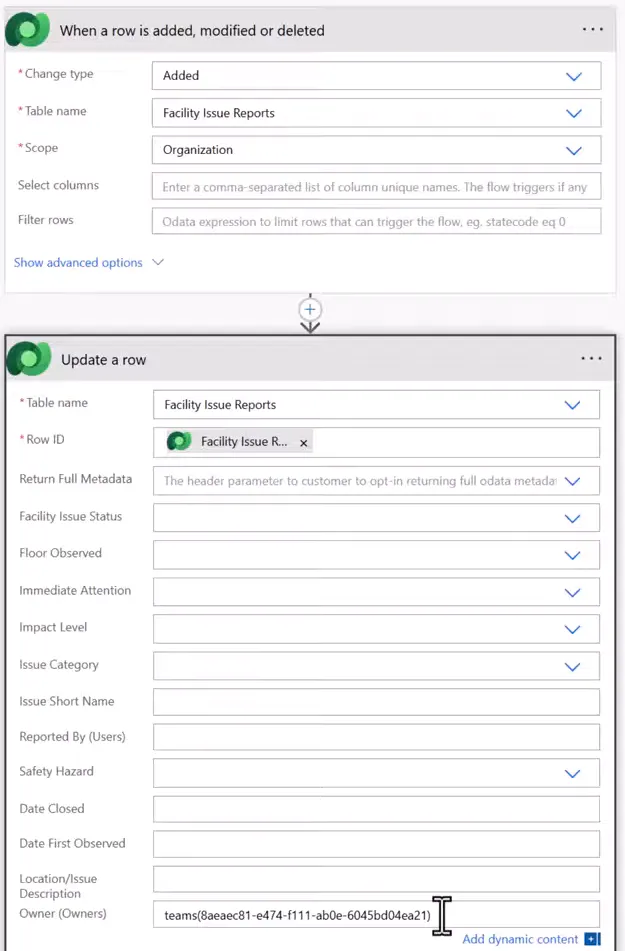
This GUID comes from the example environment and only shows the starting point. Do not use it as your own team’s ID.
Keep the trigger’s Added setting for this example. Its Organization scope monitors the environment’s relevant rows; that scope requires corresponding read access. Trigger registration also requires permissions on the Callback Registration table. This tutorial doesn’t configure these permissions. Microsoft: Dataverse row trigger.
2. Create the child and initialize its return variable
Open the solution and create a cloud flow named Child Flow Data Owner. Use New → Automation → Cloud flow → Instant, choose Manually trigger a flow, and select Create. Microsoft: create a child flow.
Leave Add an input unused. Add Initialize variable with:
| Setting | Value |
|---|---|
| Name | TeamGUID |
| Type | String |
| Value | Leave empty |
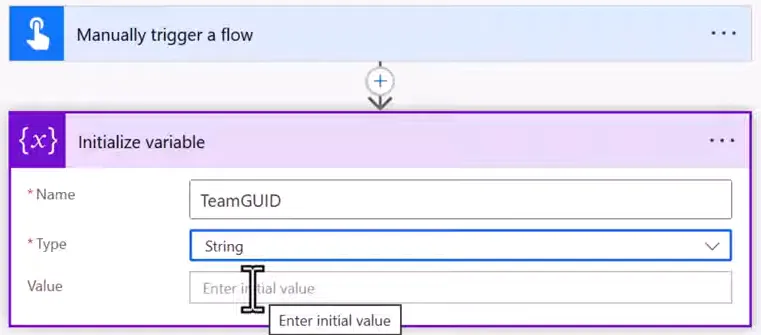
Initialize the variable at the flow’s top level, before any loop or condition. A flow variable is local to that run; it is not a solution environment variable. Microsoft: variables.
3. Find the Data Owner team
Add Microsoft Dataverse List rows. Set Table name to Teams, then enter this exact OData expression in Filter rows:
name eq 'Data Owner'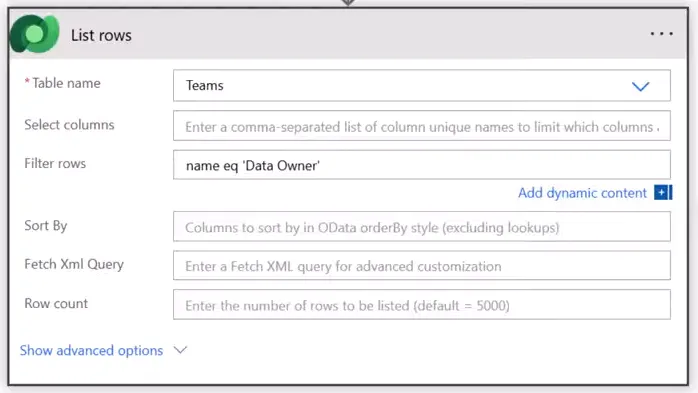
Use name, the logical name of the Team Name column. Dataverse’s Team table uses teamid as its primary ID and teams as its entity set name. Microsoft: Team table reference.
The filter uses single quotes around the name and does not include $filter=. List rows returns an array even when one team matches. Microsoft: List rows filtering.
This removes the fixed GUID, but the team name remains fixed. Keep that name consistent across environments. If names must vary, a trigger input or solution environment variable would be a separate extension; neither is configured here.
4. Add a check for exactly one match
Before the loop in the next step, add a Condition to reject missing or ambiguous matches. Without this check, zero matches leave TeamGUID empty, and multiple matches repeatedly overwrite it. A team name should be unique within a business unit, which doesn’t rule out the same name in another business unit. The filter also checks only the name, so confirm that the team it finds is the team you intended. Microsoft: create a team.
For the Condition’s left value, open the expression editor and enter:
length(body('List_rows')?['value'])Set the comparison to is not equal to and the right value to the number 1. If your List rows action has a different internal name, use that name in the expression.
In the If yes branch, add Terminate with Status Failed and a message such as Expected exactly one team named Data Owner. Leave If no empty. Put the remaining lookup actions after the Condition, outside both branches. A failed Terminate prevents them from running. Microsoft: length function, error handling and Terminate.
The screenshots below don’t include this Condition. Step 8 explains how to test it before you rely on the flow.
5. Retrieve the matching row and set TeamGUID
Add Dataverse Get a row by ID, set Table name to Teams, and insert the Team dynamic value from List rows into Row ID. Its description is “Unique identifier for the team.” Choose that ID, rather than the Team Name text.
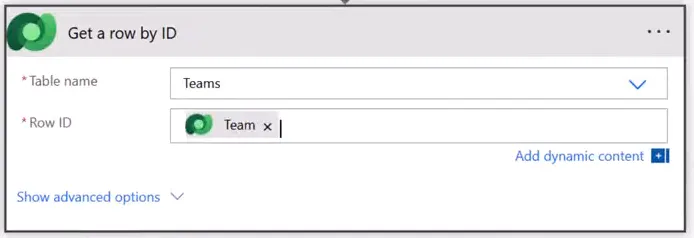
In the designer shown here, selecting the array-based value automatically creates Apply to each. If your designer does not, add the loop yourself, set its input to value from List rows, and place Get a row by ID inside it, using the current matching row’s Team ID.
Inside the loop, after Get a row by ID, add Set variable:
- Name: TeamGUID
- Value: Team, the unique identifier from Get a row by ID
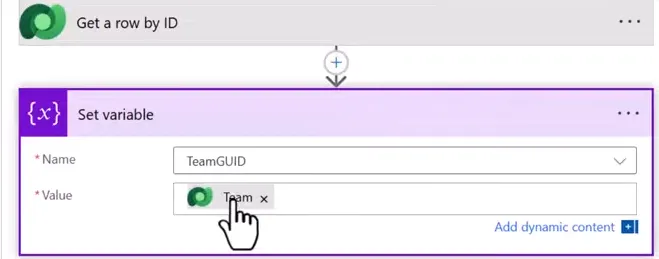
You could use the ID from List rows; this tutorial adds an explicit retrieval step, which isn’t required merely to convert a one-item array into an ID. The exact-one-match check prevents this loop from choosing among several results.
Concurrency: Keep this loop sequential. The default is sequential; if concurrency is enabled, set its degree of parallelism to 1 when writing the shared variable. Microsoft: variables in loops.
6. Return TeamGUID to the parent
After Apply to each, add Respond to a Power App or flow. Add a Text output, name it TeamGUID, and set its value to the purple TeamGUID variable token.
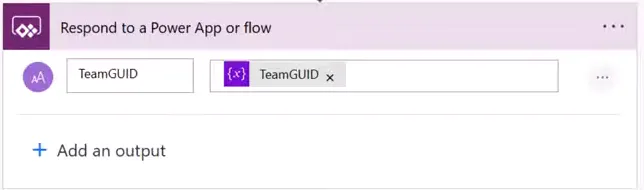
The token’s expression is:
variables('TeamGUID')Place this response outside and after the loop, as in this layout:
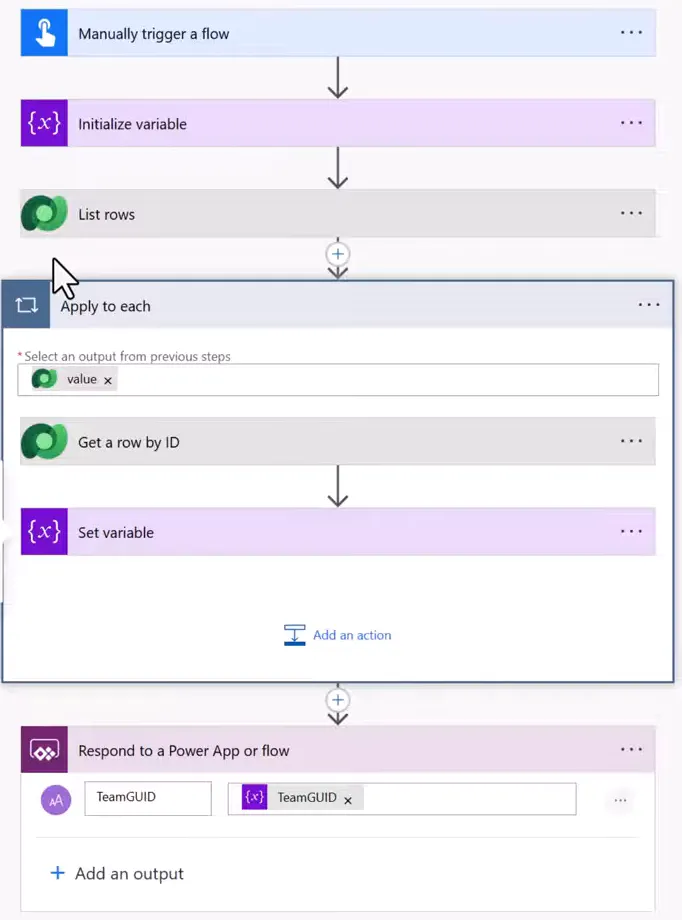
The Condition from step 4 belongs between List rows and Apply to each. It isn’t shown in this screenshot.
This version uses the variable so its return value is available after the loop. That is an implementation choice, not a documented requirement.
Select Save. In the new designer, select Publish instead, because Save draft alone doesn’t change what runs and a draft can’t be tested. Microsoft: drafts and versioning. Then manually test the child and inspect its returned TeamGUID before connecting the parent. Confirm the child is turned on.
Connection note: Microsoft’s embedded-connection setup applies when a child uses connectors beyond built-in actions and Dataverse. For those connections, open the child flow’s properties page, select Edit in the Run only users tile, choose Use this connection rather than Provided by run-only user, and save. At this time, a parent can’t pass its connections to a child. Without this setting, you get an error saying child workflows only support embedded connections. This child uses built-in actions and Dataverse, so this tutorial doesn’t include that setup. Flows in a solution use connection references, and keeping the parent and child in one solution lets them use the same reference. Microsoft: child-flow connection requirements, connection references.
7. Call the child and replace the fixed GUID
Return to Demo Dataverse Ownership Change. Between the Dataverse trigger and Update a row, add Run a Child Flow from the built-in Flows connector. Choose Child Flow Data Owner.
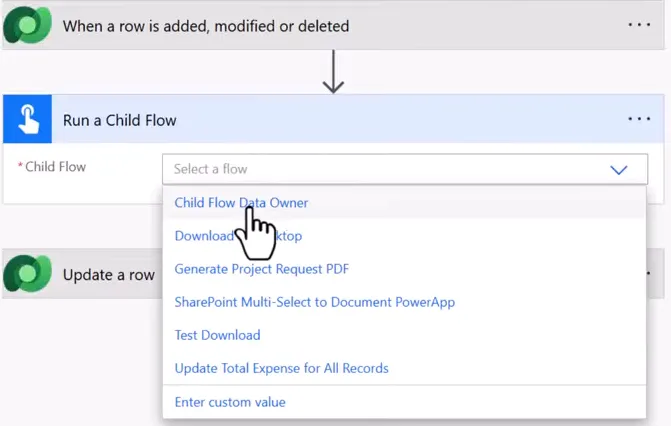
No input fields are needed because this child declares none. The caller waits for its response and exposes the TeamGUID output. Microsoft: call a child flow.
Open Update a row. Keep its table and trigger-derived record Row ID. In Owner (Owners), replace only the old GUID:
- Keep the literal text
teams(. - Insert TeamGUID from Run a Child Flow using dynamic content.
- Finish with the literal
).

Do not type the word TeamGUID as plain text or remove the teams(...) wrapper. The connector expects an entity-set reference containing the actual ID. Microsoft: update lookup fields.
Keep Update a row’s normal success-only dependency on the child call. Do not configure it to run after a failed lookup. A failed child flow is a listed cause of a failed action, and by default a later action runs only after the previous one succeeds. So if the child ends with Terminate Failed, Run a Child Flow should fail and Update a row shouldn’t run, which leaves the record with its current owner. Step 8 includes an optional test of this path. Microsoft: ActionFailed, run after behavior (Azure Logic Apps).
Select Save on the parent, or Publish in the new designer.
8. Test the ownership change
In a test environment, create a record in the target table. This example opens Facility Issue Report in the solution’s table editor and adds a row with Issue Short Name Test.
The example row fills Reported By with a user, Floor Observed with 1st Floor, Issue Category with Safety Hazard, Impact Level with Critical, Safety Hazard and Immediate Attention with Yes, and Facility Issue Status with In Review. Use valid values for your table’s required fields. Move to another row and allow the grid to show Data saved.

Allow the automation to run, then refresh the table. In this example, the Test row’s Owner is then Data Owner.

For your own verification, inspect both runs: the lookup must find one intended team, return its nonempty ID, and update the same record that triggered the parent.
Optional failure test. Before you rely on the flow in production, you can check the failure path in a test environment. For no match, temporarily change the name in the child’s filter to one that doesn’t exist, save or publish the child, and add a test row. In the run history, confirm that the child ended at Terminate, that the parent’s Update a row didn’t run, and that the row’s owner didn’t change. Then restore the filter, and save or publish the child again. Testing multiple matches takes a second team with the same name. Do that only if your test environment accepts one, and delete that team afterward.
This tutorial doesn’t cover exporting the solution or testing it in another environment. Before using it in another environment, verify the target team, connection references, permissions, licensing, table references, and name match there. Looking up a name avoids carrying this hard-coded GUID forward; it does not provision those dependencies.
You can now call this same fixed-team lookup from another suitable parent flow and use its output in that parent’s update. Where you can, keep that parent in the same solution as the child, as Microsoft recommends. Microsoft’s child-flow page doesn’t describe a parent in a different solution, so test that setup in your own environment before relying on it. If the logic changes, maintain the child rather than editing a copy in every caller.
Companion video
Video: Power Automate Child Flows: Build Once, Reuse Across Your Flows. Published August 10, 2026.
If the player is blocked on your network, open the video on YouTube.
Need help applying this to your own setup? Read about consulting.