 Office Solutions Pro
Open a SharePoint list form from a page button and return users to the page
Use a SharePoint page button and a specially built link to open a list's new item form directly, then send people back to your page after they save or cancel.
People who use a request form don’t need to see the list behind it. With one link, a button on your SharePoint page can open the new item form on its own. When someone selects Save or Cancel, they go back to your page, not to the list.
This works with a default form or a Power Apps customized form. The companion article on building a custom SharePoint list form with side navigation covers the form used here.
This is navigation, not security
The link changes where people go. It does not change what they can reach.
To add items, people need permission on the list, and the Contribute level lets users view, add, update, and delete list items. Anyone with that access can still open the list from its address, from Site contents, or through search.
If people should not see other people’s items, use the list’s item-level permissions under Advanced settings, so that users can read only their own items. See Let SharePoint list users read and edit their own items. For anything sensitive, treat real permissions as the control, and this link as a convenience.
Before you begin
You need:
- A SharePoint list, with people given the access they need to add items.
- A page on the same site, and permission to edit it.
- Notepad or another text editor.
- Optional: a Power Apps customized form for the list.
1. Get the form address
- Open the list, and select Add new item.
- In the form panel, select Copy link.
- Paste the link into a new browser tab, and press Enter. The form opens as a full page.
- Copy the address from the browser, and paste it into Notepad.
The address has this structure:
https://contoso.sharepoint.com/sites/YourSite/Lists/YourList/NewForm.aspx?Source=...2. Get your page’s address
- Open the page where the button will go.
- Copy its address, and paste it into Notepad.
For example:
https://contoso.sharepoint.com/sites/YourSite/SitePages/ProjectHome.aspx
3. Build the final link
- Copy the first part of the form address, up to and including
NewForm.aspx. - Add this text:
?env=Embedded&Source=- Encode your whole page address, as described below, and add it after
Source=.
Encode the page address
The page address goes inside the form’s link, as the value of Source, so it has to be encoded as one complete part of that link. Otherwise its own characters are read as part of the form’s link:
- SharePoint reads the return address only up to the first
&. - Anything after
#never reaches SharePoint. - A raw
+is read as a space in a query string, so a page namedTips+Tricks.aspxwould come back asTips Tricks.aspx. A literal plus sign has to become%2B.
SharePoint encodes the return address the same way in the form link you copied in Step 1.
Keep two addresses apart:
- The original address is your page’s address exactly as you copied it from the browser. It can already contain encoded parts, such as
%20for a space in the page name, or%26for an&inside a query value. Leave them as they are. Don’t decode them first. - The
Sourcevalue is that whole original address, encoded once more as a single component. Everything except the letters A to Z and a to z, the digits 0 to 9, and- _ . ! ~ * ' ( )is encoded, including the%of anything already encoded, so%20becomes%2520. SharePoint decodes the value once and gets the original address back.
The most reliable way is to let a tool encode it. JavaScript’s encodeURIComponent does exactly this. One way to run it is in your browser’s developer tools: press F12, open Console, and enter the line below with your page address between the double quotes. Copy the result without its quotes.
encodeURIComponent("https://contoso.sharepoint.com/sites/YourSite/SitePages/ProjectHome.aspx")To encode by hand, replace these characters everywhere in the original address, starting with %:
| Character | Replace with |
|---|---|
% | %25 |
: | %3A |
/ | %2F |
? | %3F |
= | %3D |
& | %26 |
# | %23 |
+ | %2B |
The table covers the characters a SharePoint page address usually holds. It isn’t a full encoder. If your address has any other character that isn’t A to Z, a to z, 0 to 9 or one of - _ . ! ~ * ' ( ), such as a comma or a non-English letter, use encodeURIComponent.
For the example page, the finished link is below. Replace the site, list, and page with your own:
https://contoso.sharepoint.com/sites/YourSite/Lists/YourList/NewForm.aspx?env=Embedded&Source=https%3A%2F%2Fcontoso.sharepoint.com%2Fsites%2FYourSite%2FSitePages%2FProjectHome.aspxThese examples show the original address, then its Source value:
-
A space, already encoded as
%20. Its%is encoded, so%20becomes%2520.https://contoso.sharepoint.com/sites/YourSite/SitePages/Project%20Home.aspxhttps%3A%2F%2Fcontoso.sharepoint.com%2Fsites%2FYourSite%2FSitePages%2FProject%2520Home.aspx -
A literal plus sign. The
+becomes%2B.https://contoso.sharepoint.com/sites/YourSite/SitePages/Tips+Tricks.aspxhttps%3A%2F%2Fcontoso.sharepoint.com%2Fsites%2FYourSite%2FSitePages%2FTips%2BTricks.aspx -
A query value that’s already encoded. Here
%26is an&inside the valueR&D. It becomes%2526, and comes back as%26, so the page still getsR&D.https://contoso.sharepoint.com/sites/YourSite/SitePages/Reports.aspx?filter=R%26Dhttps%3A%2F%2Fcontoso.sharepoint.com%2Fsites%2FYourSite%2FSitePages%2FReports.aspx%3Ffilter%3DR%2526D -
Query parameters and a section link. The
?,=,&and#are all encoded.https://contoso.sharepoint.com/sites/YourSite/SitePages/Project%20Home.aspx?tab=requests&view=open#statushttps%3A%2F%2Fcontoso.sharepoint.com%2Fsites%2FYourSite%2FSitePages%2FProject%2520Home.aspx%3Ftab%3Drequests%26view%3Dopen%23status
The screenshot shows a shorter form that encodes only the colon, as https%3a//. That works for a plain address like ProjectHome.aspx, but not for one with & or #, so encode the whole address.

Here is what each part does:
| Part | What it does |
|---|---|
NewForm.aspx | Opens the list’s new item form |
env=Embedded | Opens the form on its own, without the usual site navigation |
Source= | The address SharePoint returns to after Save or Cancel, fully encoded |
These query values are not part of a documented Microsoft procedure, and SharePoint may not formally support them, so test the finished link, and test it again if you notice a change in behavior.
Any spaces in the list name stay encoded as %20, as they were in the copied address.
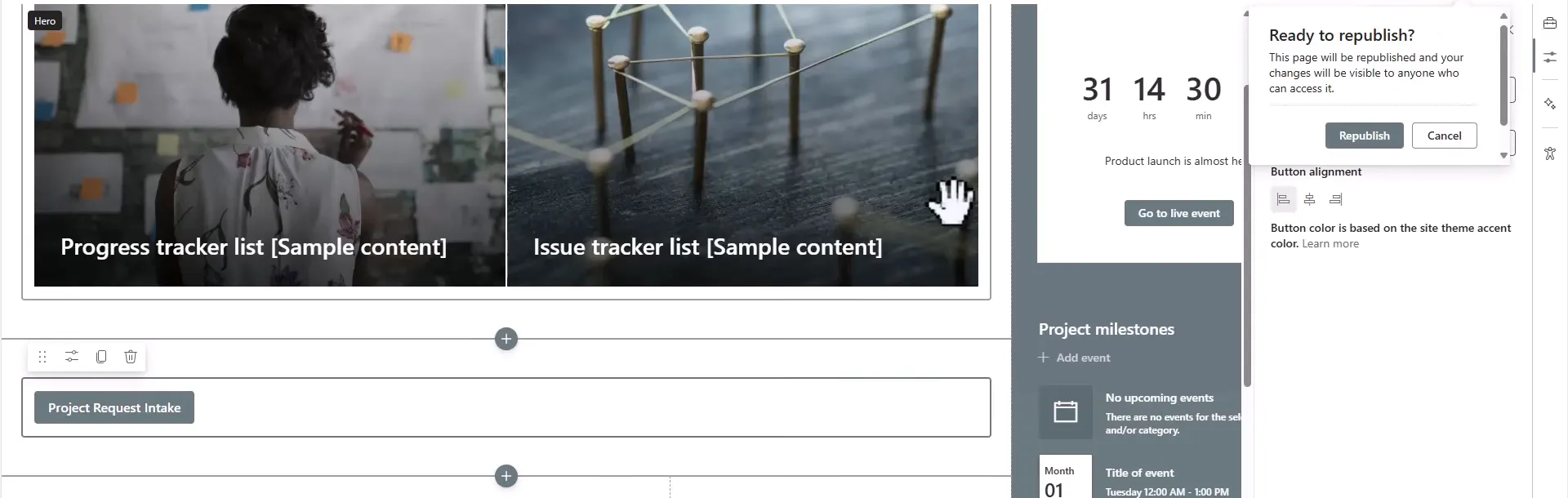
4. Add the button
- Edit the page.
- Add a section, then add a Button web part.
- Set Label, such as
Project Request Intake. - Paste the final link into Link.
- Choose an alignment.
- Select Republish.
5. Test the full journey
-
Open the published page, and select the button. The form opens.
-
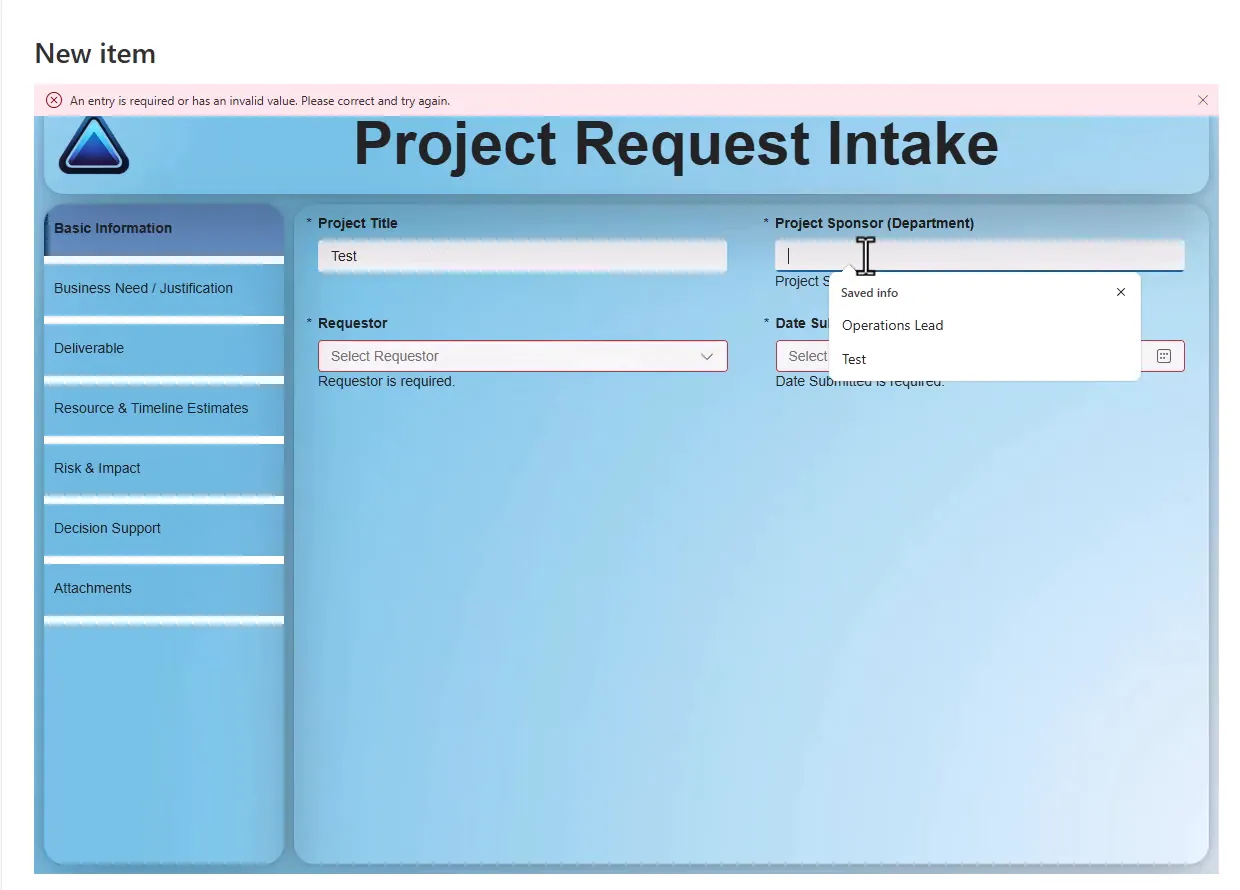
Select Save with required fields empty, and confirm that you see the messages.
-
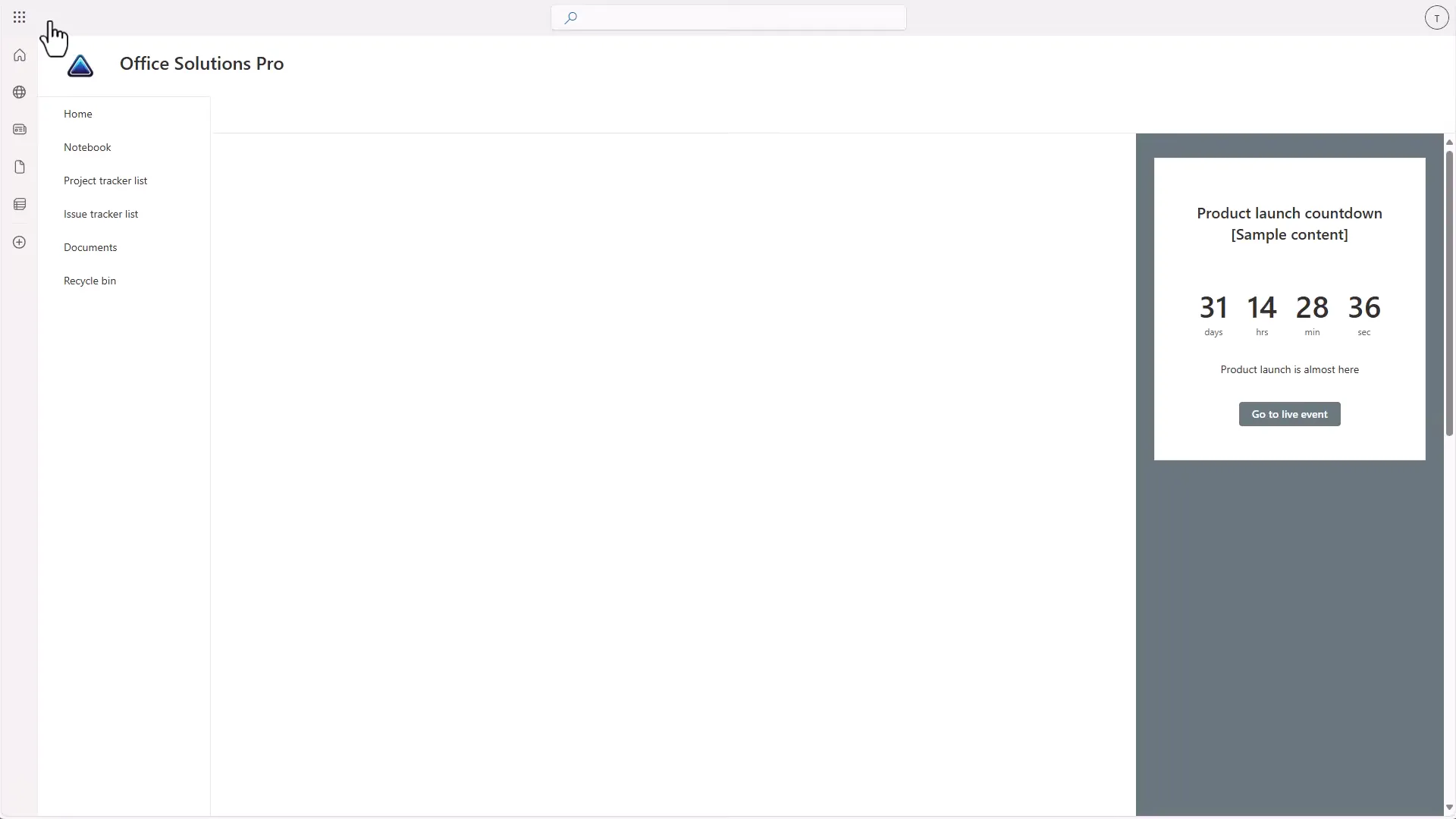
Fill in the form, and select Save. You should return to your page.
-
Open the form again, and select Cancel. You should return to your page.
-
Open the list, and confirm the test item was saved correctly.
-
Repeat with an account that has the access your users will have.
Plan the rest of the process
Removing the list from view raises a follow-up question: how will people check on their requests?
- Set default values. The example hides its status from requesters and defaults it to Submitted. The team managing requests updates the status in the list.
- Offer a way to check status. Consider a filtered view, a separate app, or an email from a flow.
- Give managers views. Saved views such as Processing and Processed make it easy for the team to work through requests.
Think about navigation as well. If the list is in the site’s navigation or Recent links, remove it from there, so that people aren’t led to it.
Troubleshooting
| Symptom | Likely cause | What to do |
|---|---|---|
| After saving, you land on the list | Source is missing or wrong | Check the link, and that the whole page address after Source= is encoded |
| You return to the page, but without its query string or section | Part of the page address wasn’t encoded | Encode the whole page address, including every &, =, ? and #, as in Step 3 |
You land on a page that doesn’t exist, with a space where the address had + | A + in the page address wasn’t encoded, so it was read as a space | Encode it as %2B, or use encodeURIComponent, as in Step 3 |
| The form shows site navigation | env=Embedded is missing | Add it after ?, followed by &Source= |
| Access denied on the form | The user lacks permission on the list | Grant list access. Form access follows the list |
| The link breaks when the list is renamed | The address changed | Rebuild the link with the new address |
| People still find the list | The link doesn’t restrict access | Review permissions, and remove the list from navigation |
| The form is the old version | The custom form wasn’t published | Publish it from Power Apps, then refresh |
Companion video
Video: How to Build a Modern SharePoint Form with Power Apps (Hide the List!)
If the player is blocked on your network, open the video on YouTube.
Need help applying this to your own setup? Read about consulting.