 Office Solutions Pro
Use screen variables in Power Apps with UpdateContext and Navigate
Learn when to use UpdateContext instead of Set, pass values and records to another screen with Navigate, and give screen variables a dependable starting value.
Canvas apps have two kinds of variables you set with a formula. A global variable is available on every screen. A context variable belongs to one screen. Context variables keep each screen’s logic in one place and make an app easier to debug, and Navigate lets you hand them values from the screen you’re leaving.
This walkthrough uses a simple app with two screens, Main Screen and Second Screen. Each has the same gallery of requested projects, a button, and a text label.
Before you begin
You need a canvas app with two screens that you can edit. The example uses modern controls, but the formulas work the same with classic controls.
UpdateContext or Set?
| UpdateContext | Set | |
|---|---|---|
| Creates a | Context variable | Global variable |
| Can be used | On one screen only | Anywhere in the app |
| Changed from another screen | Only through Navigate | From any screen |
| Syntax | UpdateContext({locName: value}) | Set(gblName, value) |
Both can hold a single value, a record, a table, or an object reference. Use Set when several screens need the value. For everything else, a context variable keeps the app tidier.
A naming prefix such as loc for context variables and gbl for global ones tells you a variable’s scope at a glance. Avoid giving a context variable the same name as a global variable: the context variable takes precedence on that screen.
1. Create a context variable
- On Main Screen, add a Button and set its OnSelect:
UpdateContext({locText: "Testing"})- Add a Text label and set its Text to
locText. - Preview the app and select the button. The label shows Testing.
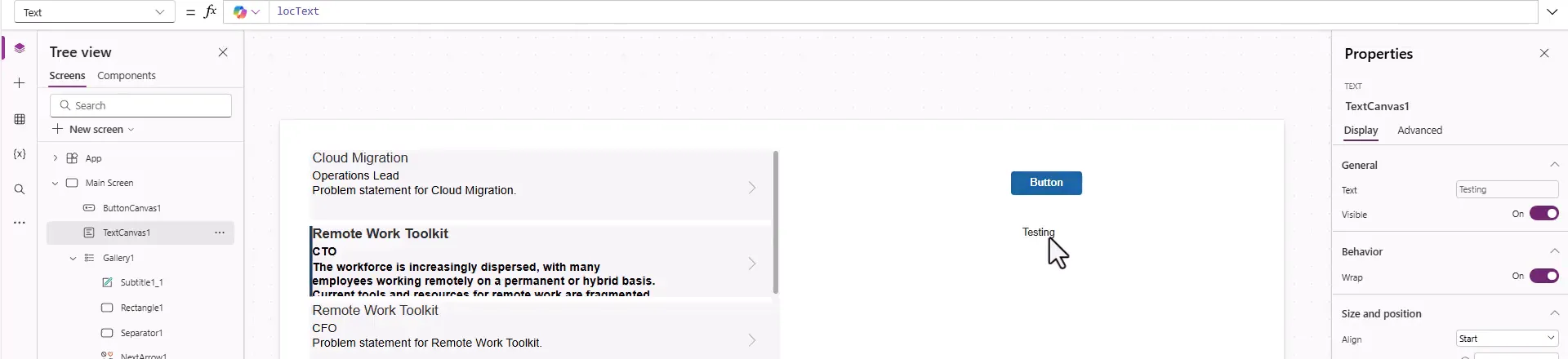
Before the button runs, locText is blank, so the label is empty. Step 4 shows how to set a starting value.
You can’t use locText in a formula on Second Screen. Context variables are scoped to a screen, so typing locText there refers to a different variable, one that belongs to Second Screen.
2. Pass a value to another screen
Navigate is the only way to set a context variable from outside its screen. Its third argument is a record, written the same way as in UpdateContext.
- On Second Screen, add a Text label with Text set to
locText. Copy the button from Main Screen as well, so that Second Screen has its ownUpdateContext({locText: "Testing"}). - Back on Main Screen, change the button’s OnSelect:
UpdateContext({locText: "Testing"});Navigate('Second Screen', ScreenTransition.CoverRight, {locText: "Page Navigation"})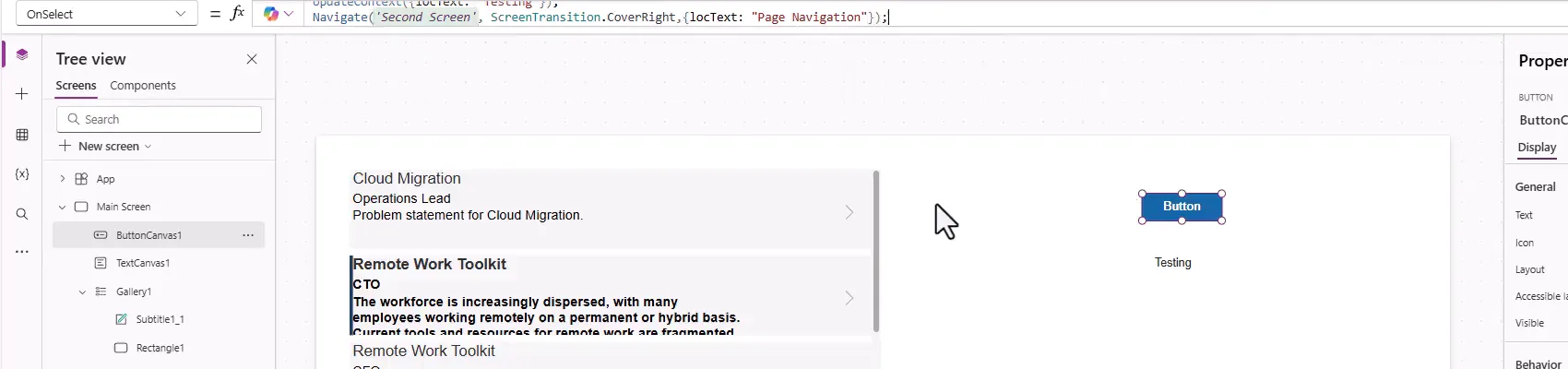
- Preview from Main Screen and select the button.
These are two different variables that happen to share a name:
- On Main Screen,
locTextis now Testing. - On Second Screen,
locTextis Page Navigation, passed in by Navigate. - Selecting the button on Second Screen changes its own
locTextback to Testing.
3. Pass a record and select it in a gallery
You can pass a whole record, such as the item someone chose.
- In the Main Screen gallery, select the arrow icon (or whichever control people select) and set its OnSelect:
UpdateContext({locSelectedRecord: ThisItem});Navigate( 'Second Screen', ScreenTransition.CoverRight, {locSelectedRecord: ThisItem, locText: "Gallery Selected"})Separate several values in the record with commas, as shown with locText.
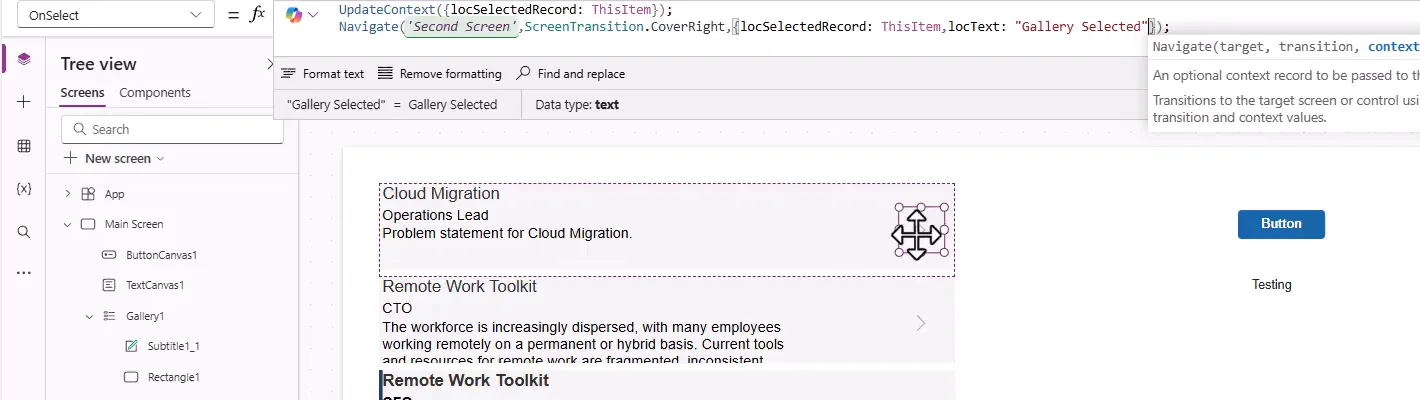
- In the Second Screen gallery, give the same control this OnSelect, so that the selection there updates the variable too:
UpdateContext({locSelectedRecord: ThisItem})- Set the Second Screen gallery’s Default to
locSelectedRecord. Default sets which item is selected.
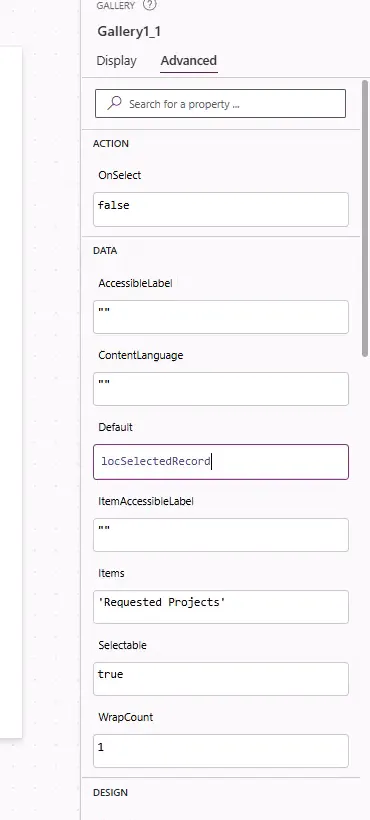
- Preview from Main Screen, and select an item. Second Screen opens with that item selected, and its label shows Gallery Selected.
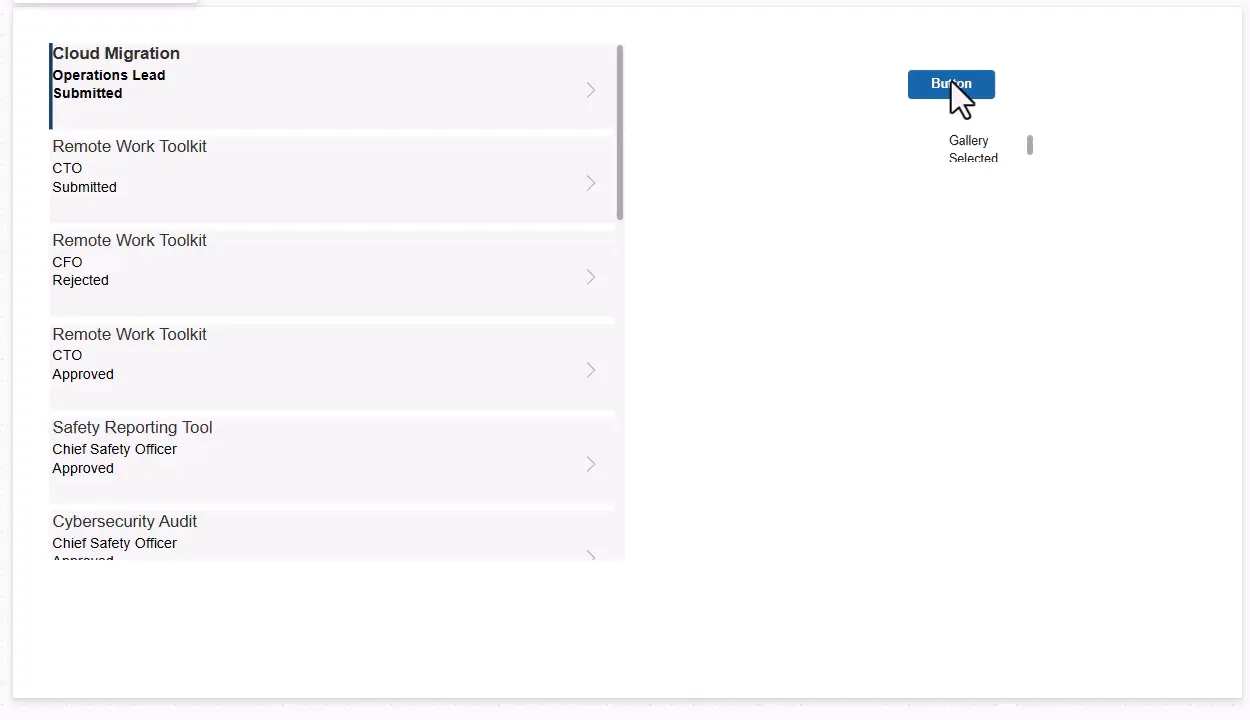
4. Show and hide controls with a context variable
A context variable is a good way to track screen state, such as whether a section is showing.
- Add a second line to the Second Screen button’s OnSelect. The
!operator flips a true or false value:
UpdateContext({locText: "Testing"});UpdateContext({locGalleryVisible: !locGalleryVisible})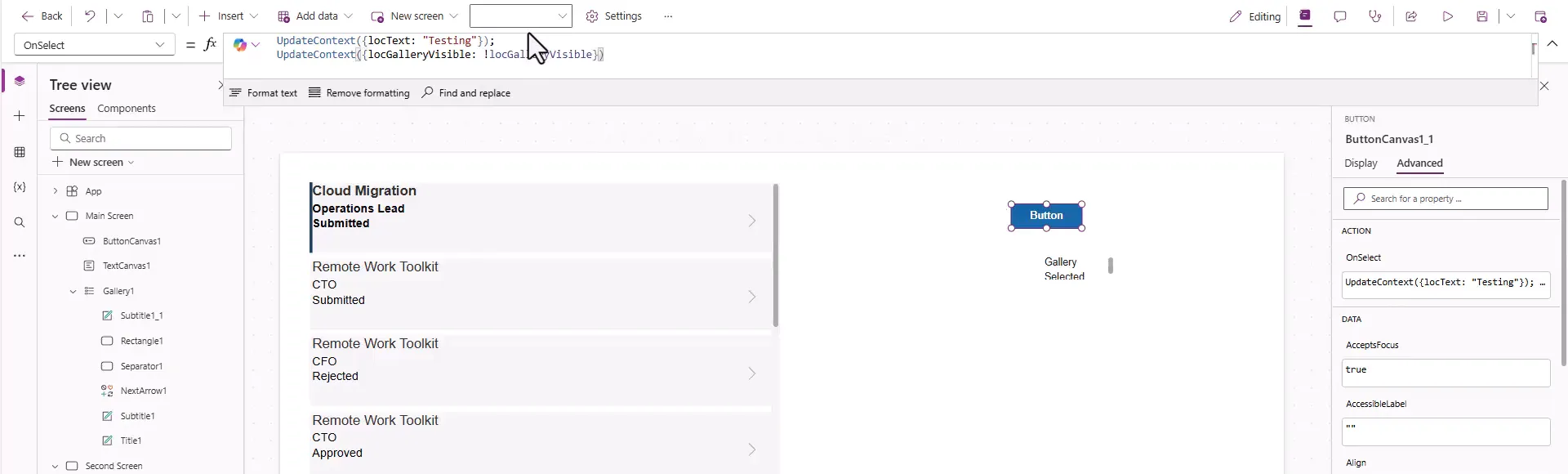
- Set the Second Screen gallery’s Visible to
locGalleryVisible.
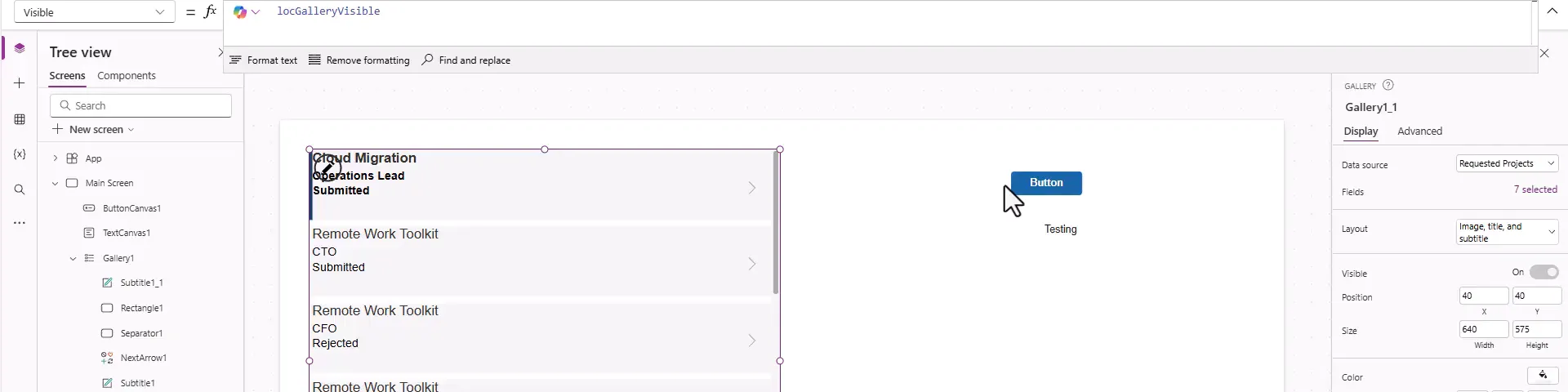
Give the variable a starting value. Until the button runs, locGalleryVisible is blank, and a blank Visible hides the control. So with this setup, the gallery is hidden when the screen first opens. Set a starting value in the screen’s OnVisible:
If(IsBlank(locGalleryVisible), UpdateContext({locGalleryVisible: true}))The If(IsBlank(...)) check sets the value only when nothing has set it yet. That matters because a context variable holds its value until the app is closed. If you always want the screen to start fresh, use UpdateContext({locGalleryVisible: true}) without the check. In that case, don’t reset in OnVisible a variable that you pass in with Navigate, or the reset may replace the passed value.
5. Find where a variable is used
Because context variables belong to one screen, they’re easy to trace.
- Open Search in the left pane, and type a variable name such as
locText. - The results group each variable under its screen, and list every formula that uses it.
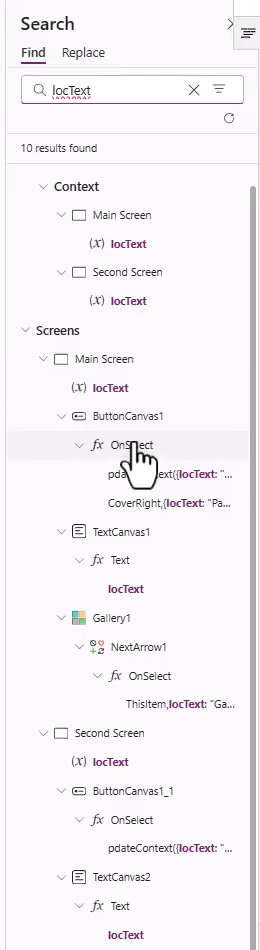
The Variables pane also lists context variables under each screen.
Troubleshooting
| Symptom | Likely cause | What to do |
|---|---|---|
| A label is empty when the screen opens | The variable hasn’t been set yet | Set a starting value in the screen’s OnVisible |
| A control is hidden when the screen opens | Visible uses a blank variable | Initialize it, as in Step 4 |
| A variable typed on another screen does nothing | Context variables belong to one screen | Pass the value with Navigate, or use Set |
| The passed value is lost when the screen opens | OnVisible resets the same variable | Use the If(IsBlank(...)) pattern, or don’t reset passed variables |
| An old value appears when returning to a screen | Context variables keep their values | Reset them in OnVisible, or on the way out |
| The gallery doesn’t select the passed item | Default isn’t set, or the record came from another data source | Set Default to the variable, and pass a record from the same data source |
| A formula uses the wrong value | A global and a context variable share a name | Rename one. The context variable takes precedence |
Companion video
Video: Power Apps Screen Variables Explained — Master UpdateContext + Navigate in Power Apps
If the player is blocked on your network, open the video on YouTube.
Need help applying this to your own setup? Read about consulting.