 Office Solutions Pro
A tour of Microsoft To Do
A practical tour of Microsoft To Do for work: the settings worth changing, My Day, smart lists, flagged email and Planner tasks, task details, printing, shared lists and categories.
Microsoft To Do keeps your personal tasks in one place. It also gathers tasks from elsewhere in Microsoft 365: emails you flag in Outlook, and tasks assigned to you in Planner. This guide uses To Do on the web, in dark mode. The desktop and mobile apps have the same lists, with small differences in layout.
What you need: this guide uses a Microsoft 365 work or school account. Planner tasks appear only if your organization uses Planner, and flagged email needs a mailbox hosted by Microsoft.
Choose your settings
Select the Settings gear at the top of To Do. These are the settings that matter most for task management.
My Day
- Show potential tasks in My Day offers suggestions for your day.
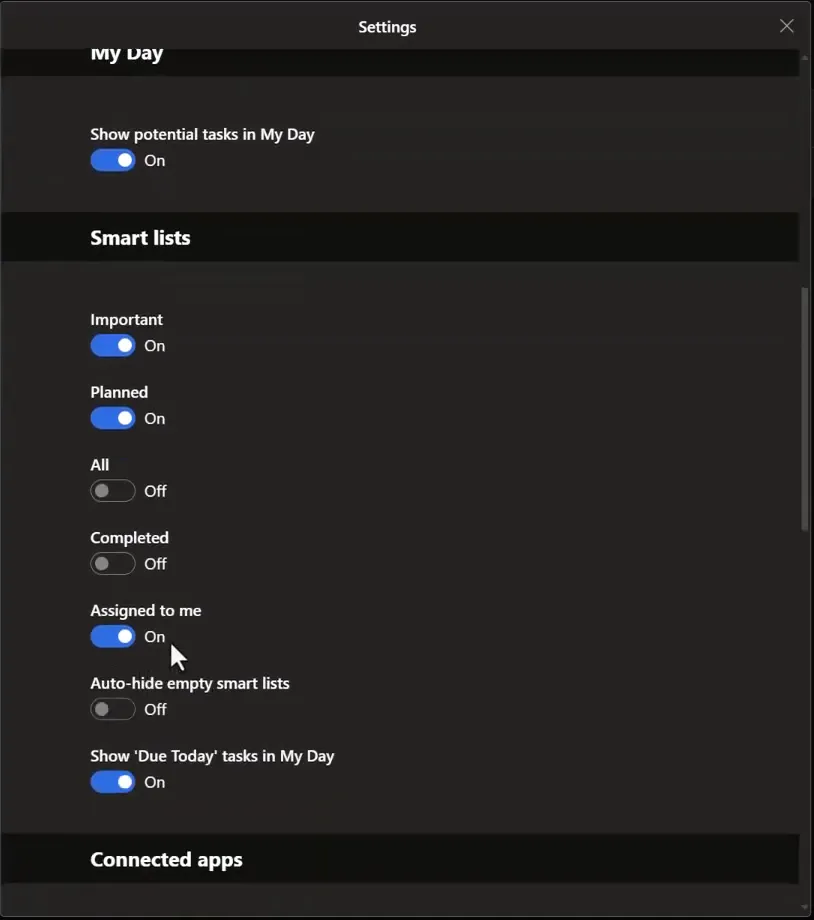
Smart lists. Turn on the ones you’ll use. Microsoft’s smart lists are My Day, Important, Planned, All, Completed, Assigned to me, Flagged email and Due Today. A practical setup:
| Setting | Suggested | Why |
|---|---|---|
| Important, Planned | On | Starred tasks, and tasks with a date |
| All | Your choice | Every task in one place |
| Completed | Your choice | Turn on if you like to look back at finished work |
| Assigned to me | On | Tasks other people assign to you |
| Auto-hide empty smart lists | Off | Keeps lists in the same place even when they’re empty |
| Show ‘Due Today’ tasks in My Day | On | Today’s deadlines appear in My Day automatically |
Connected apps
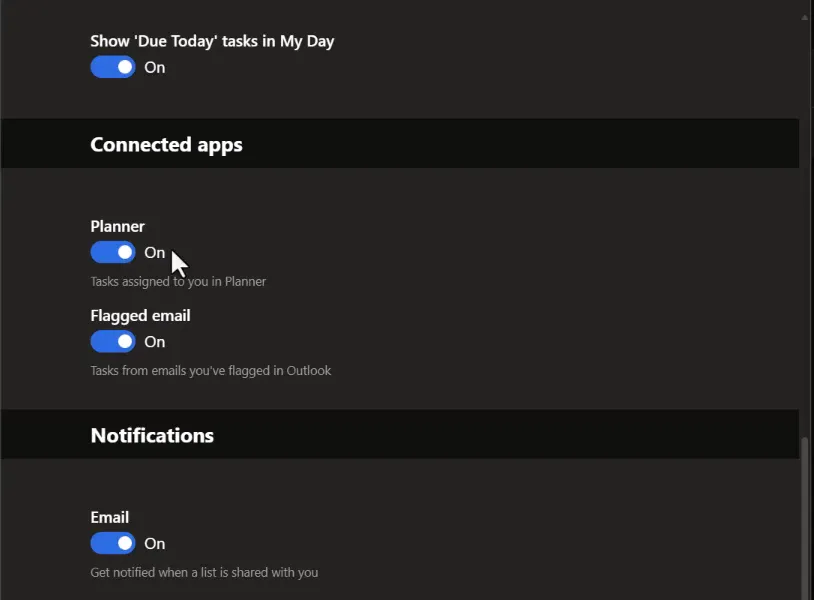
- Planner brings in tasks assigned to you in Planner. They appear in Assigned to me. Tasks from a premium plan appear only if you’re a member of the plan’s group.
- Flagged email adds emails you flag in Outlook to the Flagged email list as tasks.
How flagged email syncs. When you turn on Flagged email, the list starts with your 100 most recently flagged emails from the last 30 days. From then on, each email you flag is added. Microsoft supports flagged-email synchronization from your primary mailbox. Shared-mailbox flags aren’t officially supported and shouldn’t be relied upon, even if they appear in some configurations. Flags in shared folders aren’t supported either. The list works only with accounts hosted by Microsoft.
Notifications
- Email sends you an email when someone shares a list with you.
Plan your day with My Day
My Day is a short list for today. It resets every night, so you choose what to work on each day. If Show ‘Due Today’ tasks in My Day is on, tasks due today are added for you.
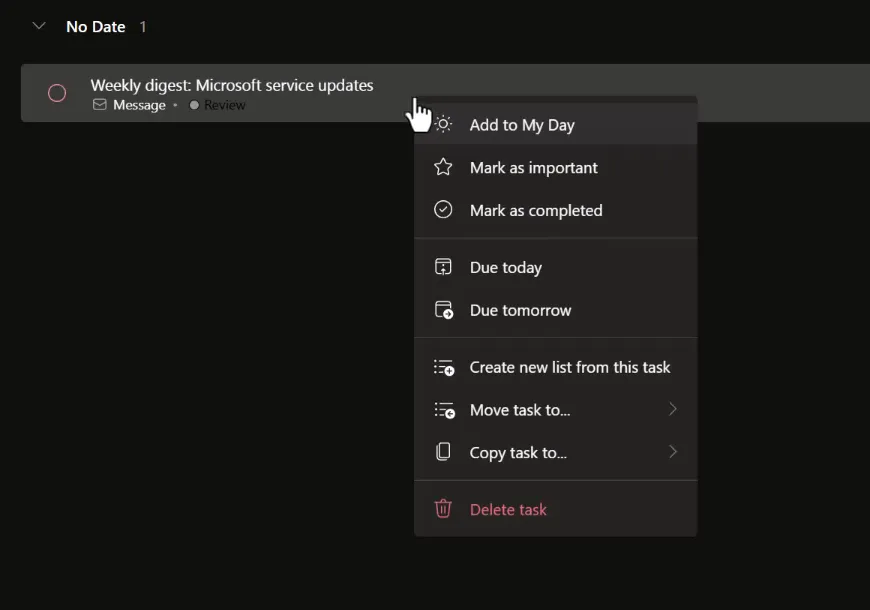
To add something, right-click a task in any list, for example an email in Flagged email, and select Add to My Day. The same menu lets you mark it important or completed, give it a due date, or move it to another list.
When you finish a task, select the circle next to it. My Day keeps your completed tasks for the day, so you can see what you got done.
Find tasks in the smart lists
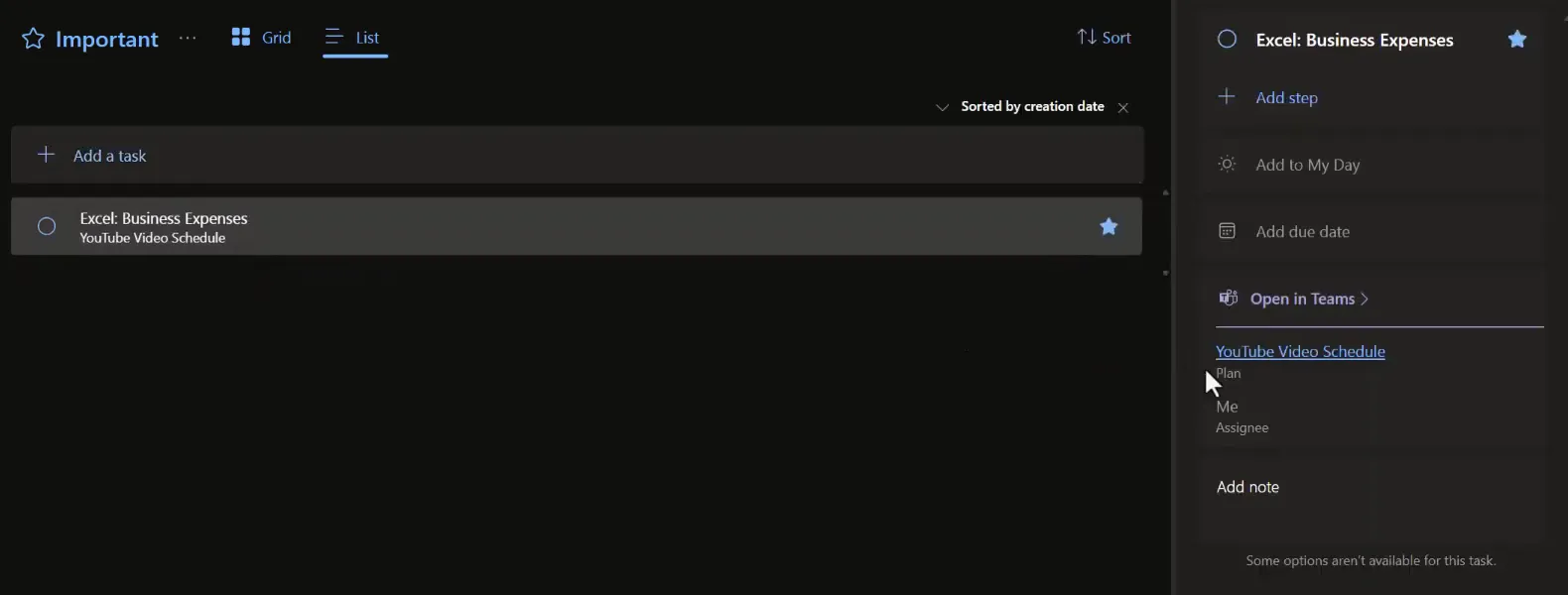
Important shows every task you’ve starred, from any list.
Planner tasks look slightly different. Their details show the plan they belong to, an Open in Teams link and the assignee. You can’t reassign a Planner task from To Do. Open the plan in Planner to change who it’s assigned to, if your permissions allow it. Tasks from premium plans have limited editing outside the plan, so open the plan to change most of their fields.
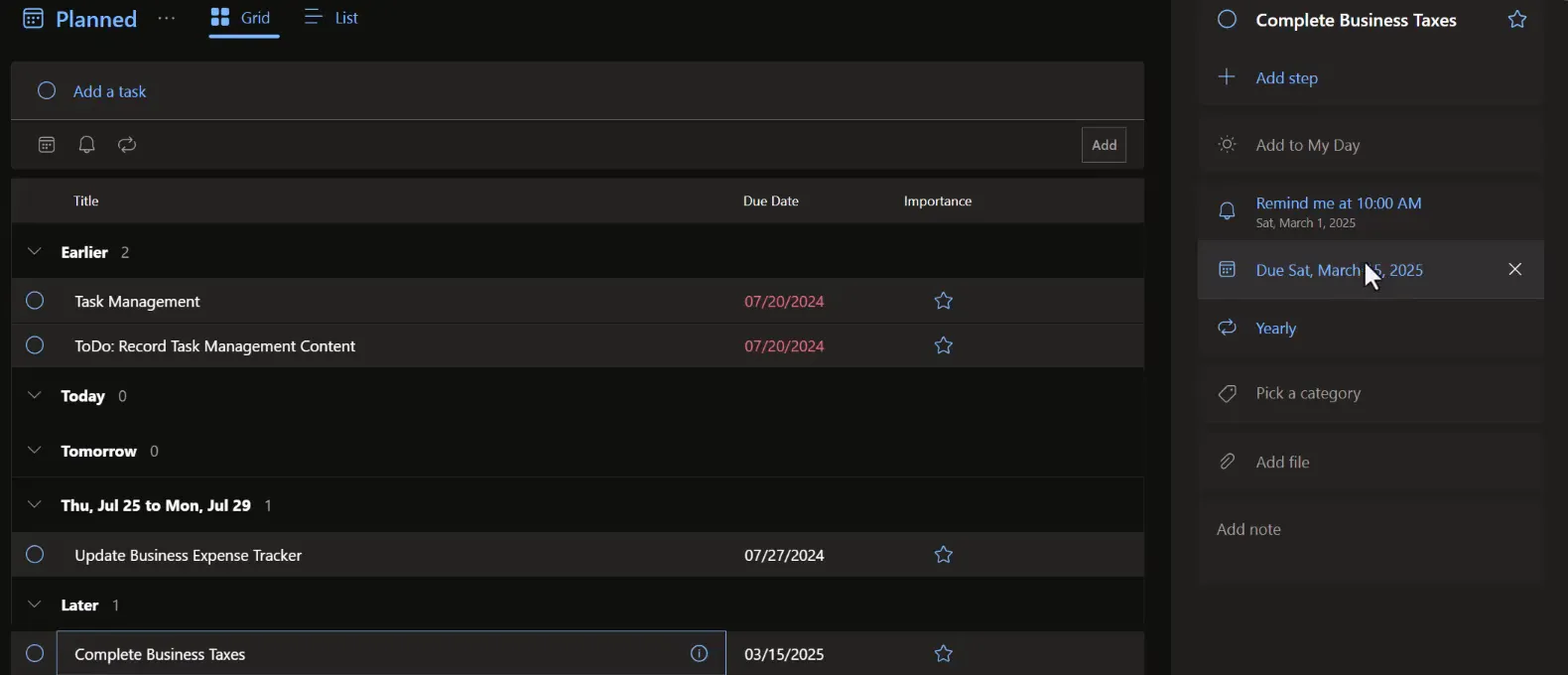
Planned shows every task with a due date or reminder, grouped by when it’s due, with overdue tasks under Earlier. Use Repeat for recurring work. The example sets a yearly task for business taxes, due each March.
Assigned to me shows tasks other people have assigned to you. That includes tasks from Planner, if the Planner connection is on, and tasks assigned to you in shared To Do lists.
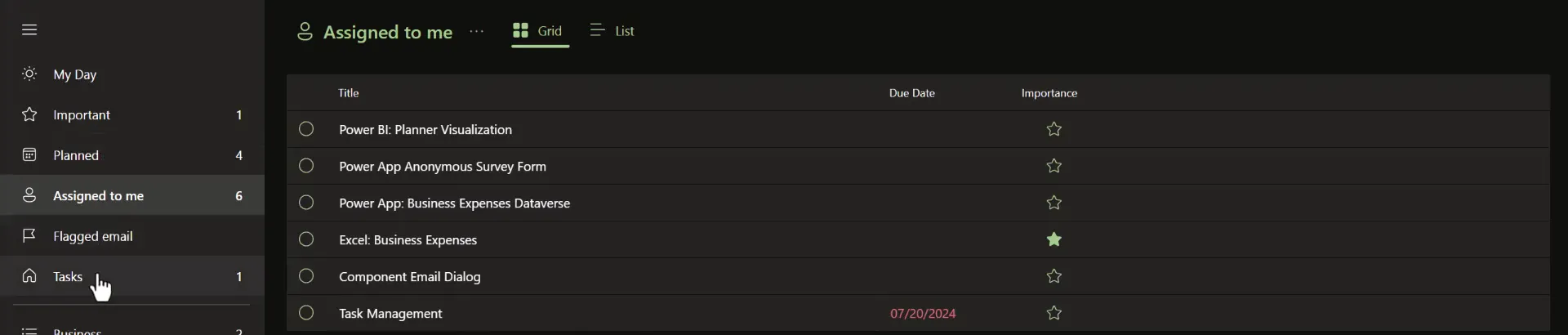
Watch for duplicates. The same piece of work can arrive from several places: a flagged email, a Planner task and a task you created yourself. One way to keep track is to start the names of tasks you create in To Do with To Do:. You can then tell them apart from Planner tasks and emails at a glance.
Switch views and print a list
Each list has a Grid and a List view:
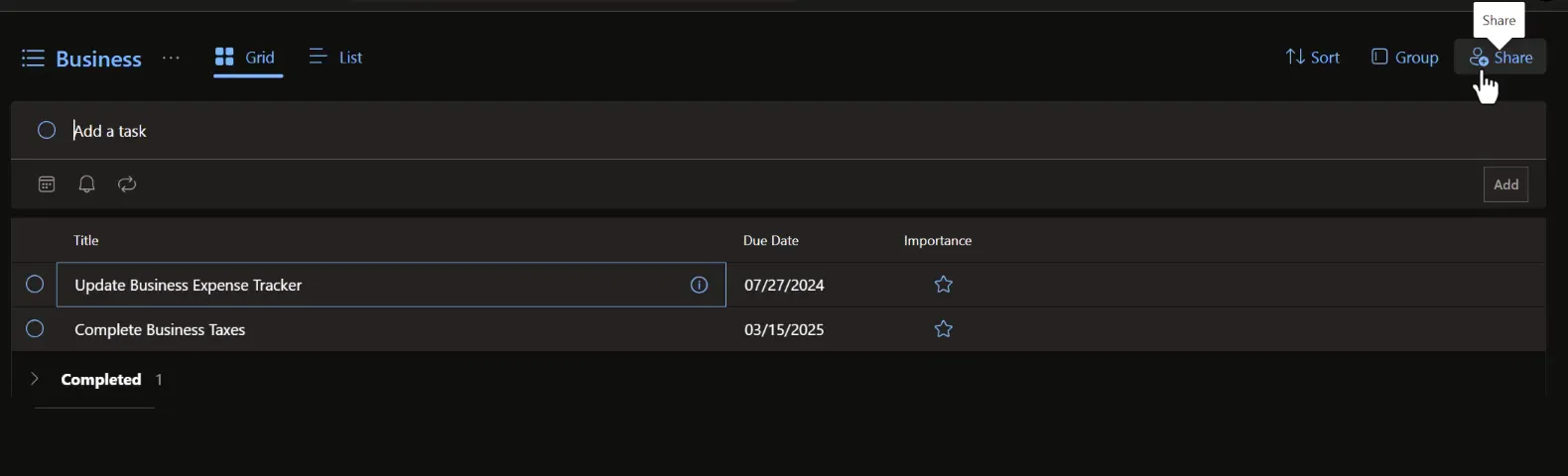
- Grid shows columns for title, due date and importance, and lets you edit the due date directly.
- List shows where each task came from, such as a plan name, the Tasks list or a flagged message.
Select the … next to a list’s name for Options, including Show completed tasks and Print list.
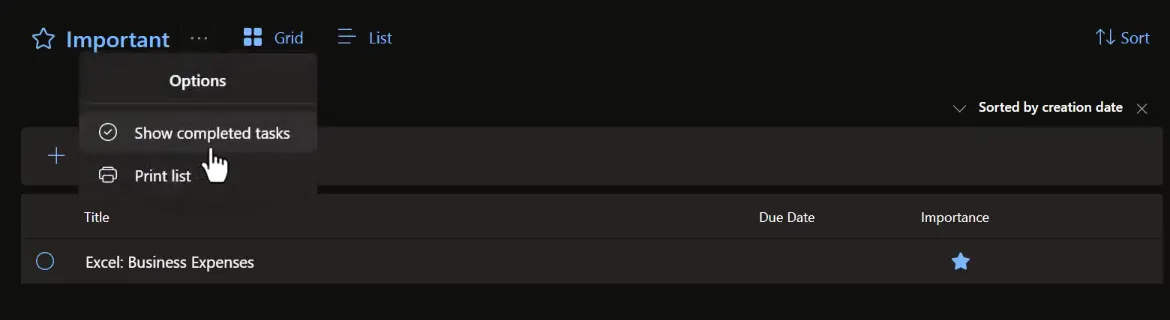
A printed list is handy if you like to cross things off on paper. It’s also a clear way to show a manager how much is on your plate when you need to rebalance work.
Use task details
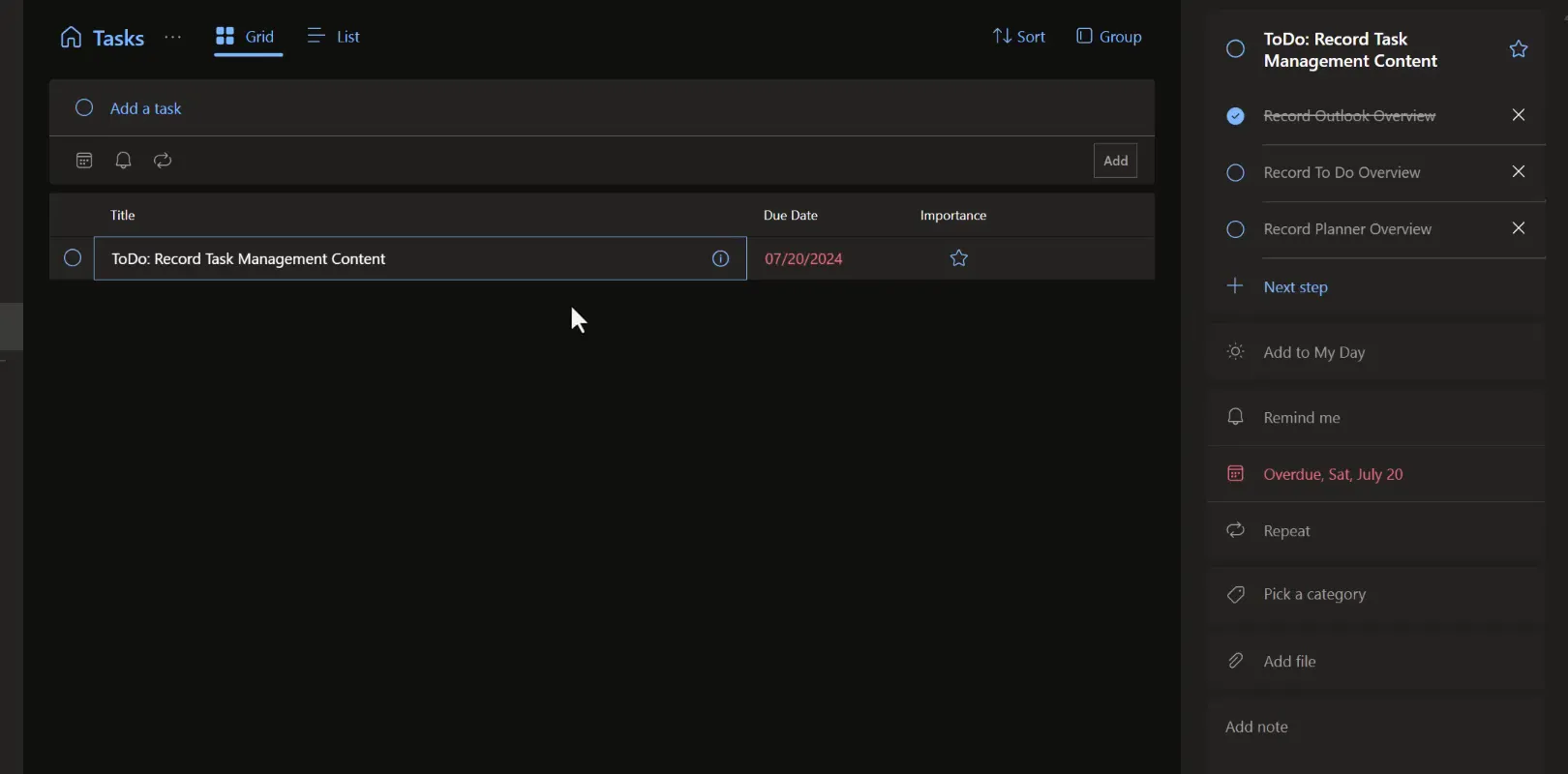
Select a task to open its details. From there you can:
- Add step: break a larger task into smaller, checkable steps.
- Add to My Day.
- Remind me: get a reminder at a set time.
- Add due date.
- Repeat: for example daily, weekly, monthly or yearly.
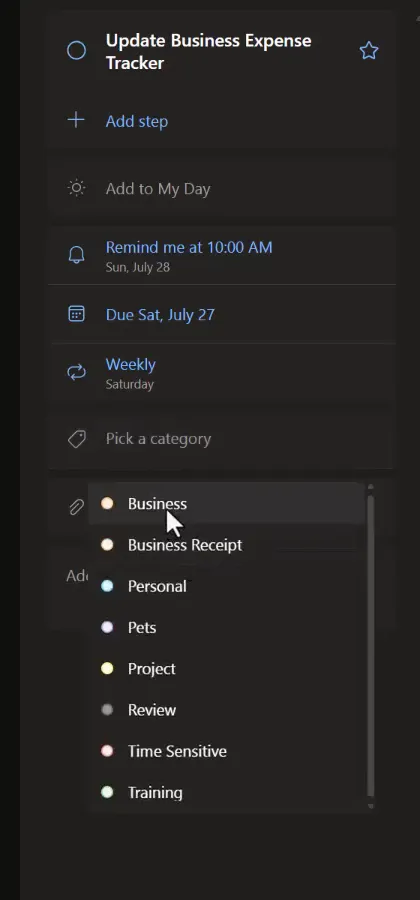
- Pick a category.
- Add file: up to 25 MB per task.
- Add note.
Create lists, share them and assign tasks
Select New list to create your own lists, such as Business and Personal. Lists are a good way to group related tasks.
To assign tasks to someone from To Do, share the list with them:
- Open the list and select Share. Invite the people you want.
- Once they’ve joined, open a task’s details and select Assign to. You can assign a task to any member of the shared list, including yourself.
- The task appears in the assignee’s Assigned to me list.
If you move an assigned task to a different list, the assignment is removed, so you’ll need to assign it again.
For team work, consider Planner. Shared lists work for small, simple assignments. Planner gives a team more structure and views that show how work is spread across people. Since Microsoft retired Project for the web in August 2025, its premium plans are part of Planner. Features such as goals, sprints and baselines need a premium license. Microsoft’s comparison of basic and premium plans also shows trade-offs: recurring tasks are available only in basic plans, and a premium plan’s tasks reach To Do only for members of the plan’s group.
Organize with Outlook categories
To Do uses the same categories as Outlook. Select Pick a category in a task’s details to choose one.
To create or change categories, go to Outlook. In new Outlook and Outlook on the web, select Settings > Accounts > Categories, according to Microsoft’s To Do in Outlook guide. Older versions of Outlook on the web listed categories under Settings > General. The same guide notes that categories sync to To Do only from flagged emails. A task created from an unflagged message doesn’t keep the message’s category.
Move between To Do and Outlook
The icons at the bottom of the To Do sidebar switch to Mail, Calendar and People, and back to To Do. Reminders you set in To Do also pop up while you’re working in Outlook.
Troubleshooting
| Symptom | Likely cause | What to do |
|---|---|---|
| Planner tasks don’t appear | The Planner connection is off | Turn on Planner under Connected apps in Settings |
| Flagged emails don’t appear | The Flagged email connection is off, or the email was flagged in a shared mailbox or shared folder | Turn on Flagged email in Settings. Flag it in your primary mailbox. Microsoft supports flagged email from the primary mailbox only |
| Older flagged emails are missing | The first sync brings in only recent flags | Expect up to 100 flags from the last 30 days; later flags sync as you set them |
| A premium plan’s tasks don’t appear | You aren’t a member of the plan’s group | Ask an owner of the plan’s group to add you |
| You can’t assign a task | The list isn’t shared, or the person hasn’t joined | Share the list and wait for them to join |
| An assignment disappeared | The task was moved to another list | Assign it again in the new list |
| A Planner task can’t be reassigned | Planner tasks are managed in Planner | Open the plan in Planner |
| A category from Outlook isn’t on a task | The task wasn’t created from a flagged email | Pick the category in the task’s details |
| The same work shows up twice | It came from more than one source | Keep one copy, and name your own tasks so they’re easy to tell apart |
Companion video
Video: Master Microsoft To Do: Complete Guide to Task Management & Productivity
If the player is blocked on your network, open the video on YouTube.
Need help applying this to your own setup? Read about consulting.