 Office Solutions Pro
Tasks across Outlook, To Do and Planner
How Outlook, Microsoft To Do and Planner fit together as one task system: turn emails into tasks, plan your day in To Do, and track team work in Planner.
Work reaches you in three main ways: requests in your email, tasks you create for yourself, and tasks someone assigns to you in a plan. Microsoft 365 has an app for each:
| App | Best for |
|---|---|
| Outlook | Turning emails into tasks |
| To Do | Your personal list, and one place to see everything assigned to you |
| Planner | Plans that a team shares, with assignments, buckets and progress |
Tasks flow between the three apps, so most people can do their day-to-day work from To Do. Managers and project leads also spend time in Planner.
The images show new Outlook and To Do on the web, and Planner in Teams, in dark mode. The sections go in order from your inbox, to your own list in To Do, to a team’s plans in Planner.
What you need: a Microsoft 365 work or school account with Outlook, To Do and Planner, and new Outlook or Outlook on the web for the My Day pane. Planner in Teams needs a subscription that includes Teams. Planner has basic and premium plans. Planner in Microsoft 365 includes full editing in basic plans and basic editing in premium plans, and premium features need a Planner premium subscription.
1. Turn emails into tasks in Outlook
When an email needs action you can’t take right now, you have two ways to keep track of it.
Flag the email. Hover over the message and select the flag. If Flagged email is turned on in To Do’s settings, flagged messages are copied to the Flagged email list as tasks. Microsoft says this list is only available for accounts hosted by Microsoft. Microsoft supports flagged-email synchronization from your primary mailbox. Shared-mailbox flags aren’t officially supported and shouldn’t be relied upon, even if they appear in some configurations. Flags in shared folders aren’t supported either. The first sync brings in up to 100 flags from the last 30 days.
Drag the email to My Day. Open the My Day pane from the top-right of Outlook. It has Calendar and To Do tabs. Drag a message onto the pane and drop it on Add as a task. Drop it on Add as an event instead to put it on your calendar.
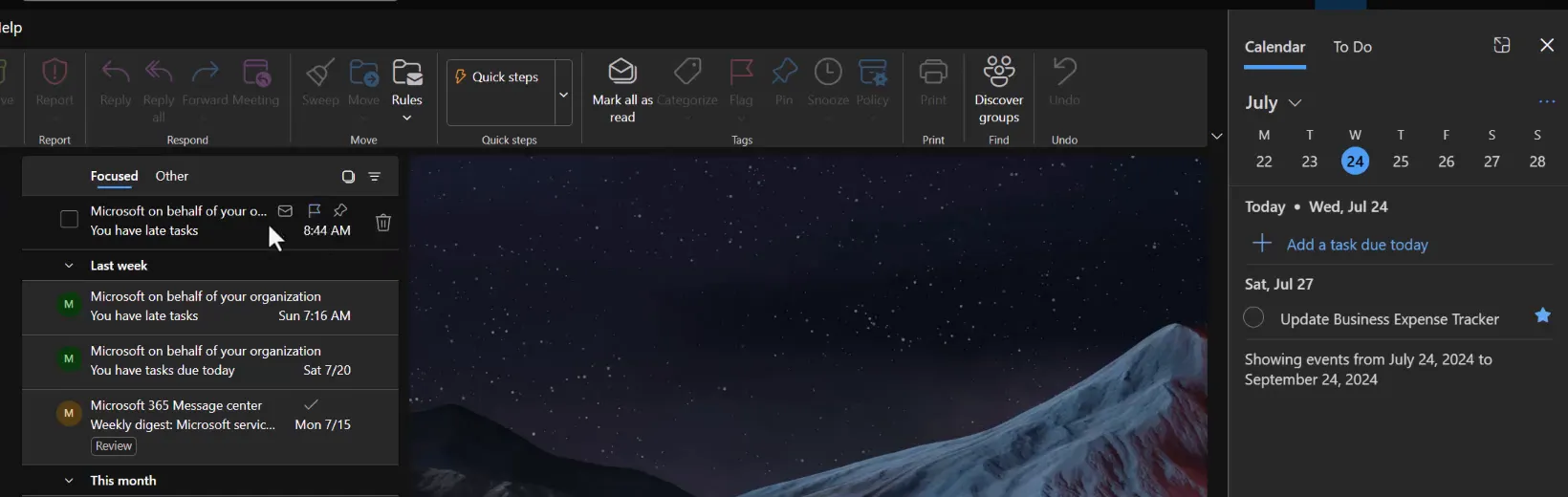
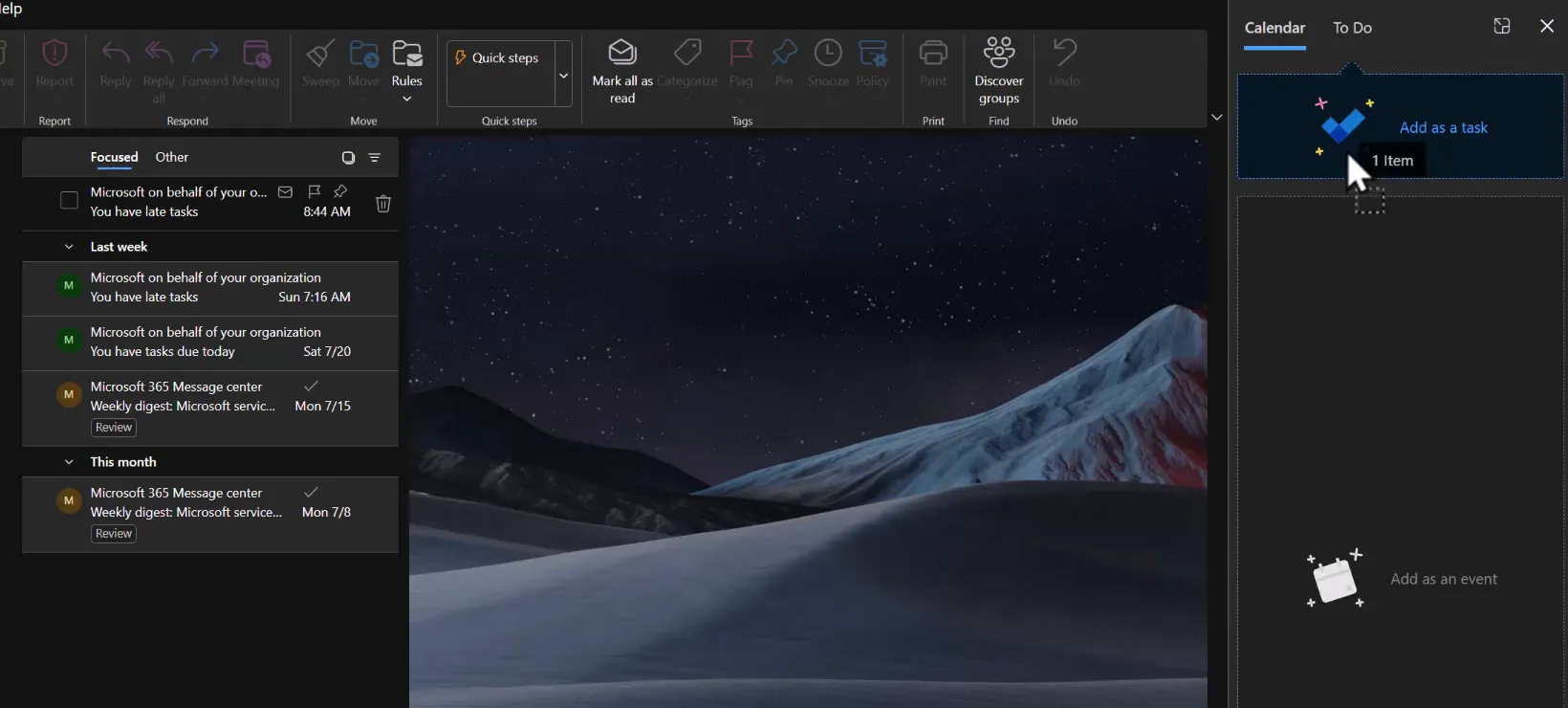
The new task appears on the pane’s To Do tab, marked Email.
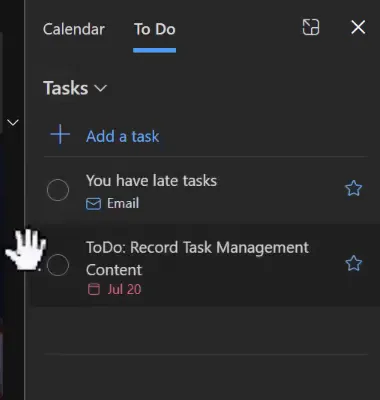
Which should you use? Both keep the email’s content with the task.
- A dragged email becomes an ordinary task in your Tasks list.
- A flagged email stays in the Flagged email list.
Pick one habit, so the same email doesn’t end up in both places.
If you don’t see the My Day pane or the To Do icon, you may be using classic Outlook. The steps on Microsoft’s My Day page cover new Outlook and Outlook on the web.
2. Work your list in To Do
Select the To Do icon in Outlook’s left bar, or open To Do on its own.
The task you dragged in is in Tasks. Its details include the email text and an Open link back to the message.
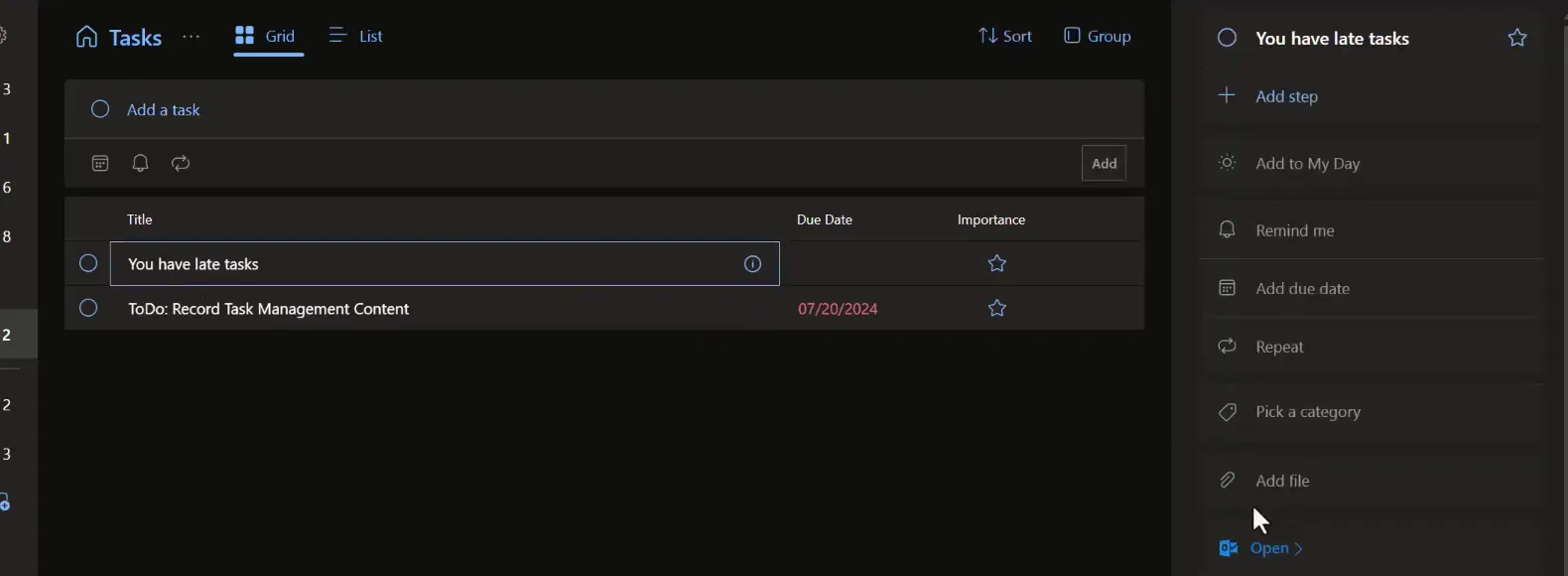
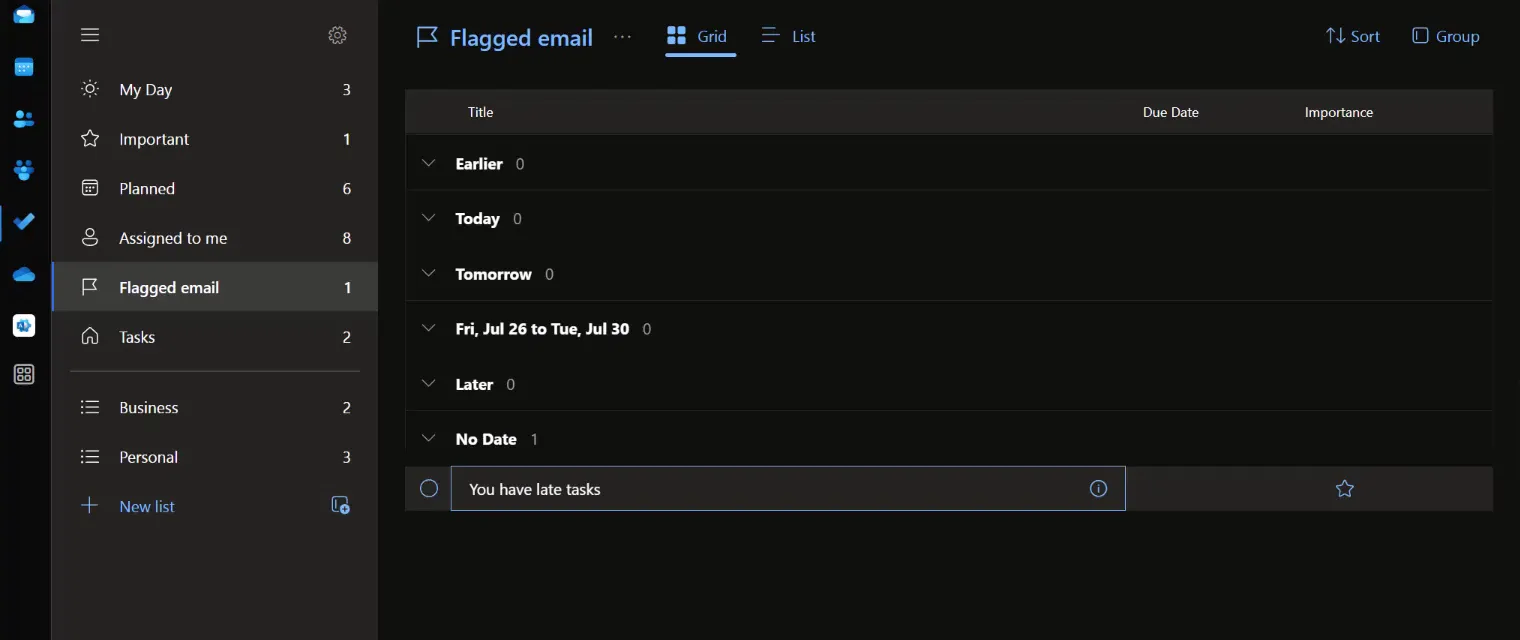
The flagged email is in Flagged email.
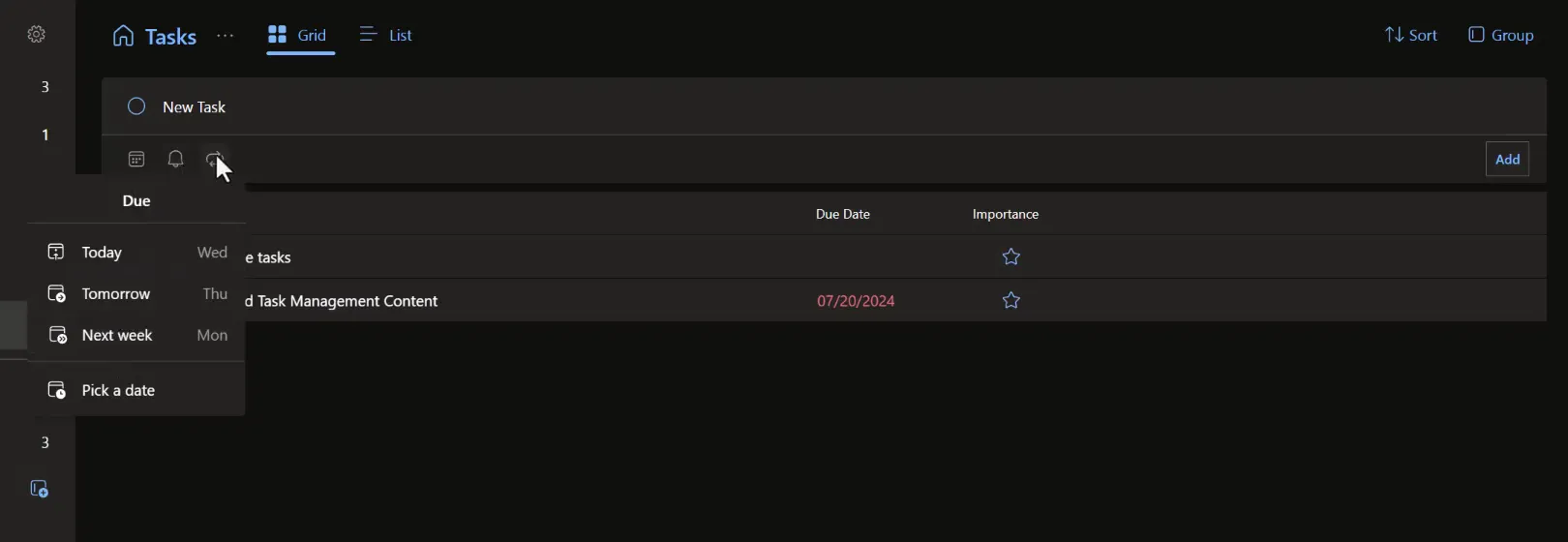
Create tasks. Type in Add a task, then use the icons below the box to set a due date (Today, Tomorrow, Next week or Pick a date), a reminder or a repeat.
Use the smart lists:
- My Day is your plan for today. Tasks due today appear there if Show ‘Due Today’ tasks in My Day is on in settings. You can add anything else you want to start on.
- Planned shows tasks with a date.
- Important shows tasks you’ve starred.
- Assigned to me shows Planner tasks assigned to you, labeled with the plan they come from.
Assign tasks from To Do. To assign tasks to colleagues, put them in a list you create and share it. Members of a shared list can be assigned its tasks. A manager could keep a shared list per employee, or one for the team. For anything bigger, Planner gives more structure.
3. Track team work in Planner
Planner holds plans that a team shares. In the example, it’s open in Teams. Microsoft now also offers Planner for the web.
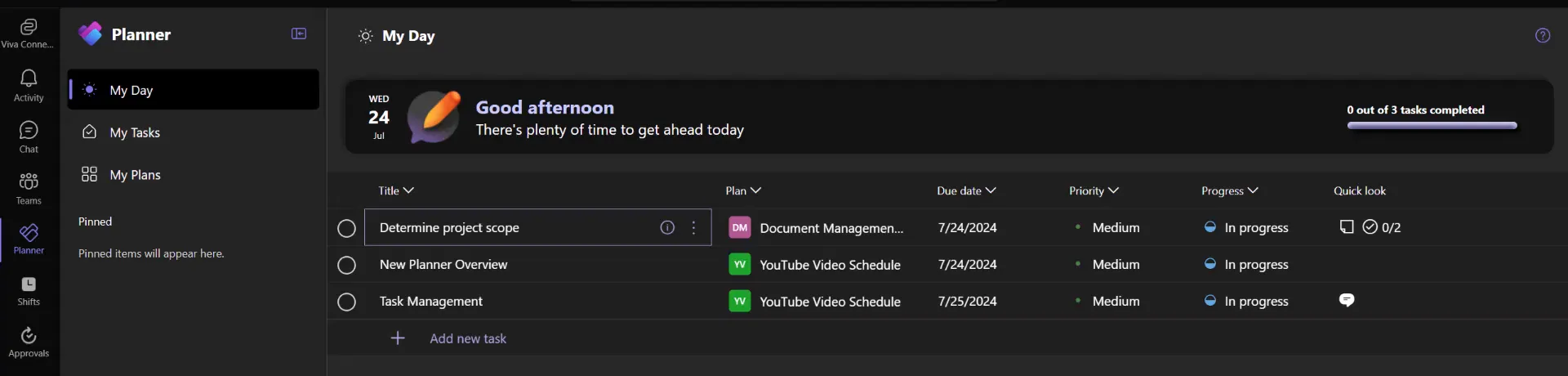
My Day in Planner shows what you’re working on today. Tasks due today appear there automatically. My Day clears itself every night, and unfinished tasks go back to where they came from.
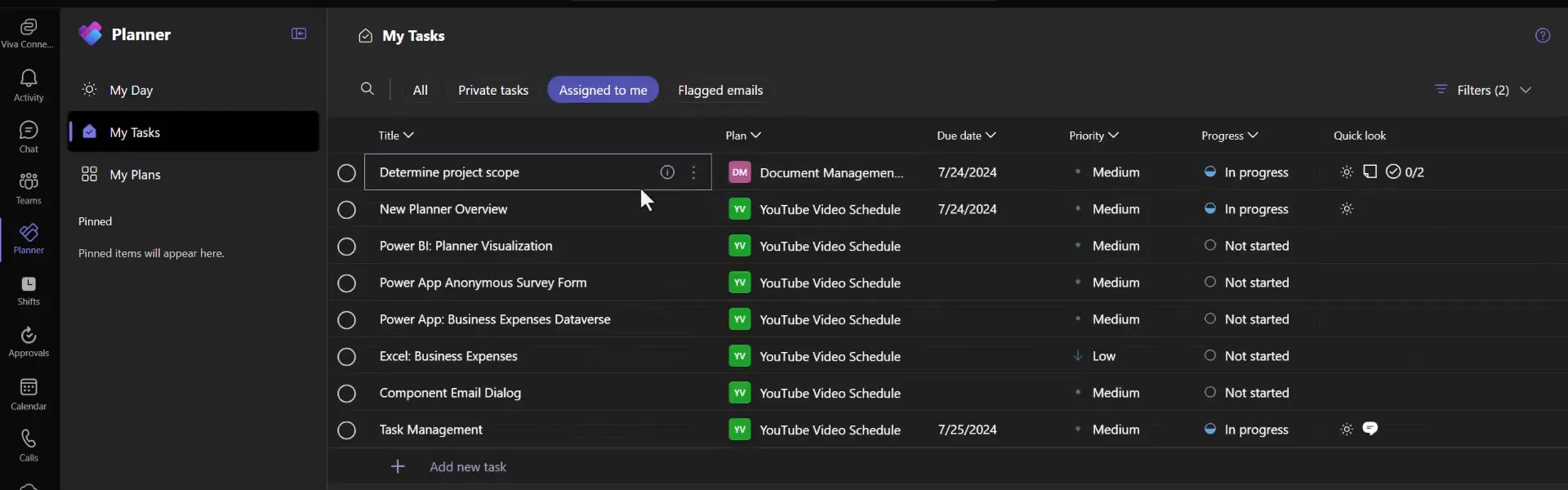
My Tasks gathers everything that’s yours across plans. Buttons across the top, such as All, filter the list. Microsoft’s My Tasks guide describes these:
- Private tasks: tasks that aren’t in a plan yet.
- Assigned to me: tasks assigned to you in basic and premium plans, Loop task lists, Teams meeting notes and shared To Do lists. A premium plan’s tasks appear only if you’re a member of the plan’s group, and you edit most of their fields in the plan itself.
- Flagged emails: emails you’ve flagged in Outlook.
Sort by due date to work through tasks in order, without opening each plan.
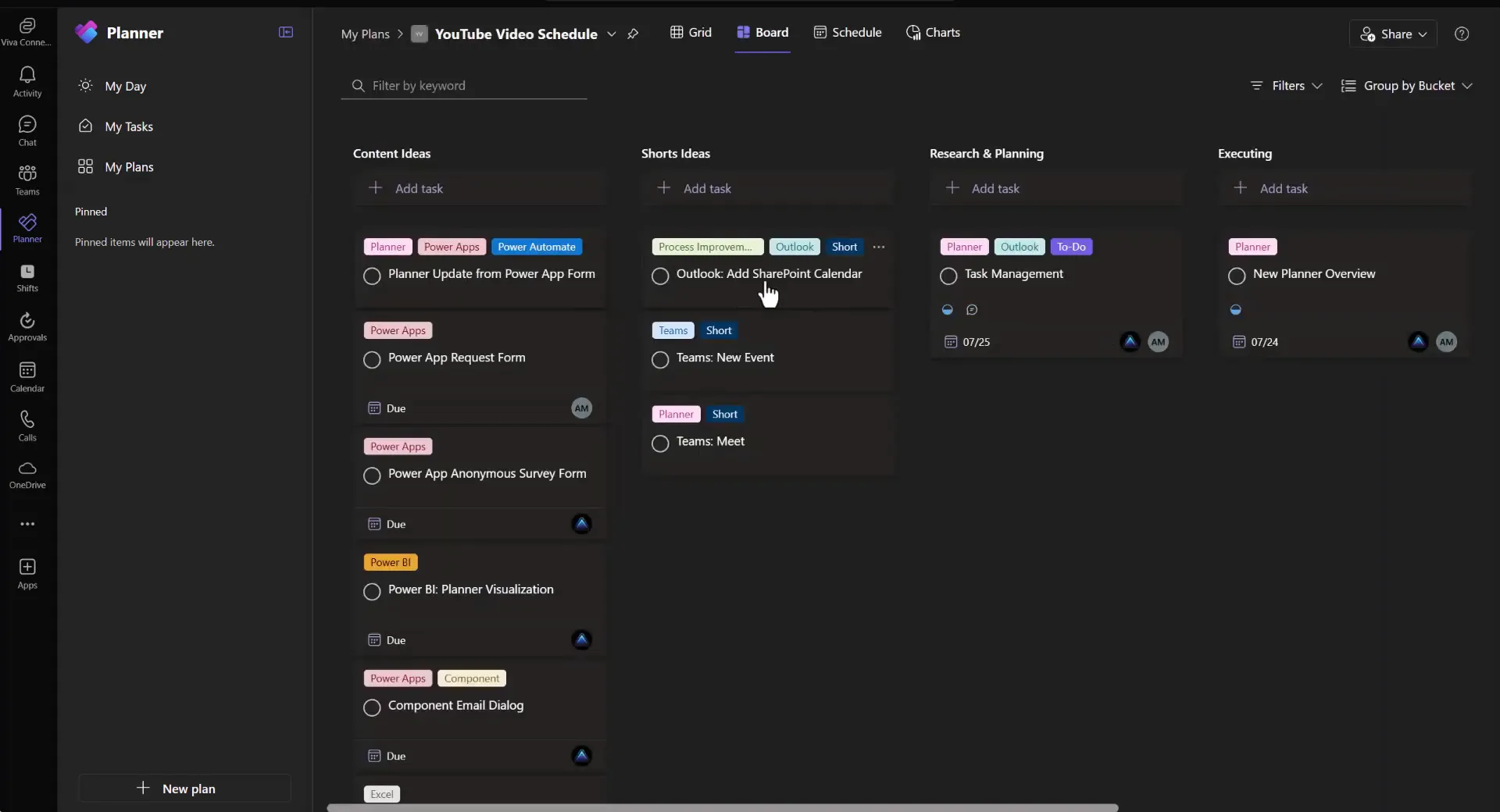
My Plans lists the plans you belong to. A plan’s Board view groups tasks into buckets, such as stages of work. Drag a card to another bucket as work moves along. Moving a card between buckets organizes the board, but it doesn’t mark the task complete or change its progress.
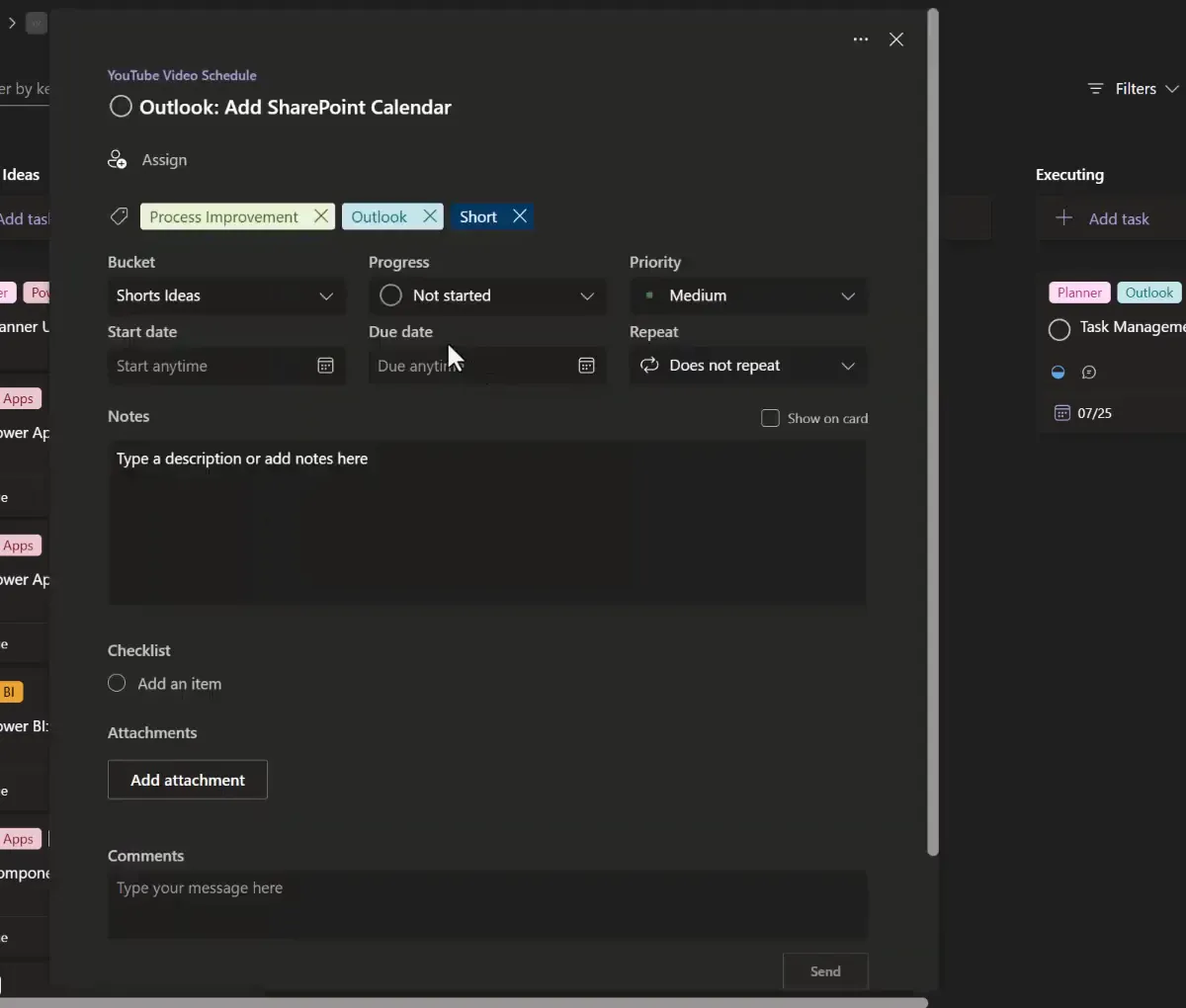
Select a task to set its bucket, progress, priority, dates, repeat, notes, checklist, attachments and comments, and to assign it. The example is a basic plan. Microsoft lists recurring tasks as a basic-plan feature, so a premium plan’s tasks don’t have Repeat.
Which app should you live in?
- If you mostly complete tasks other people assign, use To Do. It shows your Planner assignments, flagged emails, your own tasks and My Day in one place.
- If you assign and track work for a team, use Planner for the plans, and To Do or Planner’s My Tasks for your own list.
Troubleshooting
| Symptom | Likely cause | What to do |
|---|---|---|
| No My Day pane or To Do icon in Outlook | Classic Outlook | Use new Outlook or Outlook on the web |
| Flagged emails don’t appear in To Do | Flagged email is turned off, the account isn’t hosted by Microsoft, or the email was flagged in a shared mailbox or shared folder | Turn it on in To Do settings. Flag it in your primary mailbox. Microsoft supports flagged email from the primary mailbox only |
| A dragged email isn’t in Flagged email | Dragging creates an ordinary task | Look in Tasks, or flag the email instead |
| Planner tasks aren’t in To Do | The Planner connection is off, or the task is in a premium plan whose group you aren’t in | Turn on Planner in To Do settings, or ask to be added to the plan’s group |
| A Planner task has no Repeat option | It’s in a premium plan | Recurring tasks are available in basic plans only |
| A task is in two places | It was both flagged and added as a task | Keep one copy |
| My Day in Planner is empty in the morning | My Day clears every night | Add today’s tasks again; tasks due today appear automatically |
| Moving a card didn’t complete the task | Buckets don’t change progress | Set Progress or mark the task complete |
Companion video
Video: Mastering Task Management with Microsoft Outlook, To Do, and Planner
If the player is blocked on your network, open the video on YouTube.
Need help applying this to your own setup? Read about consulting.