 Office Solutions Pro
Choosing a shared calendar for your team in Outlook
Compare the ways to give a group of people one calendar they can all use from Outlook: a Microsoft 365 group calendar, a shared mailbox calendar, a SharePoint calendar, or a calendar you create yourself. See which ones keep their history when people leave, and which one suits most teams.
A common request: leaders want one calendar for leave, deadlines and who’s covering what. They want it in Outlook, where they already work, and only the leadership team should see it. Microsoft 365 has several ways to do this.
| Option | Lives in | Survives when people leave | Works in new Outlook |
|---|---|---|---|
| Microsoft 365 group calendar | The group’s mailbox | Yes | Yes |
| Shared mailbox calendar | A shared mailbox | Yes | Yes |
| SharePoint calendar (classic) | A SharePoint list | Yes | No, classic Outlook only |
| Calendar you create in Outlook | Your own mailbox | No | Yes |
For most teams, a Microsoft 365 group calendar is the best fit. It belongs to the organization, works in new Outlook, and comes with the group’s shared files. Choose a shared mailbox calendar when you want only a calendar, and a SharePoint calendar only if everyone uses classic Outlook. Avoid keeping team information in a calendar in your own mailbox.
What you need: a Microsoft 365 work or school account. Some steps need an admin: creating a shared mailbox, and showing a team’s group in Outlook. Each is noted where it applies.
Option 1: Use a Microsoft 365 group calendar
Every Microsoft 365 group comes with a shared mailbox, calendar, SharePoint site and more. Every team in Microsoft Teams has a group behind it. If your leaders already have a team, they already have a group calendar.
How it relates to a channel calendar. In Teams, you can add a Channel calendar tab to a channel. It isn’t a separate calendar: Microsoft describes it as a filtered view of the Microsoft 365 group calendar that shows only that channel’s events.
- The channel calendar tab exists only in Teams. You schedule channel events, and see the channel’s filtered view, only in the Teams app. Outlook doesn’t show the channel calendar itself.
- Outlook shows the whole group calendar. Because channel events are saved in the group calendar, people who open it in Outlook see them mixed with the group’s other events, not filtered by channel. The group must be visible in Outlook, as described below.
- Being in the channel isn’t the same as being invited. Everyone in the team can see a channel meeting as a post in the channel and join from there. But channel members might not receive a direct invitation unless you add their names. Add the people who must attend under Add required attendees.
- Following the group in Outlook affects the group’s invitations. For members you haven’t added by name, Microsoft says they must follow the team’s group in Outlook to receive the invitation in their personal calendar. Following a group sends its email and meeting invitations to your inbox, and each person chooses this in Outlook. They can only choose it when the group shows in Outlook, as described below.
- Anyone can add an event to their own calendar. In Teams, open the event and select Add to calendar.
- Channel calendars have Teams limits. Channel calendars aren’t currently available in private channels, and guests from outside the channel can’t view the calendar, so invite them directly.
Make it private if only members should see it. In a public group, anyone in your organization can view its content and become a member. In a private group, only members can view the group’s content. A leadership calendar belongs in a private group.
Make sure the group shows in Outlook
How the group was created matters:
- A group created in Outlook, SharePoint or the Teams admin center is visible in Outlook.
- A team created in the Teams app still gets a group, but its mailbox is hidden from Outlook by default. An admin can show it with the
Set-UnifiedGroupcmdlet and itsHiddenFromExchangeClientsEnabledparameter.
If you’re starting fresh, create the group from Outlook or ask your admin to create it.
Open the group calendar
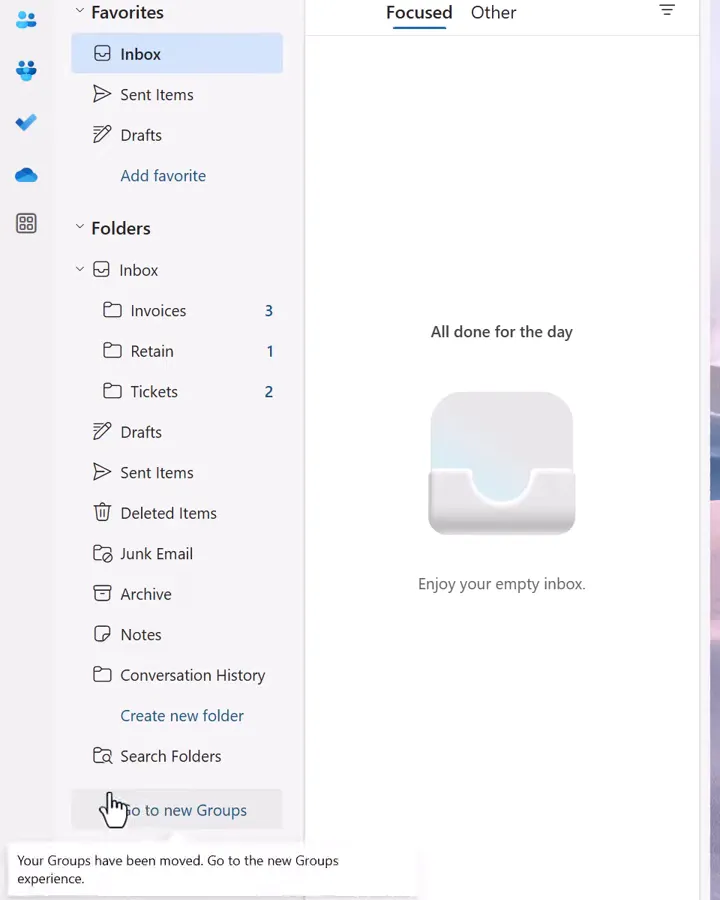
- In new Outlook, select Groups in the left bar. Earlier versions also had a Go to new Groups link at the bottom of the folder pane, shown below. The group’s page has Email, Files, Events and Members.
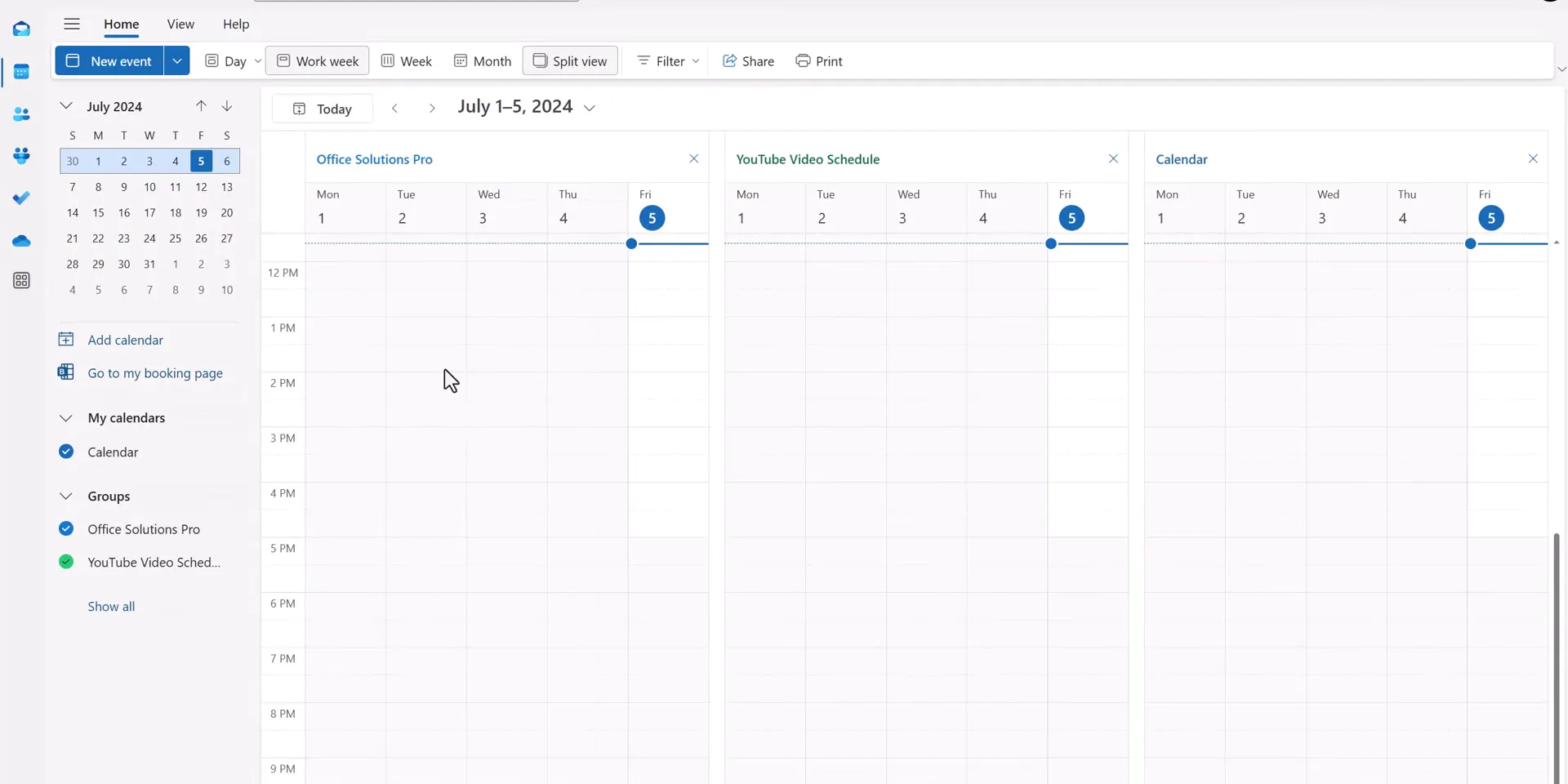
- To see it alongside your own calendar, go to Calendar. Your groups are listed under Groups. Check the ones you want to show.
Split view shows each calendar in its own column, in the day, week and work week views.
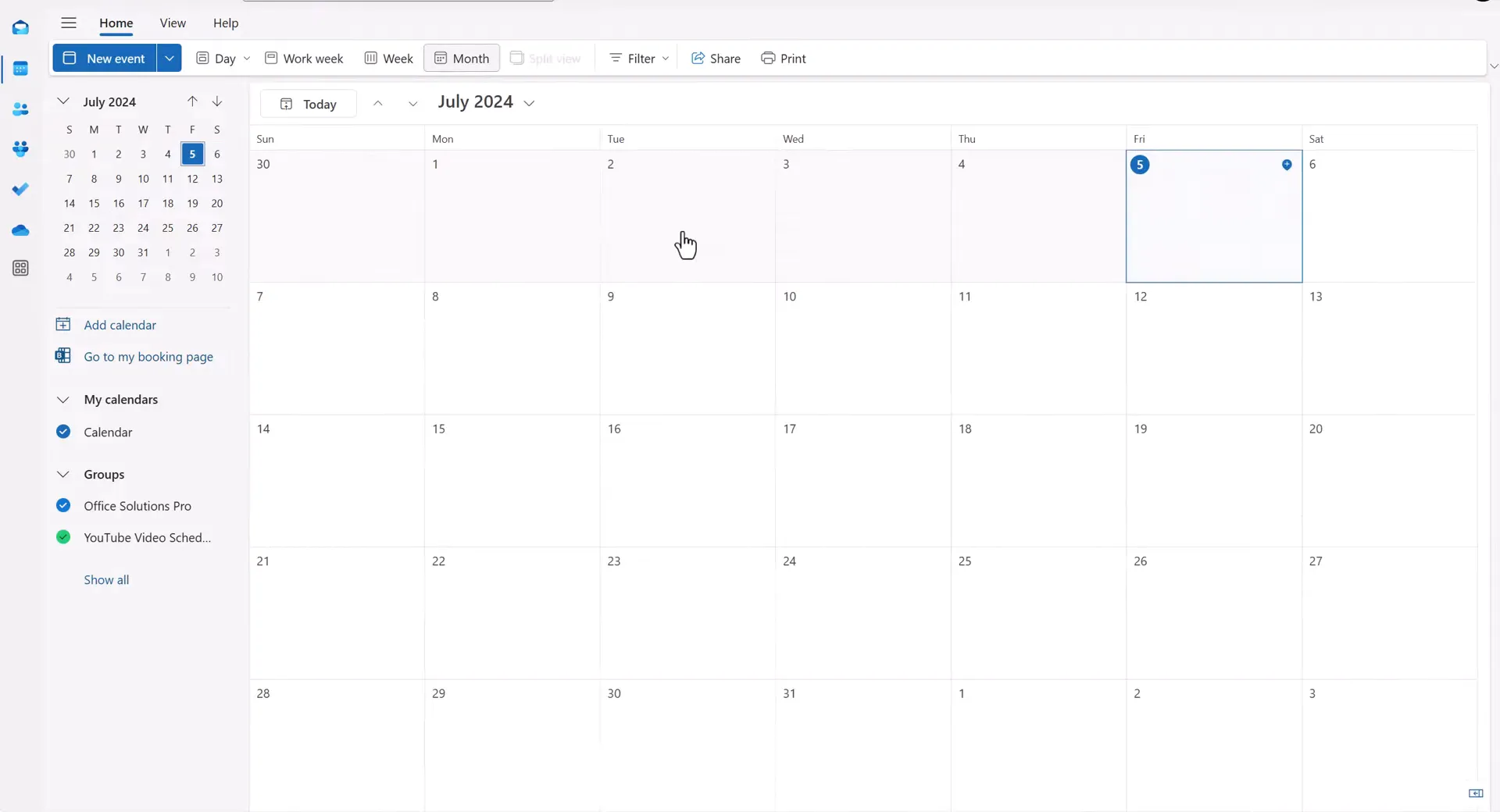
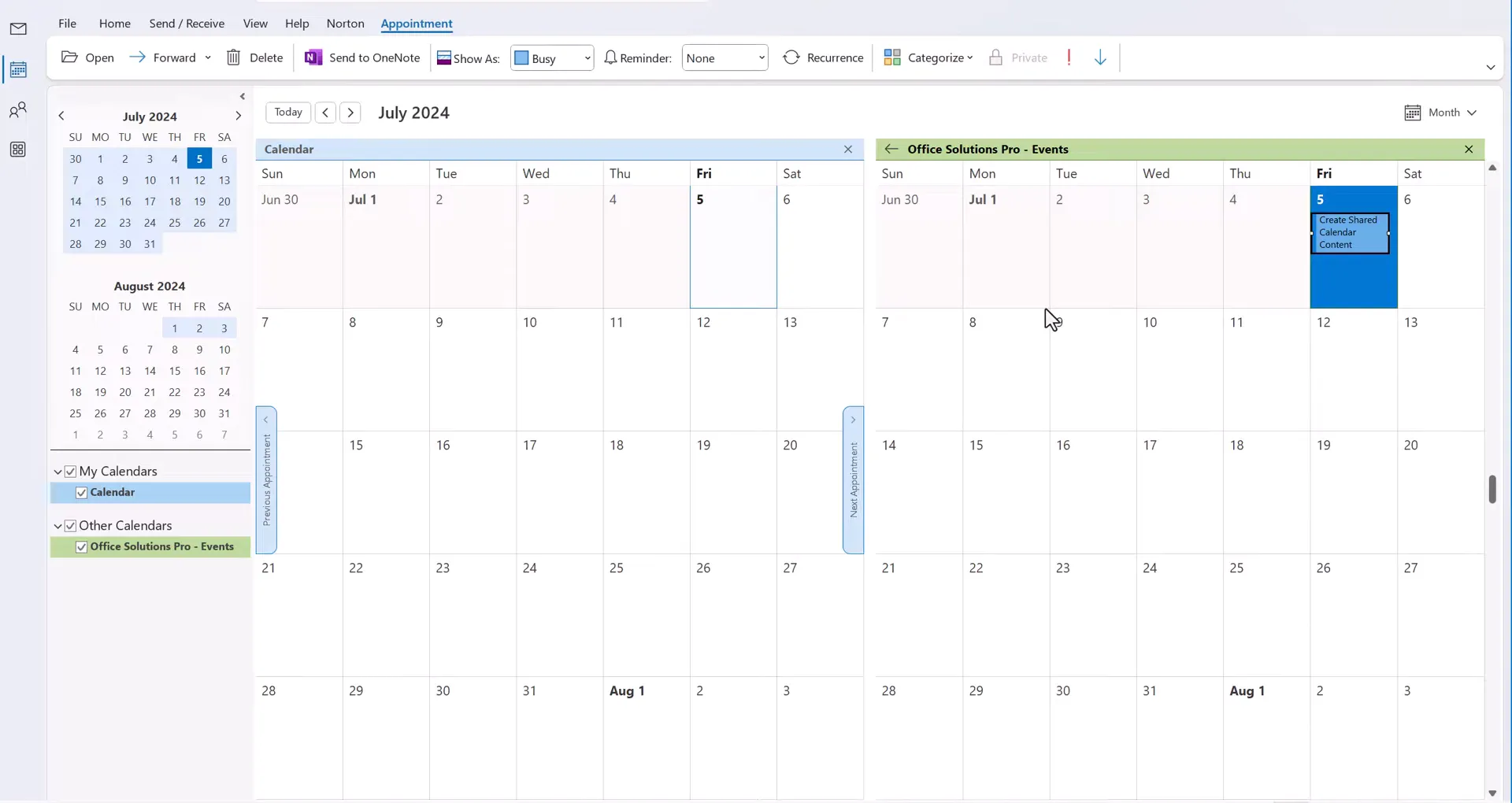
In July 2024, new Outlook’s Month view showed the calendars stacked together rather than side by side.
Add events and color code them
Select a time on the group calendar to add an event. You have the same options as on your own calendar. Outlook notes that an invitation isn’t sent to group members unless you invite them.
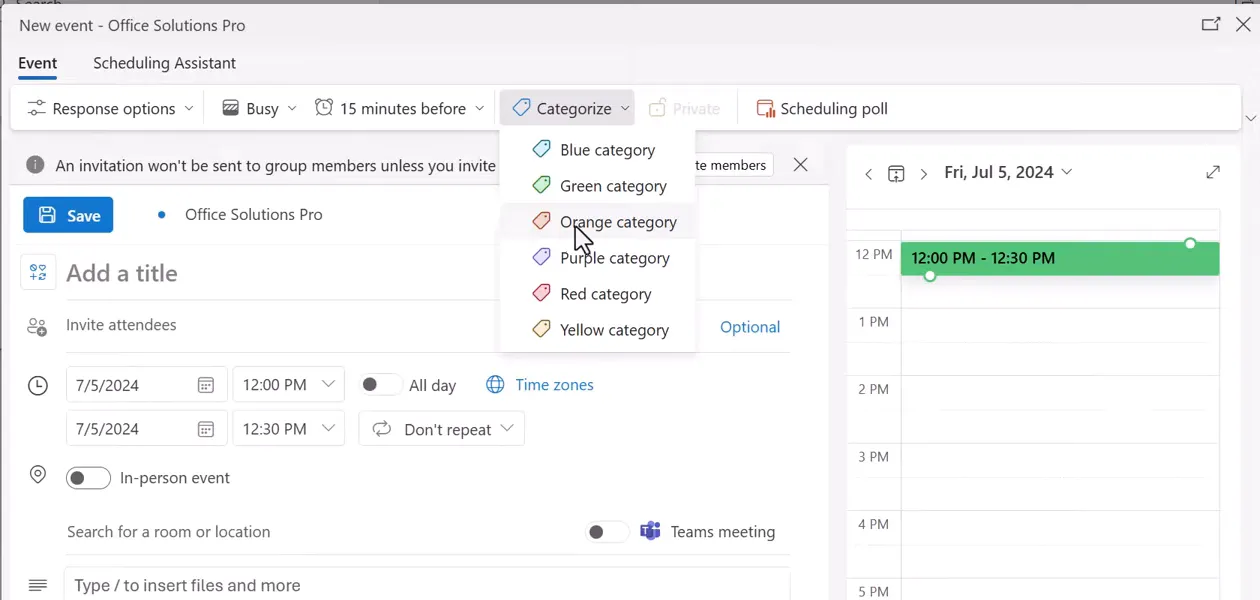
Categories are personal. Each person has their own category list, so a category’s name and color come from the viewer’s Outlook, not the event’s creator. For consistent color coding:
- Agree on the categories and colors, for example Leave, Budget and Contracts.
- Send the list to everyone who uses the calendar.
- Each person creates the same categories in their own Outlook.
Use the group’s files from Outlook
The group’s page in Outlook also shows its Files, the same documents as in the team’s SharePoint site. Leaders can get to shared documents without opening Teams.

Option 2: Use a shared mailbox calendar
An Exchange admin can create a shared mailbox, and every shared mailbox includes a shared calendar. Members can create, view and manage appointments in it. Shared mailboxes usually don’t need a license.
This is a good choice when you want only a calendar, without the team, site and other resources a group brings. Some organizations, including many government (GCC) tenants, restrict shared mailboxes, so check your organization’s policy.
Why not just create a calendar in Outlook?
Add calendar > Create blank calendar makes a new calendar that you can share. Outlook notes that it won’t be visible to others until you share it.
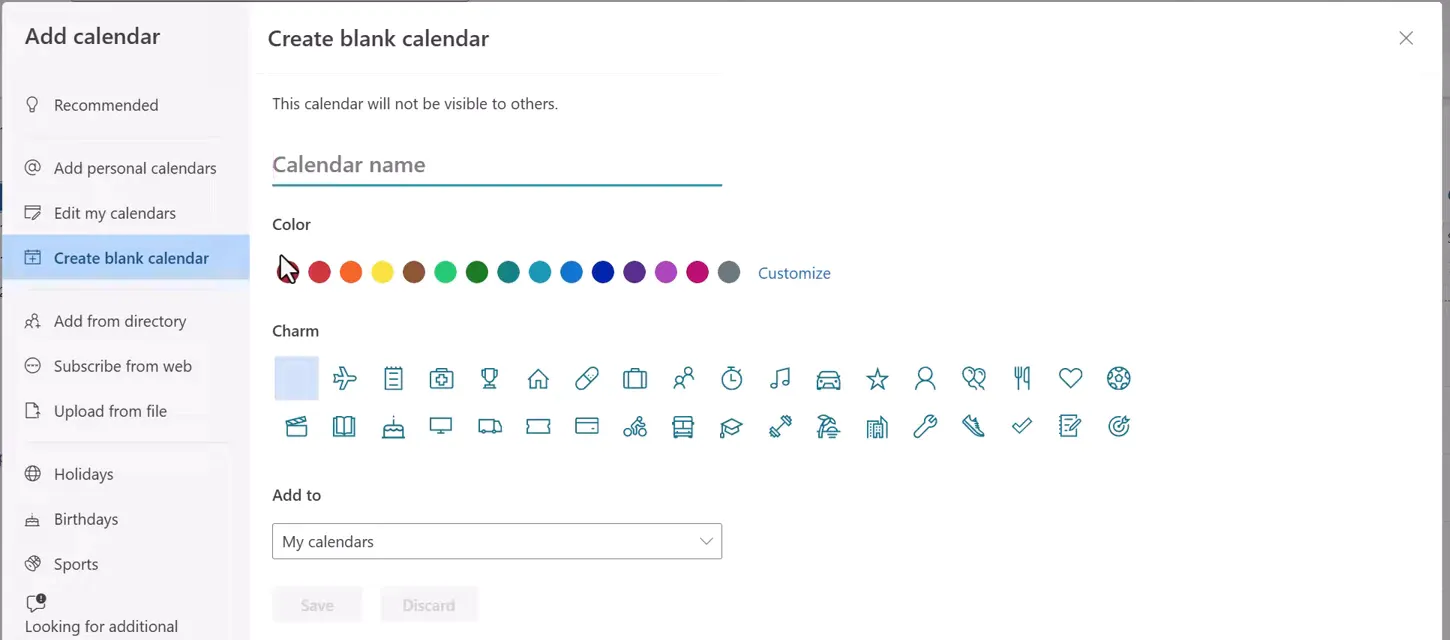
The catch: that calendar lives in your mailbox. If you leave the organization and your account is deleted, the calendar and its history go with it. A leadership calendar’s history is useful for planning, such as when training, budget or contract work usually comes up. Use a group or shared mailbox, which belong to the organization rather than to one person.
Option 3: Connect a SharePoint calendar (classic Outlook only)
A SharePoint site’s Events list is a classic calendar that can be connected to Outlook. Microsoft lists SharePoint calendar sync and Connect to Outlook as available in classic Outlook but not supported in new Outlook. Use this option only if everyone who needs the calendar uses classic Outlook. The same comparison points to group calendars instead.
To connect it:
- In your SharePoint site, go to Site contents and open Events.
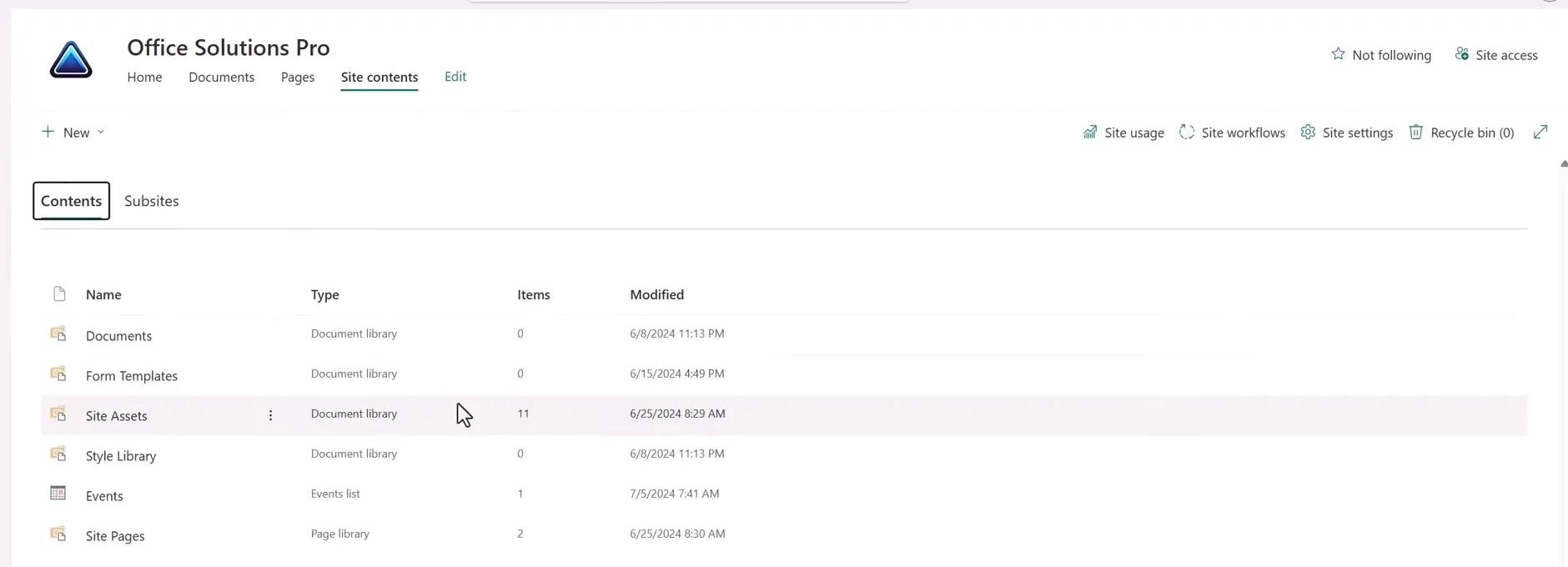
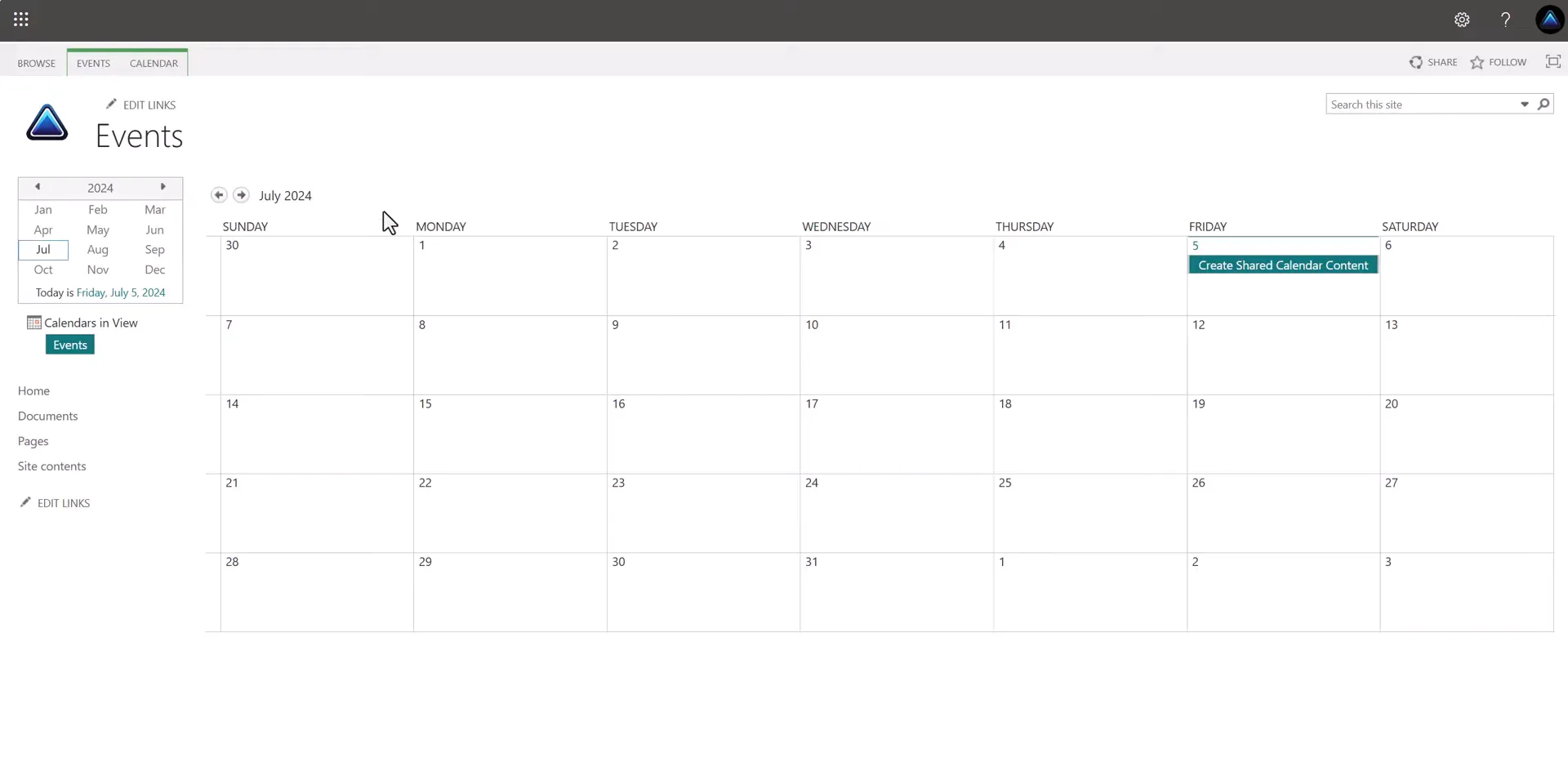
- The list opens as a classic calendar.
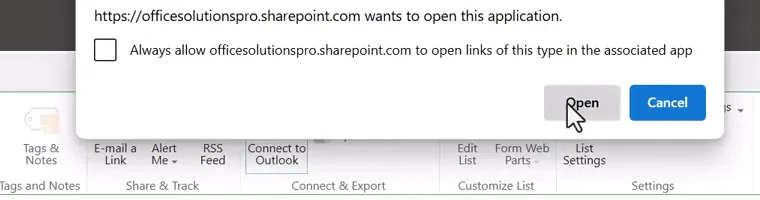
- On the Calendar tab of the ribbon, select Connect to Outlook. Allow the browser to open Outlook, then confirm the prompt in Outlook.
- The calendar appears under Other Calendars in classic Outlook.
If the connection stops working, remove the calendar from Outlook and connect it again.
The same category caution applies. A SharePoint event marked Blue category shows as blue only for people whose Outlook still has that category. Share your category list as described above.
Troubleshooting
| Symptom | Likely cause | What to do |
|---|---|---|
| A team’s calendar isn’t in Outlook | The team was created in the Teams app, so its group is hidden | Ask an admin to unhide it with Set-UnifiedGroup |
| The Teams channel calendar isn’t in Outlook | The channel calendar is a Teams-only, filtered view of the group calendar | Open the group calendar in Outlook, where channel events appear with the group’s other events |
| Colors look different for each person | Categories are stored per person | Share the category list so everyone creates the same ones |
| The SharePoint calendar won’t connect | New Outlook doesn’t support SharePoint calendar sync | Use classic Outlook, or move to a group calendar |
| A shared calendar disappeared | It belonged to someone who left | Use a group or shared mailbox calendar |
| Group members didn’t get an invitation | Group calendar events don’t invite members automatically | Invite them, or tell them to check the calendar |
| A channel member didn’t get an invitation to a channel event | Channel events don’t always send every member a direct invitation | Add them by name under Add required attendees, or ask them to open the event in Teams and select Add to calendar |
Companion video
Video: Creating a Shared Calendar in Outlook Using Microsoft Groups, Teams, and SharePoint Calendars
If the player is blocked on your network, open the video on YouTube.
Need help applying this to your own setup? Read about consulting.